

Browse help topics
Invite your team and manage seats
Invite teammates, choose their role, and keep an eye on seats from the Users page.
Only an Organization Admin can invite people, change roles, or deactivate a teammate. This article walks through the Users page: sending an invite, reading the seat count, and handling the things that can go wrong.
What you'll do
- Invite a teammate and pick their role
- Read the seat usage bar before you invite
- Know what to do when an invite is blocked
Open the Users page
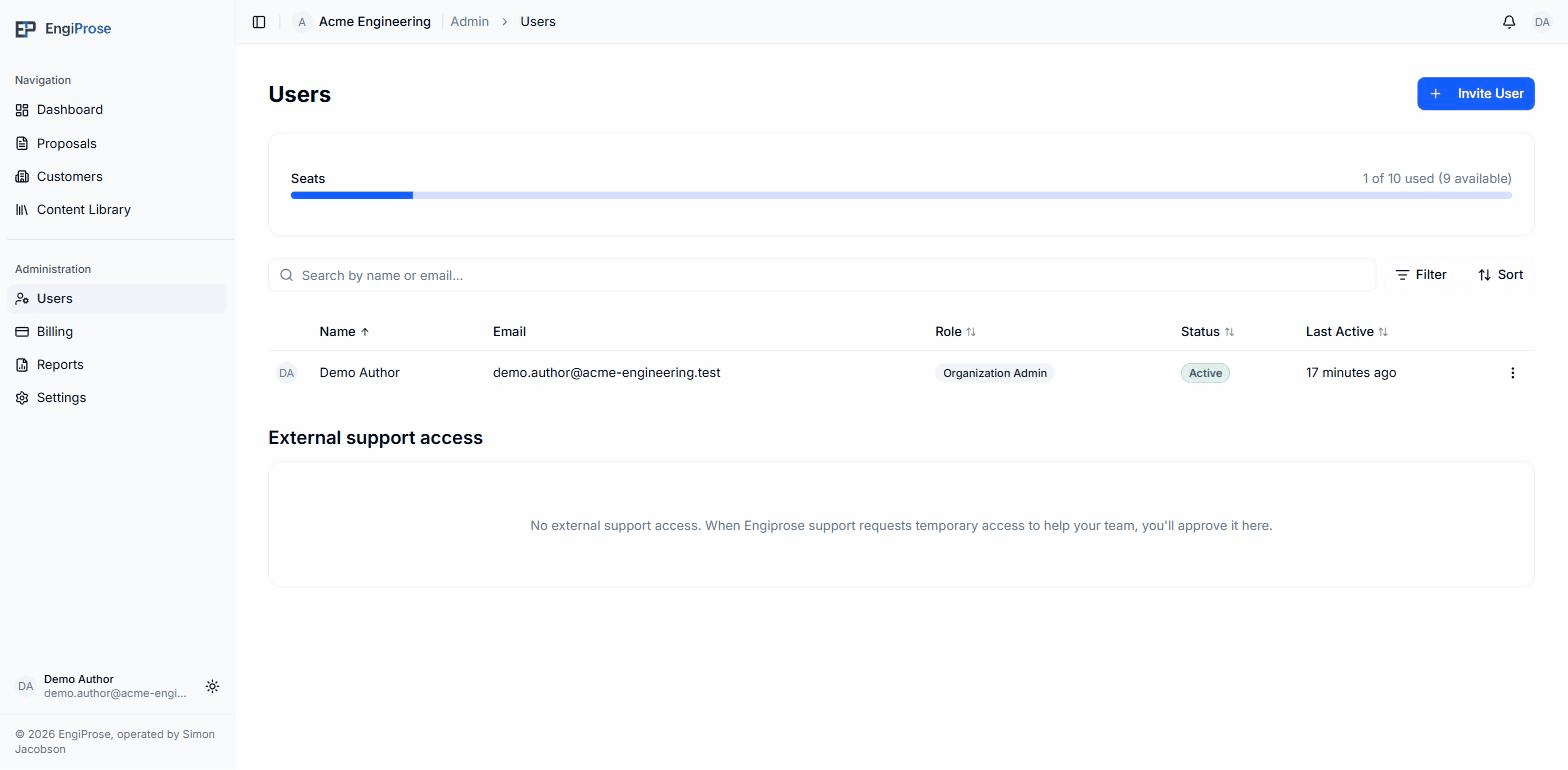
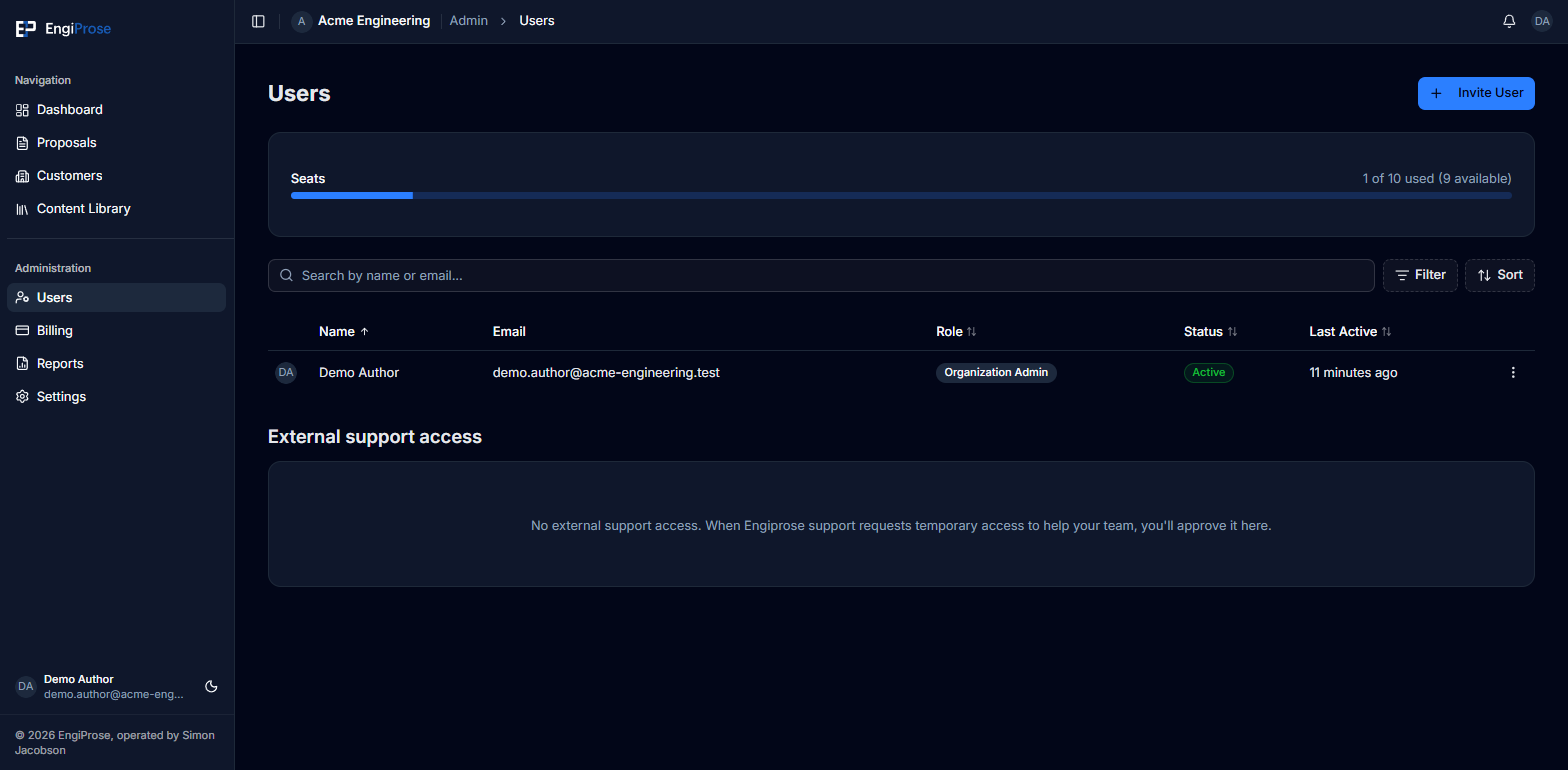
Users, under Administration in the sidebar, lists everyone in your organization: their role, status, and when they were last active. The seat usage bar sits above the list, and an External support access section sits below it, for approving temporary EngiProse support access.
Invite a teammate
Click Invite User in the top right of the Users page.
Enter the person's Email (required) and, optionally, their Full Name. Then choose a Role: Organization Admin, Admin, Organization Member, or Viewer. The picker defaults to Organization Member.
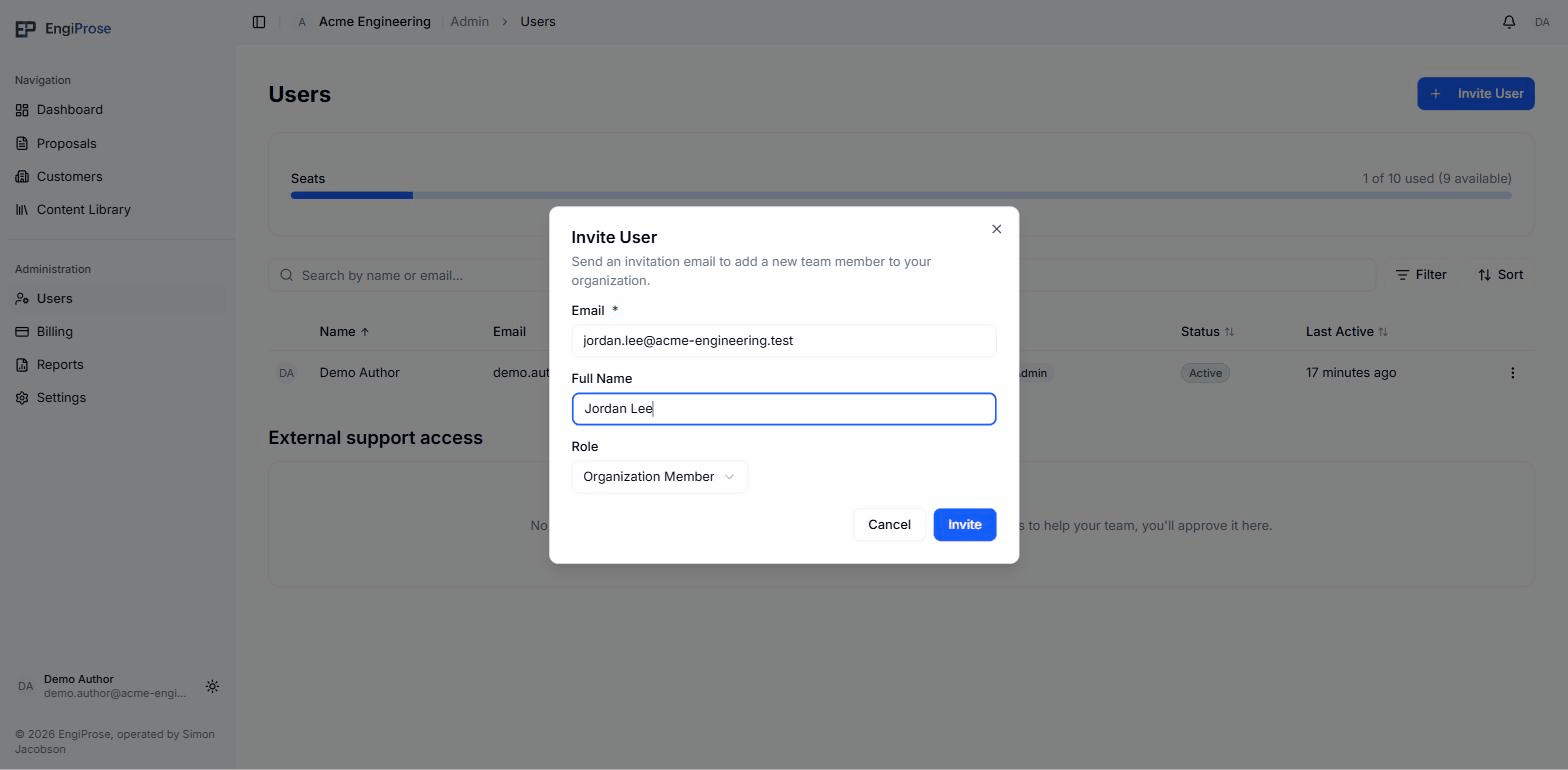
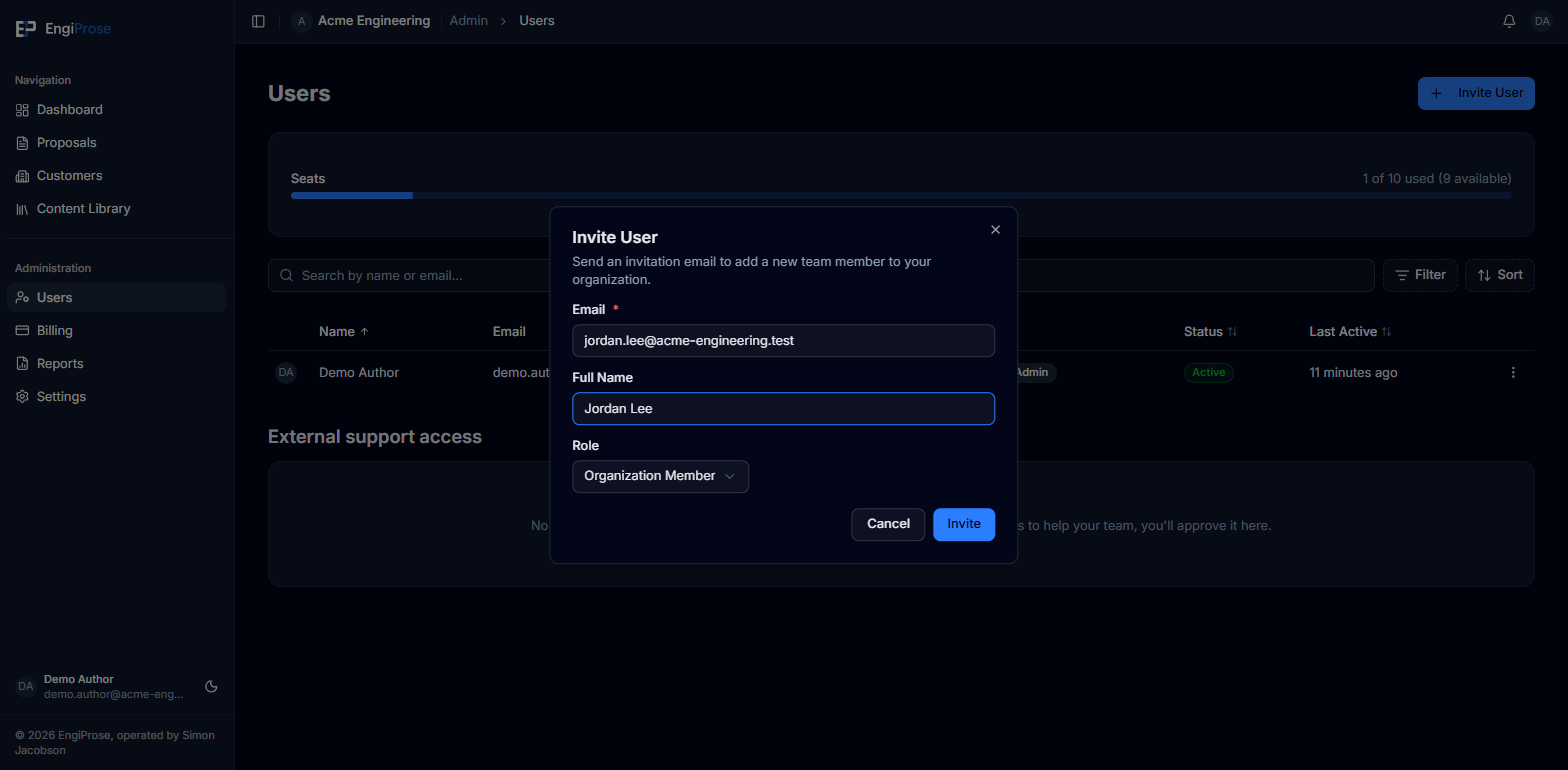
Email, full name, and role Click Invite. An invitation email goes out, and the person appears on the Users list straight away with the status Invited. It changes to Active the first time they sign in.
The role picker calls the everyday editing role "Organization Member". Once someone accepts, the Users list shows the same role as "Member". They're the same role under two labels. See Roles and seats for what each role can do.
Seats
Organization Admin, Admin, and Organization Member all use one of your firm's paid seats. Viewer is free. If your firm is at its seat limit, inviting another editing role shows:
"No seats available. Deactivate another user or contact your administrator to purchase more seats."
Deactivate an existing user to free their seat, or contact your administrator to add more.
Deactivate or reactivate a user
From the row menu on the Users page, an Organization Admin can deactivate a user. Deactivating removes their access to the organization immediately, but keeps their data and proposals. A deactivated user can be reactivated later, seats permitting.
Email delivery problems
If a recent notification email to a teammate bounced, was blocked, or was marked as spam, the Users page shows an Email delivery problems panel listing the affected addresses. It renders nothing when there are no problems, so the common case is unaffected. If you see someone listed there, check their email address is correct. Invitation emails travel a different route and do not appear in this panel; if an invite never arrives, check the address on their row and re-invite.
If your organization restricts sign-in to specific email domains (in Access Control, under Settings), an invitation to an address outside those domains is blocked. Existing members are never affected by a domain change.
Common questions
Can Admin invite people?
No. Only Organization Admin can invite, change roles, or deactivate users. Admin can manage settings, templates, and content, and create and edit proposals, but not the team.
What happens to a deactivated user's proposals?
They're preserved. Deactivating a user only removes their access; it doesn't delete or reassign their work.