

Browse help topics
Proposal templates and default sections
Build a reusable section structure so every new proposal starts with the right outline.
A proposal template defines the default list of sections a new proposal starts with. Organization Admin or Admin manages templates from Settings.
What you'll do
- Create a template and add its sections
- Reorder sections and mark one as AI-assisted
- Set a template as the default for new proposals
A fresh organization starts empty
A brand-new organization has no templates. If you open Templates before creating one, you'll see "No templates yet, Create a template to define default section structures." That's expected: templates are yours to build, not preset, so the fix is to create your first one.
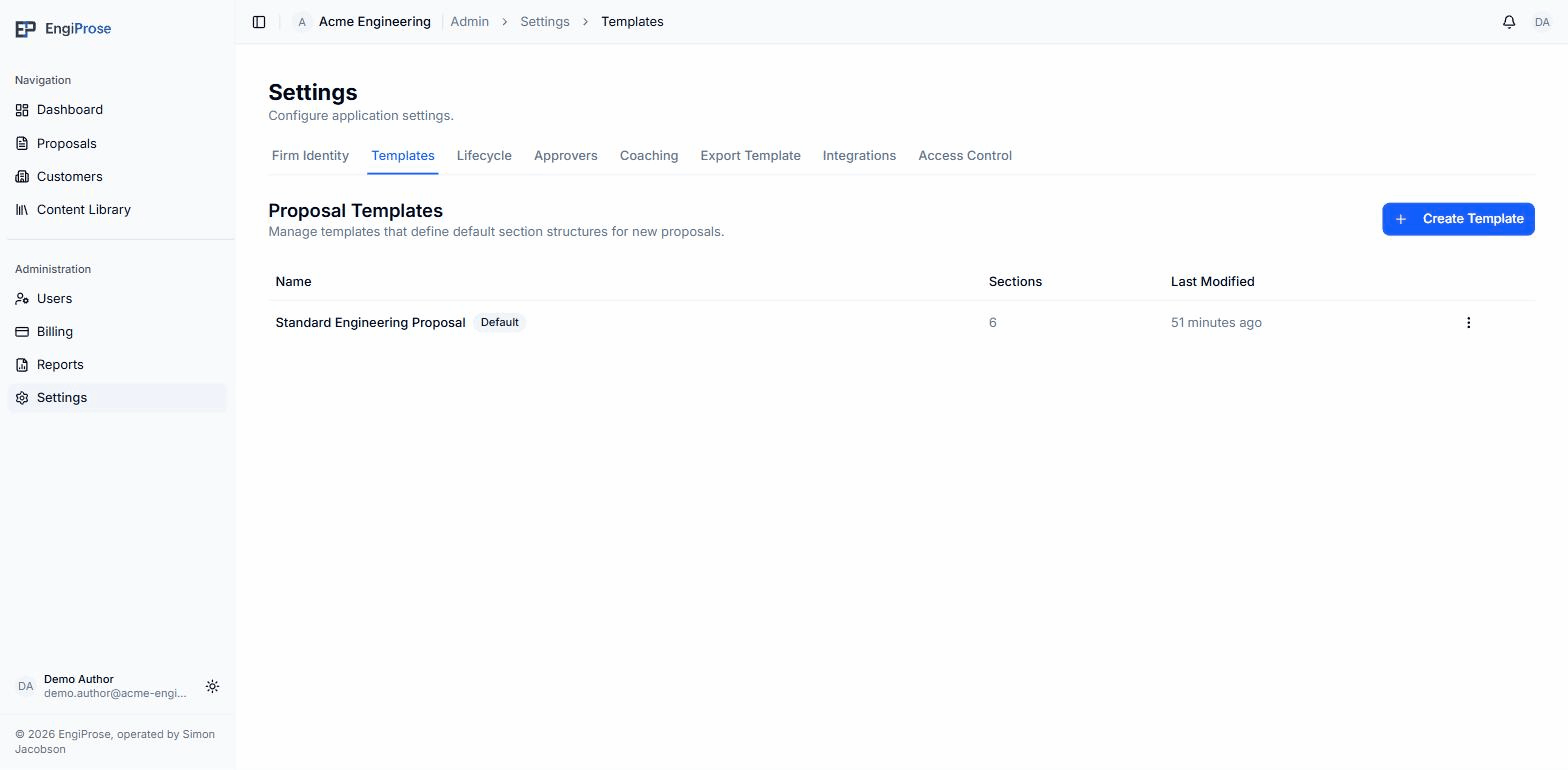
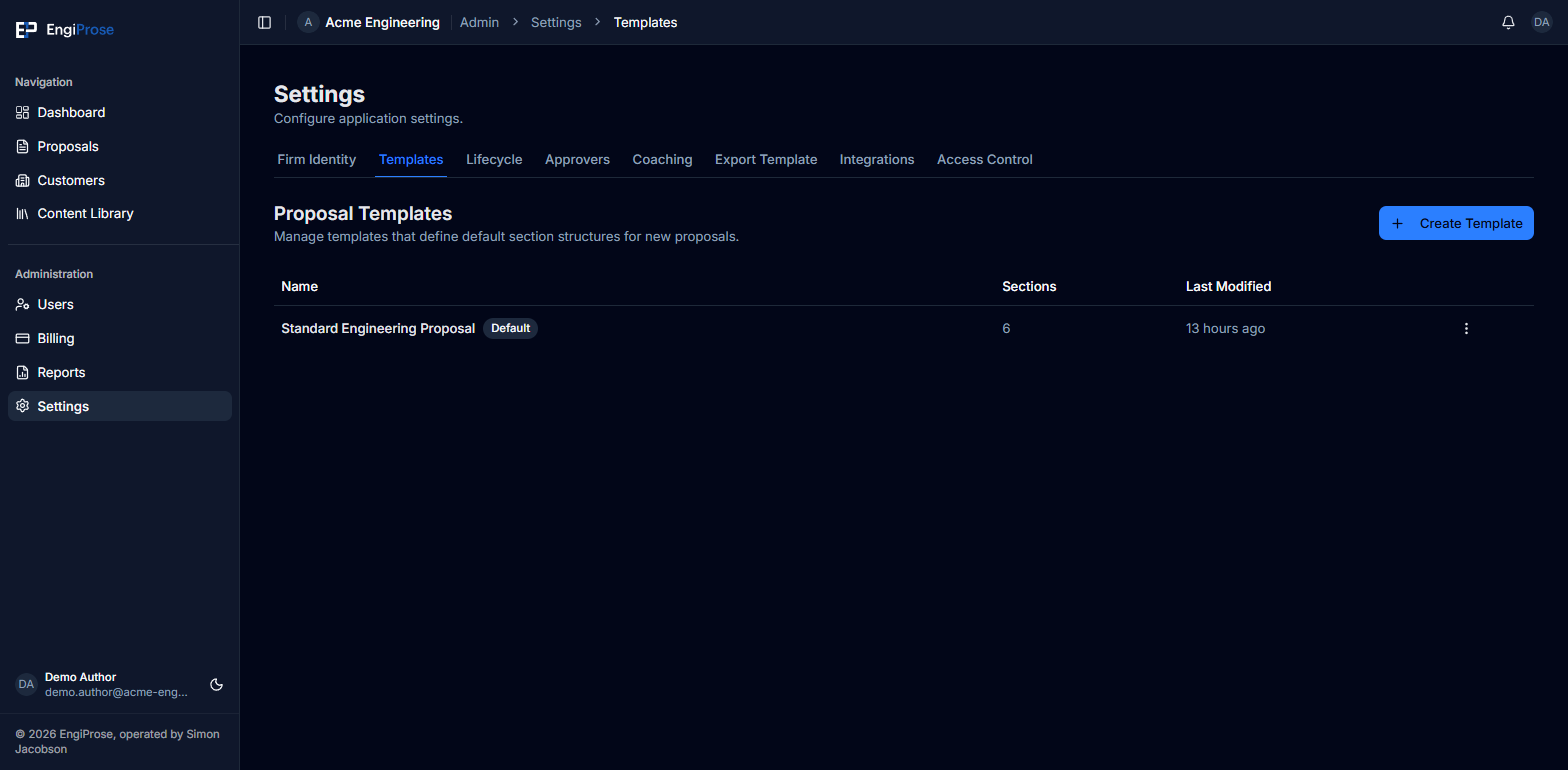
Create a template
Open Templates, under Settings, and click Create Template.
Enter a Template Name (required) and an optional Description.
Click Add Section for each section your proposals usually need. Give each one a name, an optional description, and optional guidance notes. The AI assistance suggested toggle marks a section as one the AI should offer to help draft.
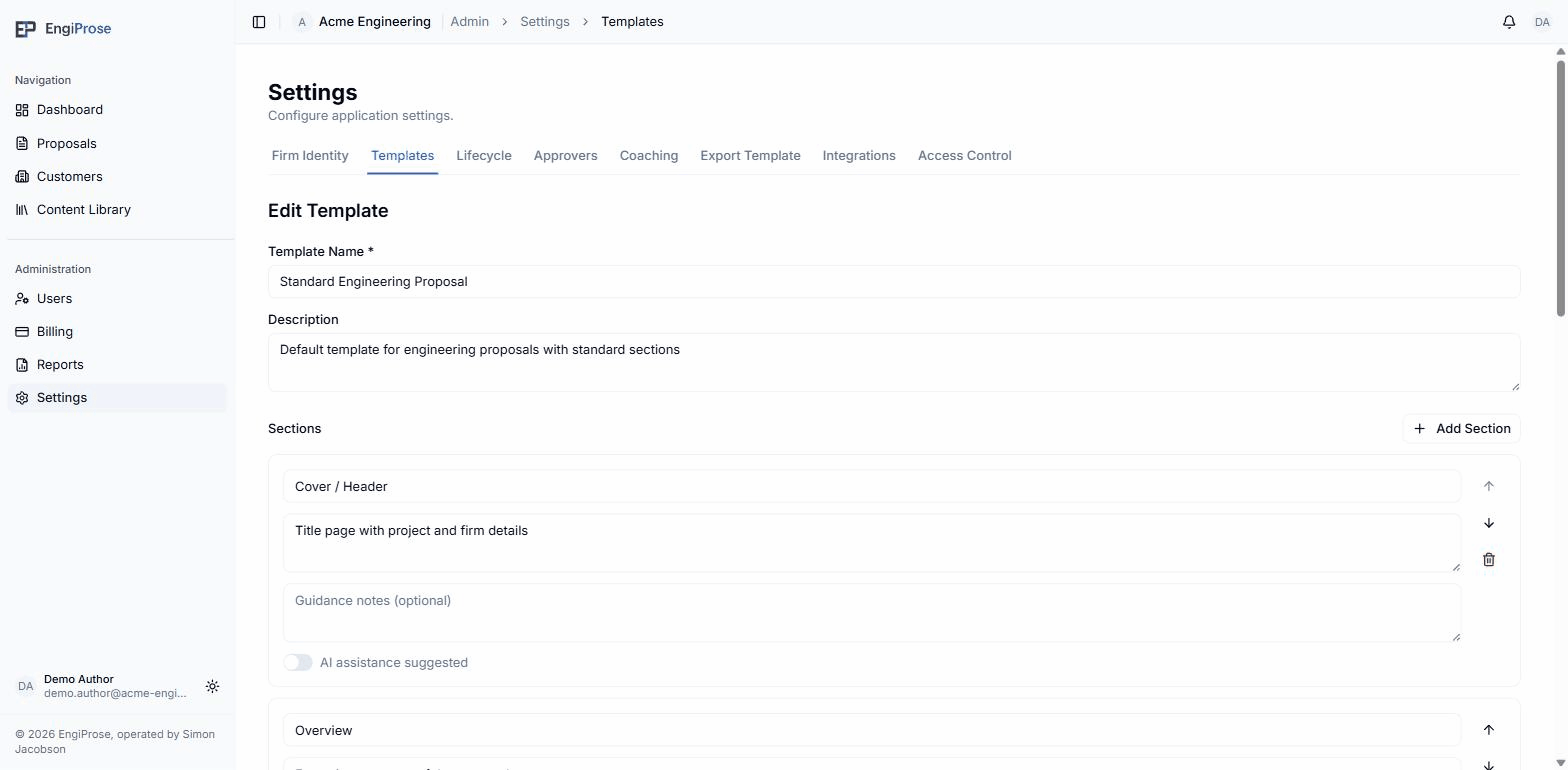
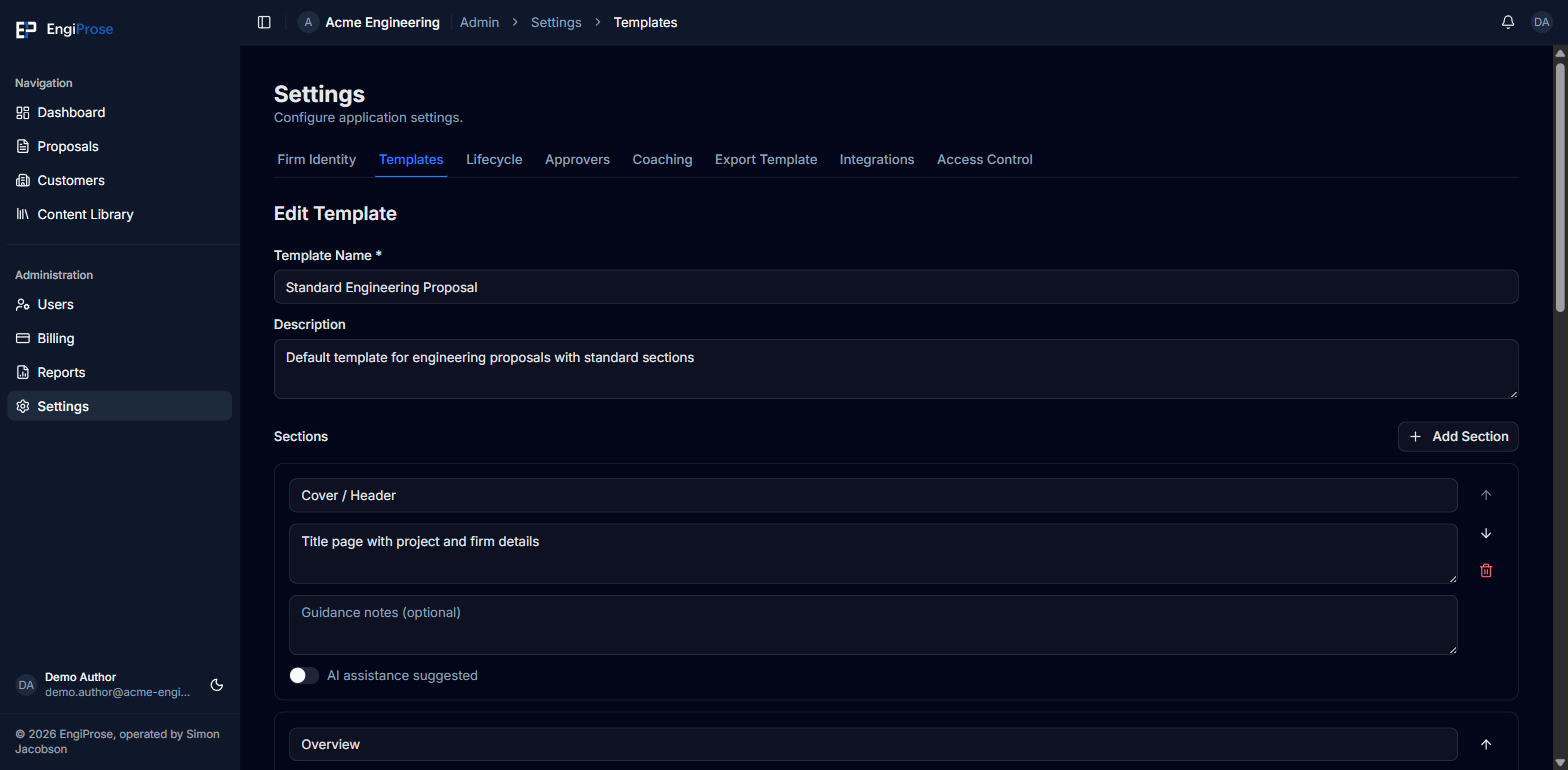
Editing a section: name, description, and guidance notes Use the up and down arrows to reorder sections, or the trash icon to remove one. Save when you're done.
Set as default, or delete
A template's row menu offers Edit always, and Set as default or Delete for any template that isn't already the default. The default template can't be deleted directly; set a different template as default first if you need to retire it.
Common questions
What happens to proposals already using a template I edit?
Editing a template changes what new proposals start with. It doesn't rewrite sections already added to an existing proposal.
Do I need more than one template?
No. Many firms run with a single default template. Add a second one if different proposal types genuinely need a different section structure.