

Browse help topics
Upload past winning proposals, and bulk import
Teach the AI your firm's voice by uploading past proposals, one at a time or in bulk.
Organization Admin or Admin can upload past proposals to the Content Library. The AI draws on them when it generates new content, so drafts read more like your firm's own writing. This article covers uploading one document, and uploading many at once with bulk import.
Linking a winning proposal to its customer is especially useful for repeat work. When EngiProse has relevant confirmed examples, it can give matching wins for that customer priority in generation and coaching.
What you'll do
- Upload a past proposal and watch it get indexed
- Read the processing status on each item
- Bulk import several documents in one pass
Upload one proposal
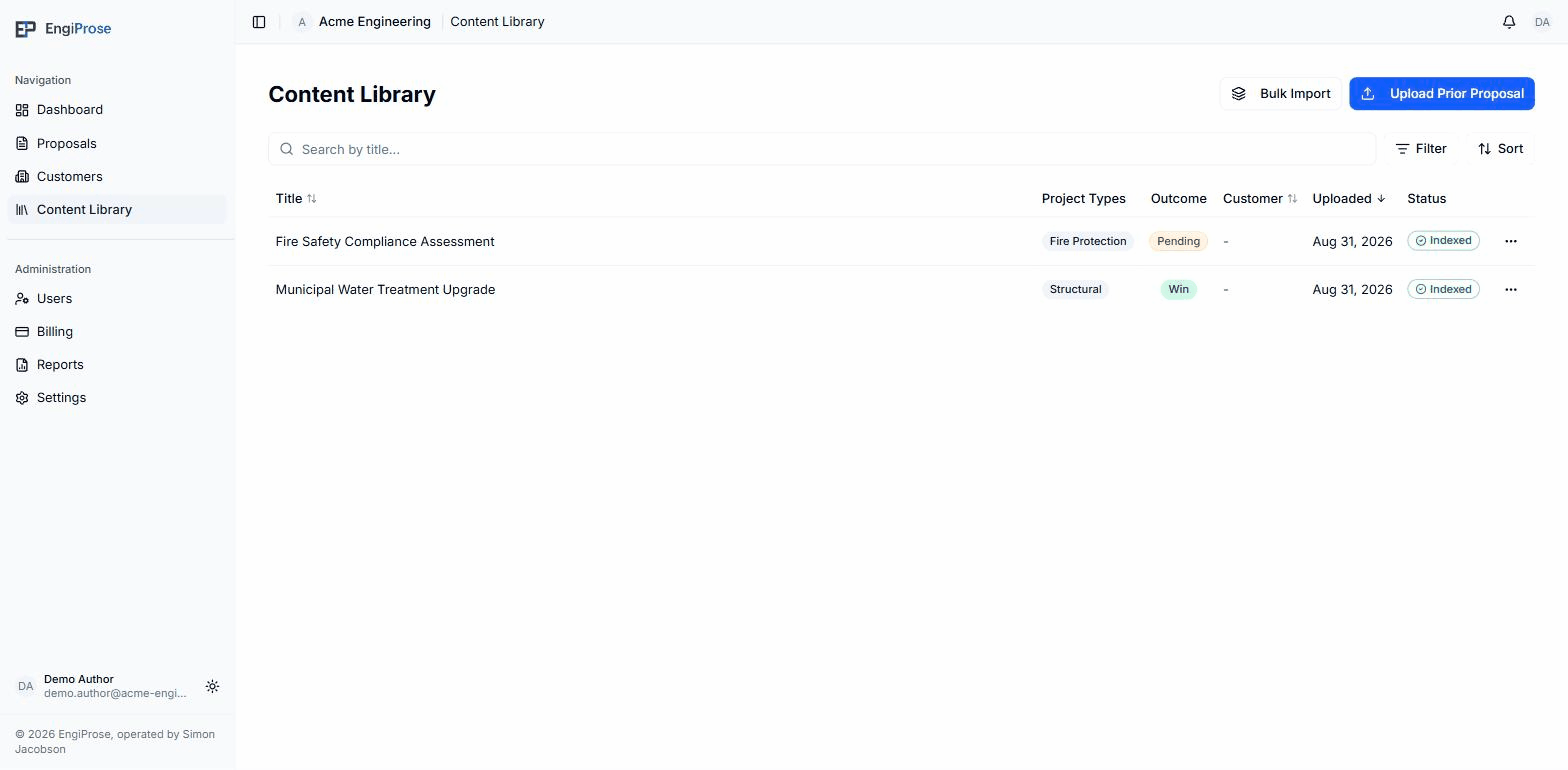
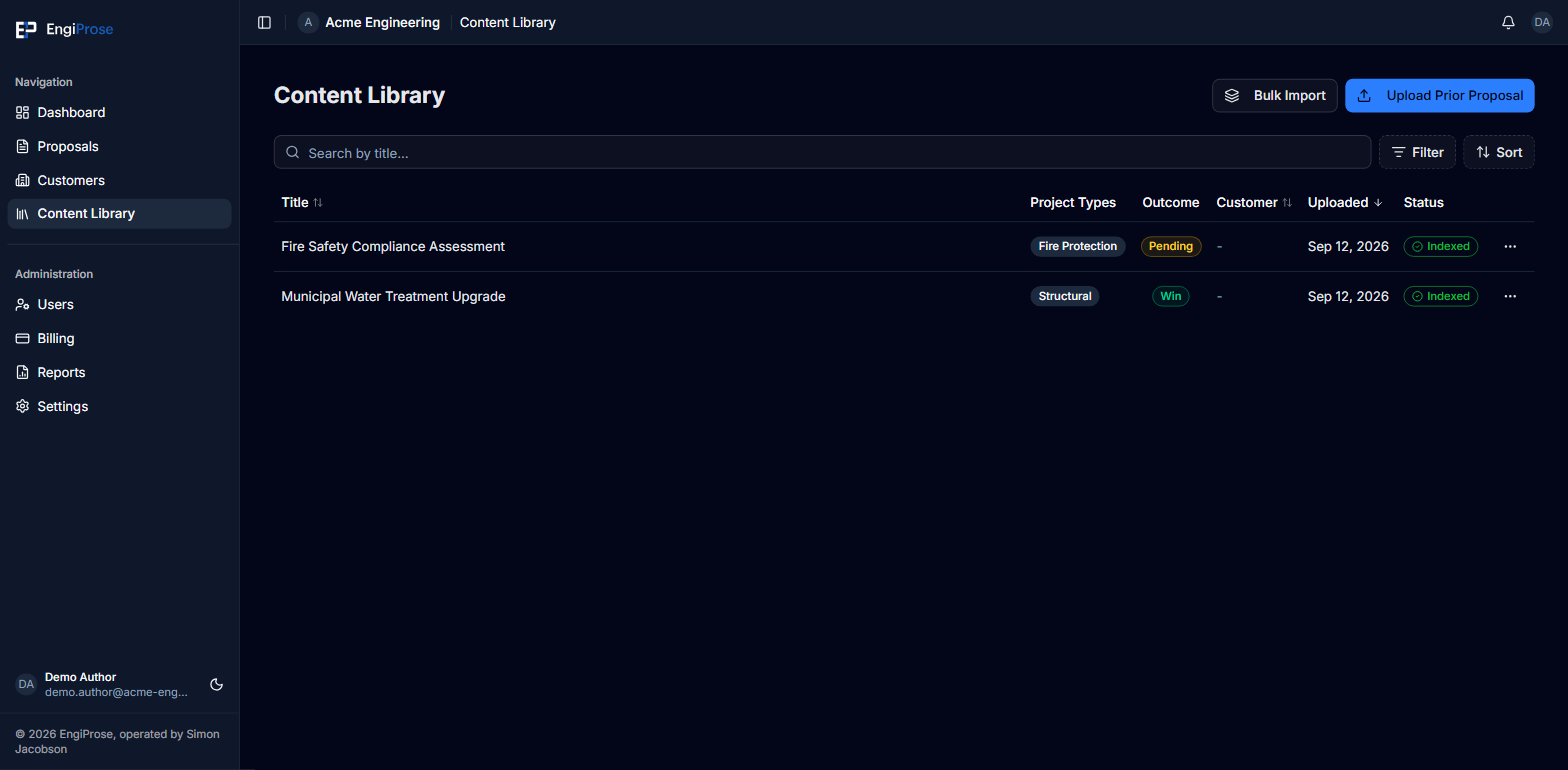
Open Content Library in the sidebar, then click Upload Prior Proposal.
Drag a file onto the drop zone, or browse for it. The library accepts PDF, DOC, or DOCX, up to 50 MB.
Give it a Title, optional Project Types tags, an Outcome (Win, Loss, or Pending), and, if it applies, pick the customer under Link to Existing Customer.
Click Upload. The item appears on the list right away and starts indexing in the background.
Processing states
Each item shows one of four statuses while it's being prepared:
- Queued - waiting to be processed
- Indexing... - text is being extracted and embedded
- Indexed - ready for the AI to draw on
- Failed - text couldn't be extracted; try a different file format
Uploading a single document starts indexing automatically. You can leave the page and return later; wait for Indexed before expecting the AI to use it.
Bulk import
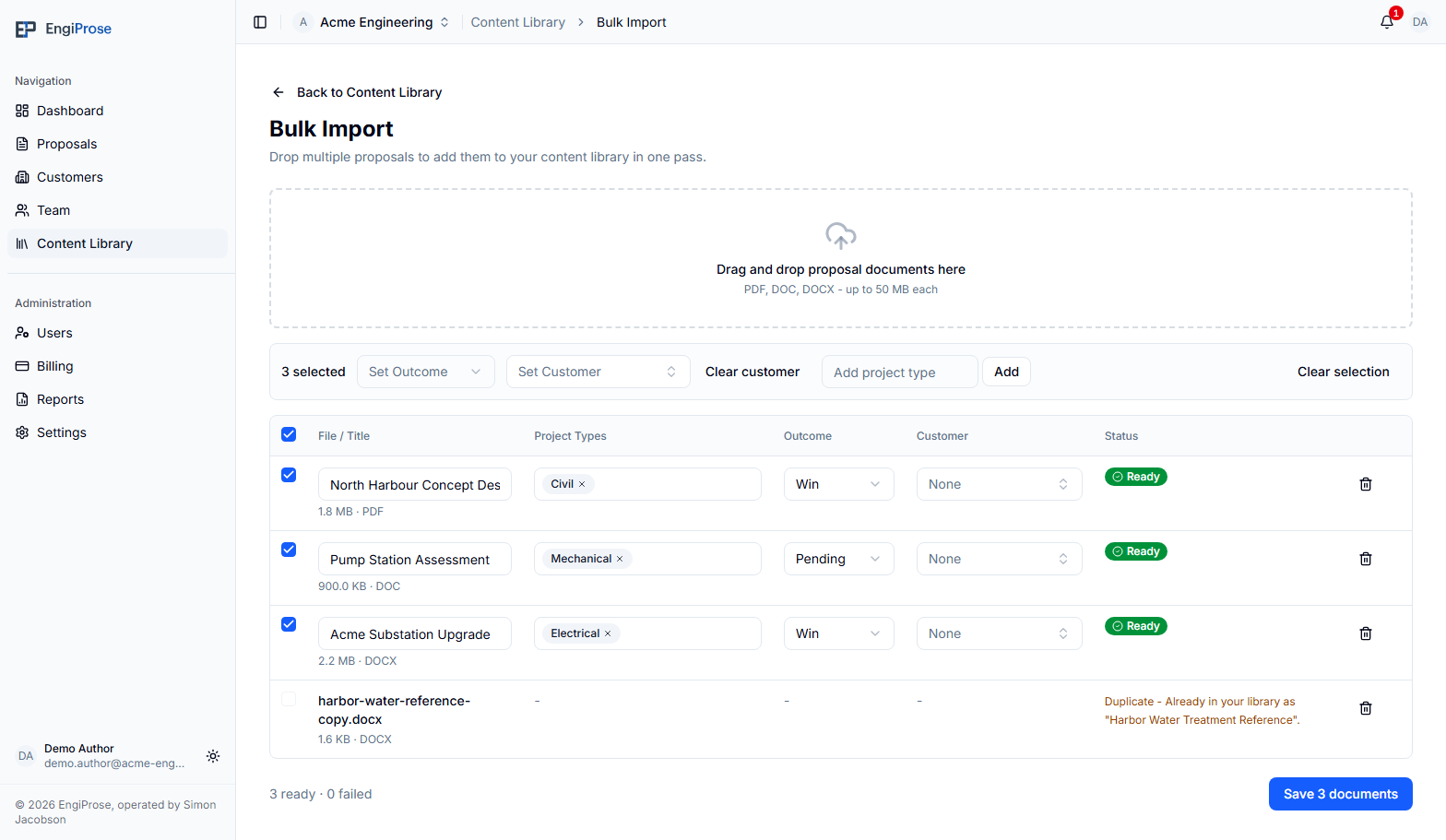
To add several documents at once, click Bulk Import instead. Drag multiple files onto the drop zone, and each one stages as its own row: fill in its title, project types, outcome, and customer, then save them together.
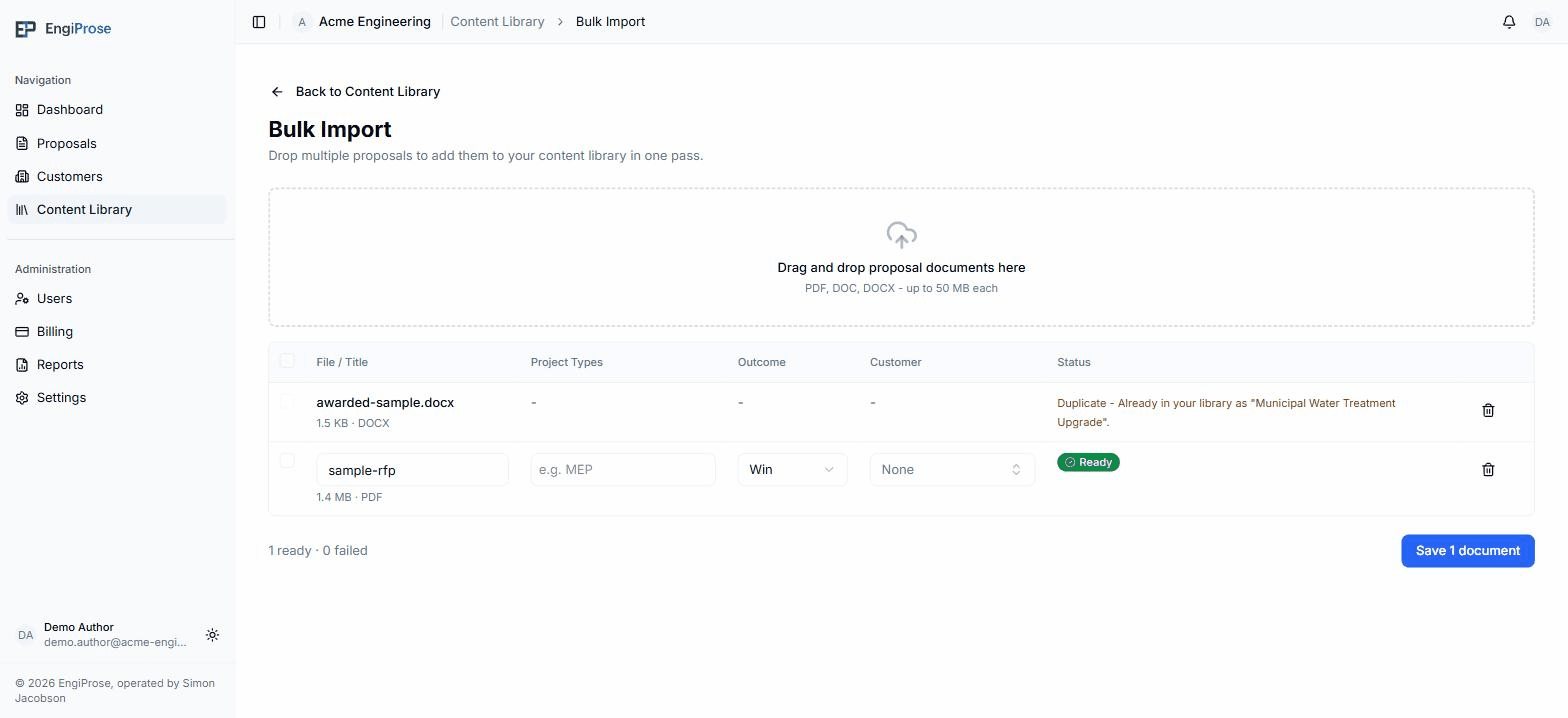
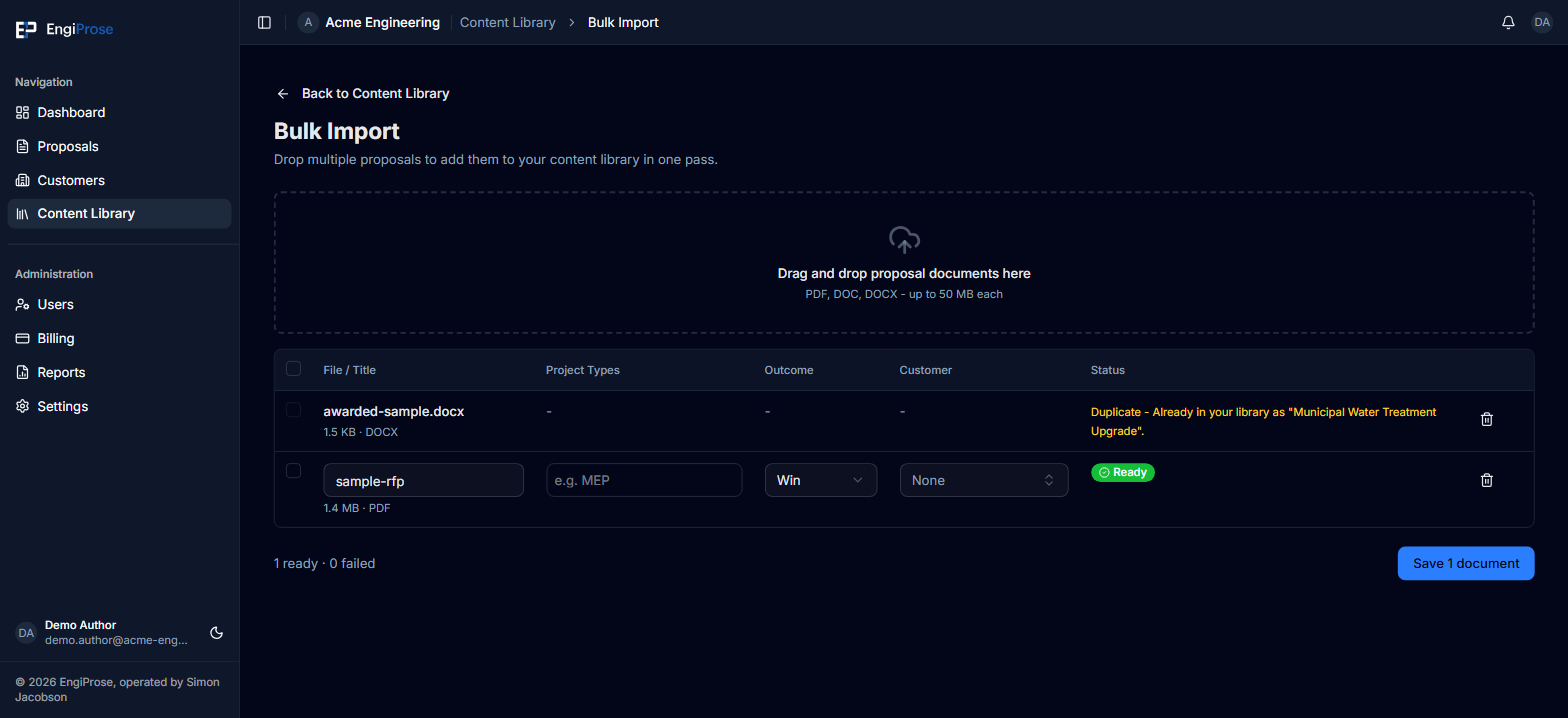
A file whose content already matches something in your library stages as Duplicate, naming the existing item, and isn't saved again. Everything else stages as Ready until you click Save.
Use the checkboxes to choose particular ready rows. The bulk toolbar can set one outcome or customer across the selected rows, or clear their customer. The Save button saves the selection; with nothing selected, it saves every ready row. A row that cannot be saved stays on the page so you can correct it and try again.
Staged rows are saved as you go. If your browser closes before you save, they are there when you come back. Navigating away inside EngiProse asks "Discard staged documents?" first, and choosing to discard removes them.
Common questions
How many past proposals should I upload?
There's no minimum. Even one strong, on-brand proposal gives the AI something to work from. Upload your best, most representative wins as you have time; quality matters more than quantity.
What if I upload the same document twice?
The library detects it by content, not just file name, and tells you which existing item it matches instead of creating a duplicate.
Can a Member upload past proposals?
No. Uploading to the Content Library is an Organization Admin or Admin action.