

Browse help topics
Manage customers
Keep customer details together, find customer records quickly, and see the proposals linked to each one.
Customer records keep client details and proposal history together. Everyone in your organization can browse them. Admins and Organization Admins can also add, edit, and delete records.
What you'll do
- Find a customer
- Add or update customer details
- Review the proposals linked to a customer
- Delete a customer that is no longer needed
Find a customer
Open Customers from the sidebar. The page shows each customer's name, industry, primary contact, email address, and number of linked proposals.
Use Search by name to narrow the list. Open Filters to choose an industry, and use Sort to order customers by name, industry, proposal count, or date added. Active filters appear below the toolbar, where you can remove one filter or clear them all.
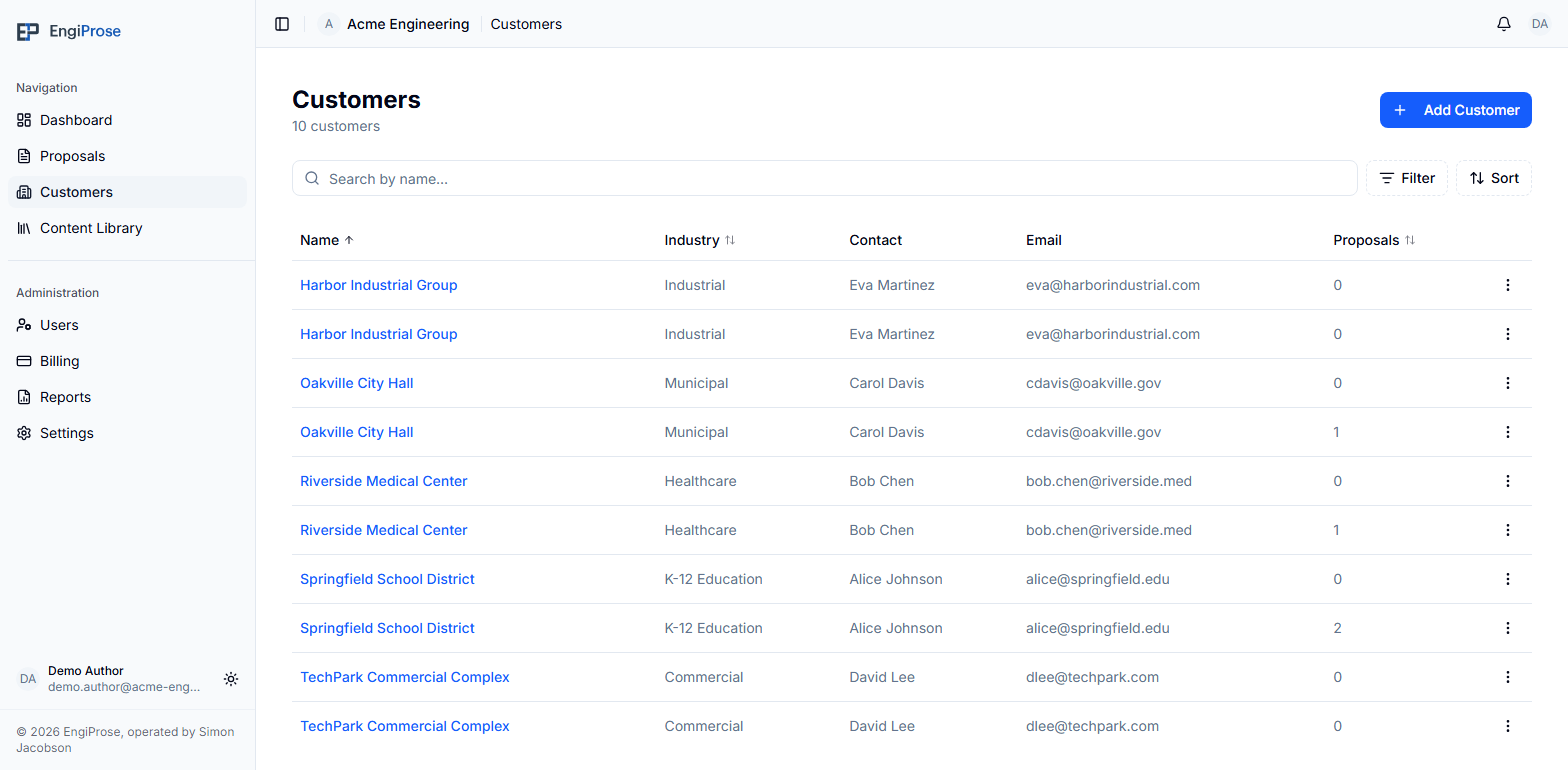
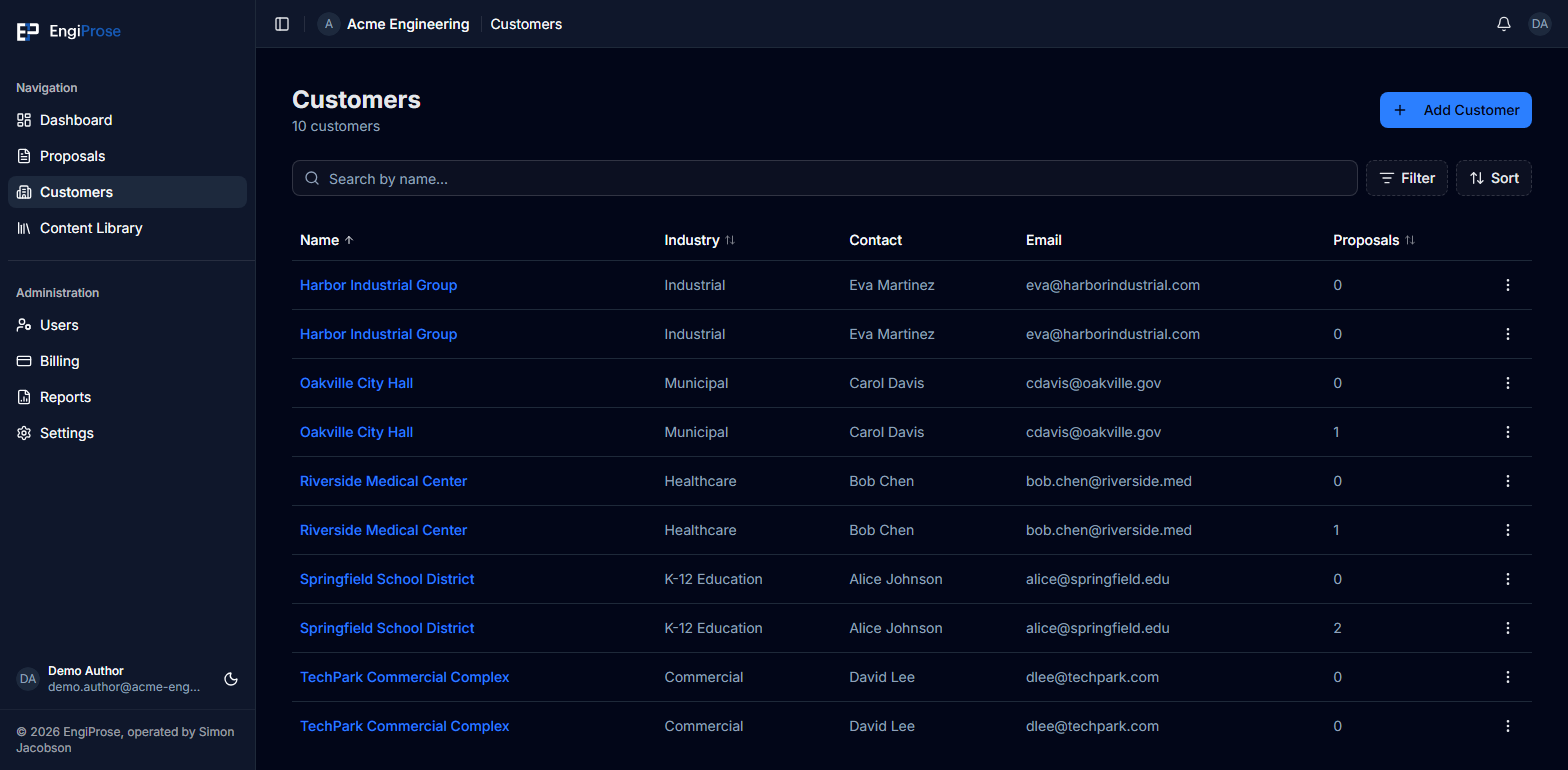
Select a customer's name to open its record. The detail page shows its contact information, address, notes, and every linked proposal with its number, status, and due date.
Add a customer
You need an Admin or Organization Admin role to create customer records.
On Customers, select Add Customer.
Enter the customer name. You can also choose an industry and add a contact name, email address, phone number, address, and notes.
Select Save Customer. The new record appears in the customer list and is available wherever EngiProse asks you to choose a customer.
Customer pickers are searchable. If an Admin or Organization Admin cannot find the right customer while starting a proposal or importing a prior proposal, they can create it from the picker and continue without leaving that task. A new customer created there is selected automatically.
When EngiProse reads customer details from an uploaded RFP, suggested fields are marked from RFP. Review them before saving. Editing a suggested value removes the marker, and your change is kept.
Edit customer details
Open the customer record and select Edit. Change any of the available fields, then select Save Customer. The updated details are used the next time someone opens the record or searches for that customer.
Members and Viewers can read customer records but do not see the add, edit, or delete actions.
Delete a customer
Open the customer record and select Delete. If no proposals are linked, EngiProse asks you to confirm because deletion cannot be undone.
You cannot delete a customer that has linked proposals. The confirmation explains how many proposals are linked and asks you to remove or reassign them first. This keeps existing proposals from losing their customer record.
Common questions
Why can't I see Add Customer or Edit?
Those actions are available to Admins and Organization Admins. Members and Viewers can still open the customer list and customer details.
Why can't I delete this customer?
One or more proposals still use the customer record. Open the customer's proposal list to see the linked work, then remove or reassign those links before trying again.
Where else will a new customer appear?
It becomes available in searchable customer pickers, including proposal setup and prior-proposal import. Customer choices are limited to your active organization.