

Browse help topics
Set up reference document links
Identify your document repository, attach useful links to proposals, and carry them into approval and Word export.
EngiProse can keep web links with each proposal, including one link to the proposal's document repository. The repository setting gives matching links a recognizable name and icon, while Word export includes all attached links as clickable references.
What you'll do
- Name your organization's document repository
- Test the URL pattern used to recognize repository links
- Add, edit, or remove links on a proposal
- Mark one link as the proposal's reference repository
Configure the repository
An Admin or Organization Admin can open Settings, select Integrations, and find Reference Document Repository.
In Repository name, enter the label people know, such as
SharePoint. This name appears beside the proposal's marked reference link.In URL pattern, enter a regular expression that matches links in your repository. Matching ignores letter case. Leave it empty if you do not want EngiProse to recognize repository URLs automatically.
Paste a representative address into Test a URL against your pattern. Check for Matches or Does not match before saving.
Select Save Integration Settings.
The URL pattern highlights matching links with the repository icon. It does not turn every match into the proposal's marked reference link. That choice is made on the proposal itself.
Add links to a proposal
Open the proposal and find Reference Documents & Links. This section also appears on the final Export step, below the Word download.
If you can edit the proposal links, select Add Link, then enter:
- URL: a complete address beginning with
http://orhttps://. - Label: the words people should see and that Word export will use.
- Mark as Reference Document Repository link: select this only for the proposal's main repository location.
Select Add Link to save it. A matching repository URL uses a cloud icon. The one explicitly marked as the reference link also carries the repository name and Reference badge.
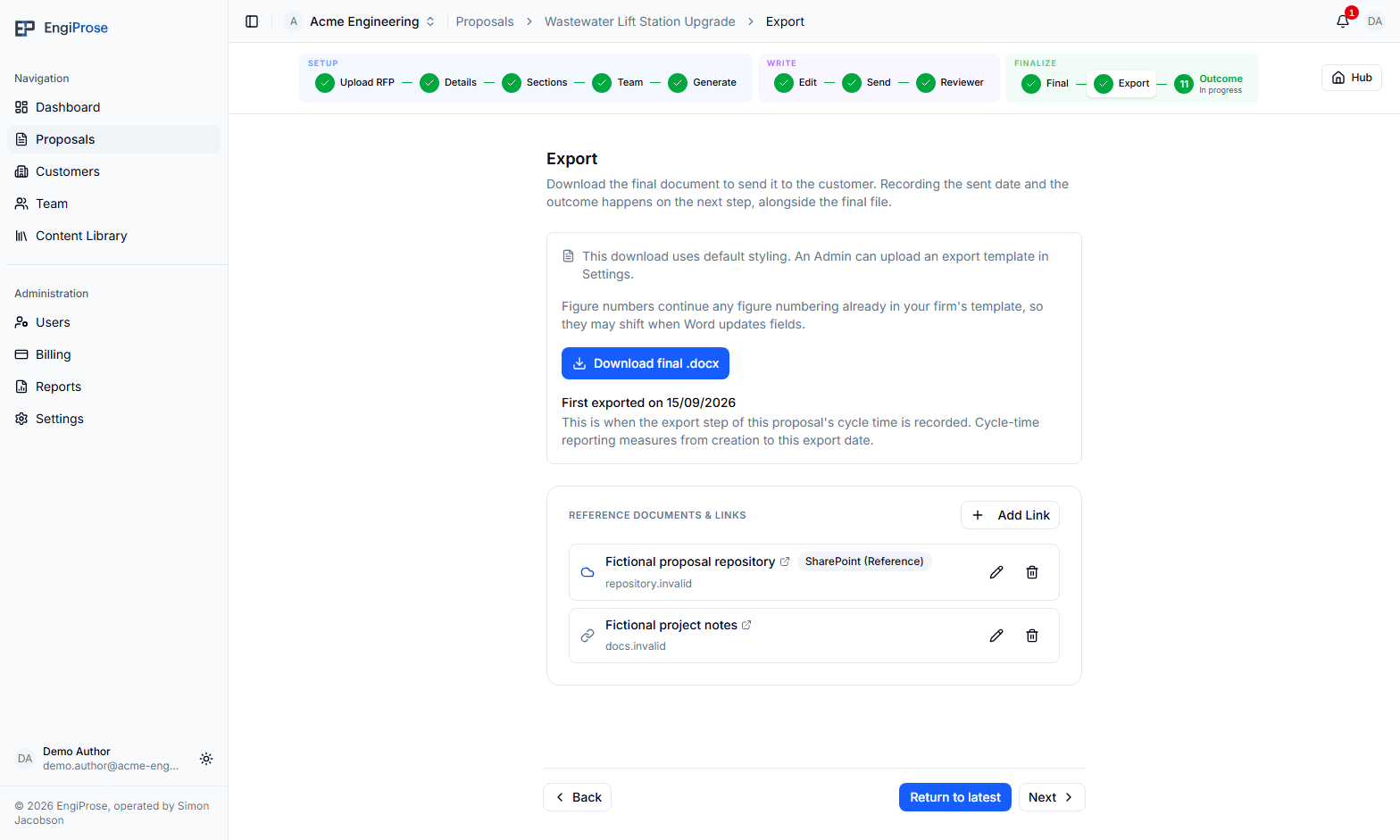
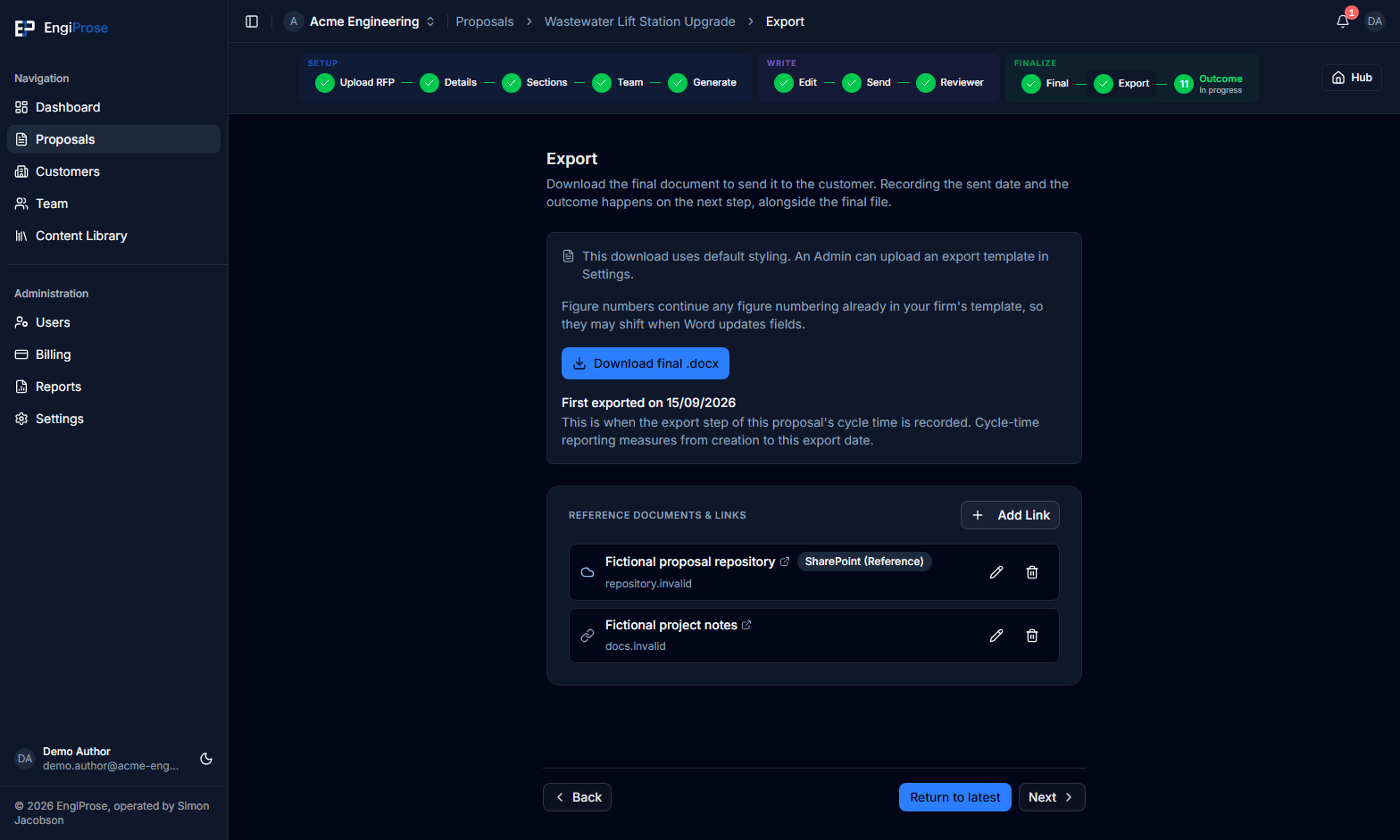
A proposal can have many ordinary links but only one marked reference repository link. If one is already marked, edit that link to remove the mark before assigning it to another.
Edit or delete a link
Use the edit action beside a link to change its URL, label, or reference mark, then select Save Changes. Use the delete action and confirm Delete this link? to remove it.
Reference links are operational delivery information, so authorized users can correct them at every proposal stage, including after approval. The proposal's approved content remains locked; changing a link does not reopen or alter that content.
Where the links appear
All proposal links are appended to Word exports under Reference Documents. Each link is clickable and uses its saved label. The marked repository link is not moved ahead of other links in the export; the saved link order is kept.
When a proposal is approved and has a marked reference link, the approval banner offers a copy action for that repository address. The final Export step keeps the full editable links section available, so you can record where the downloaded document was stored.
Common questions
Why does a link have a cloud icon but no Reference badge?
Its URL matches the organization's repository pattern, but it has not been marked as this proposal's one reference repository link.
Why can't I mark this second link as the reference?
The proposal already has one marked reference link. Edit the existing link to remove its mark, then mark the replacement.
Can I fix a repository link after approval?
Yes. Authorized users can add, edit, or delete proposal links after approval without changing the locked proposal content.