

Browse help topics
Review the extracted requirements and matches
See what EngiProse pulled from your RFP, how confidently it matched each section to past proposals, and fix anything it missed.
After an RFP parses, EngiProse shows you exactly what it found and how well it matched your firm's past work to each requirement. This article covers both review surfaces: the requirement list on Upload RFP, and the per-section confidence you'll see once you're building sections.
What you'll do
- Review and clean up the extracted requirements
- Read the Strong, Partial, and Thin confidence labels
- Work the unmatched requirements bucket while shaping sections
The requirement list
Right after parsing, Review all N requirements expands a list grouped by where each requirement appeared in the RFP (a reading aid, not a saved structure). For each requirement you can edit its text, move it to customer notes if it's not really a requirement, or delete it if it's parser noise.
Selecting Match to past proposals runs matching and shows a summary:
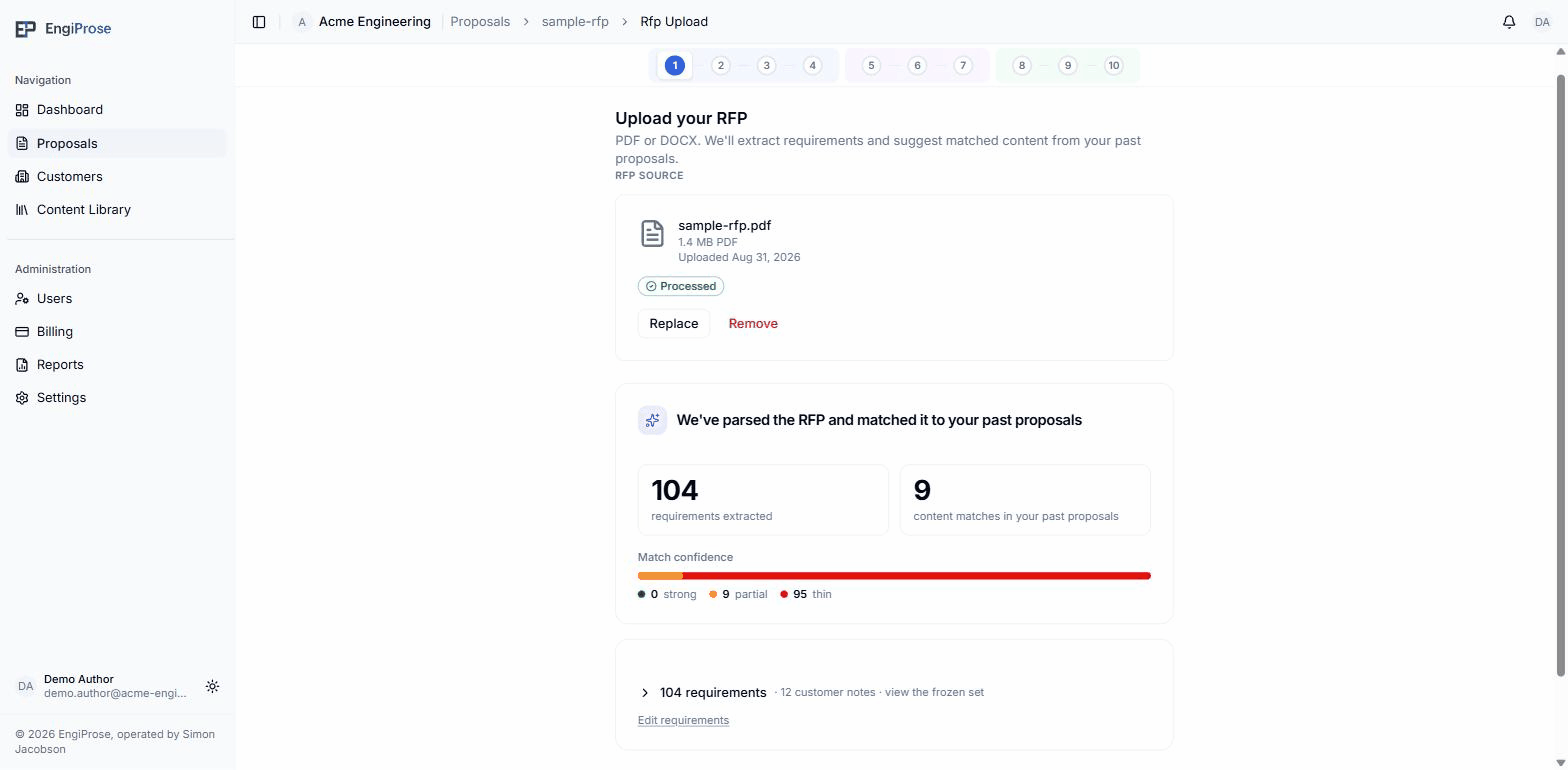
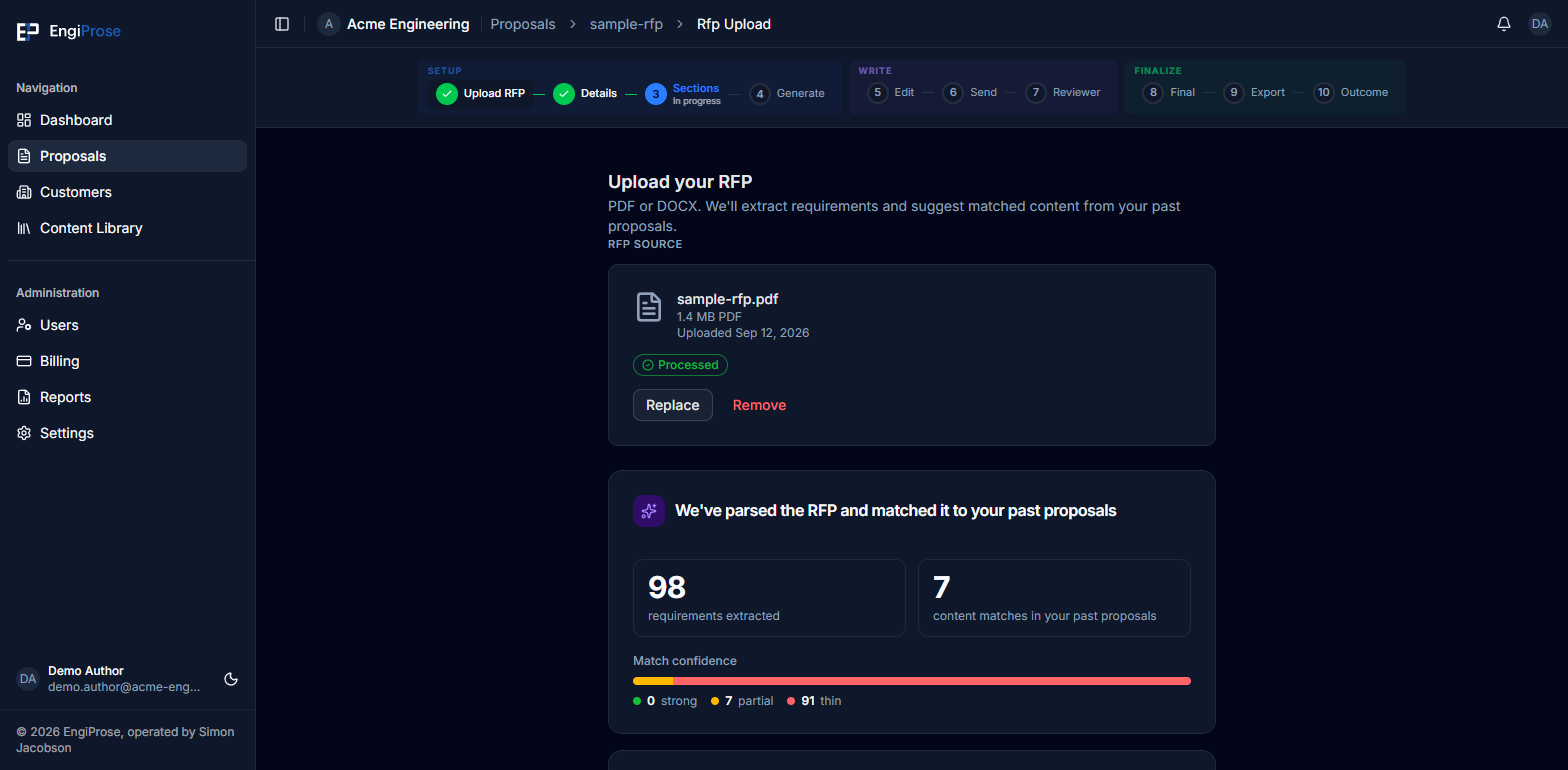
- Total requirements extracted, and how many of your firm's past proposals matched
- The confidence bar, split into Strong, Partial, and Thin
- Counts for each confidence level
Strong, Partial, and Thin describe how closely a requirement's best match compares to content from your firm's past winning proposals. Strong means EngiProse found solid prior content to draft from; Thin means there's little or nothing to work with, which is common for an RFP outside your firm's usual territory.
Sections and the unmatched bucket
Once you're on the Sections step, each section that has linked requirements shows its own confidence pill, plus the matched prior proposals behind it:
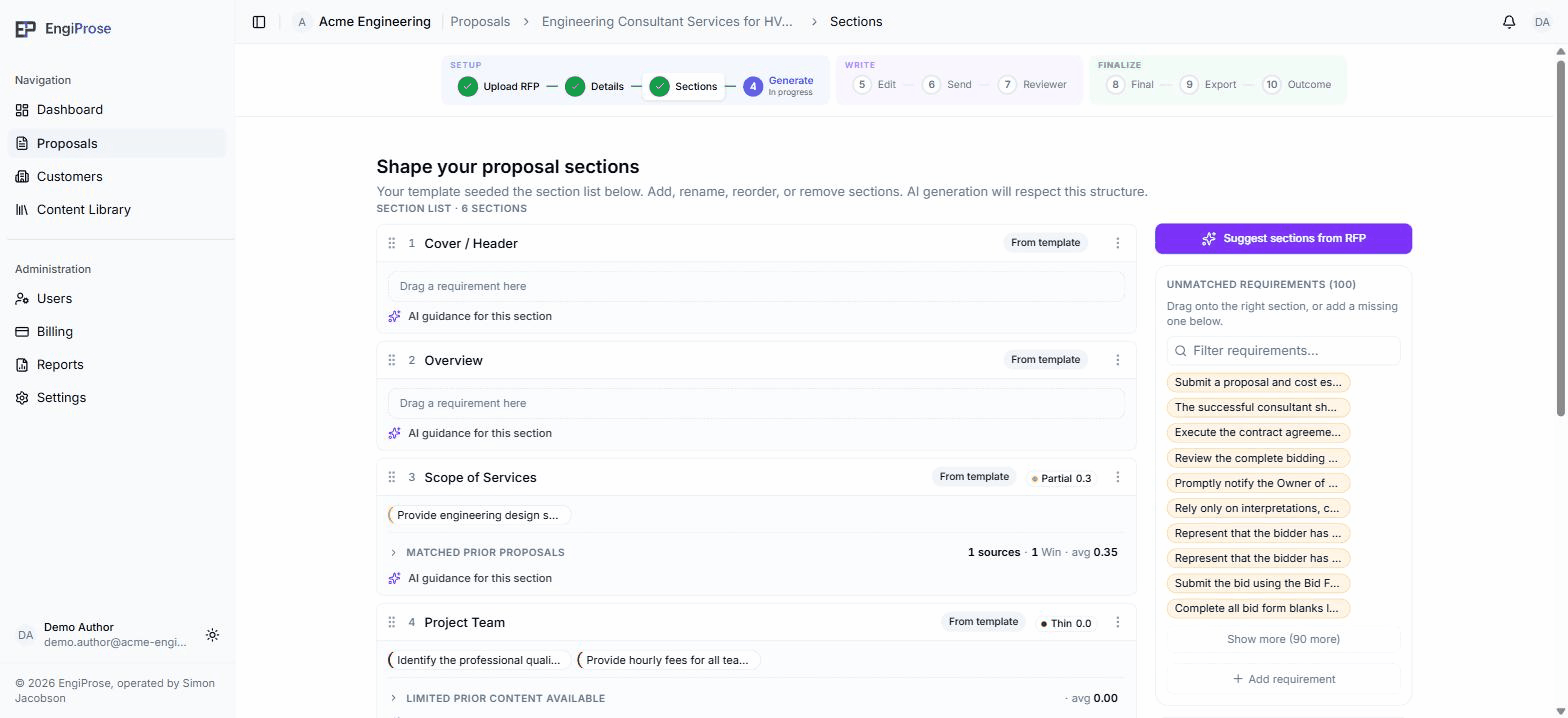
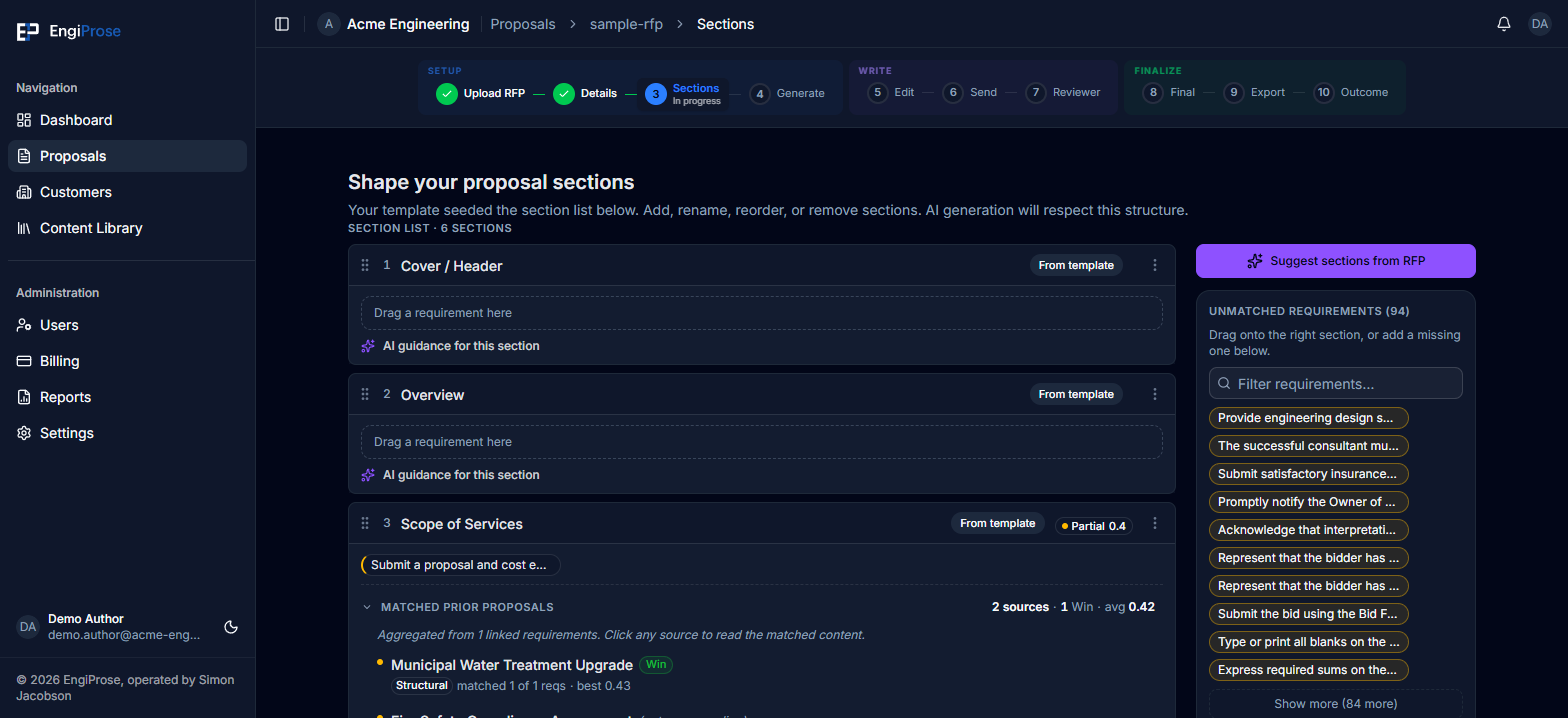
- A section's confidence pill, Partial or Thin, with its score
- Matched prior proposals for that section: sources, wins, and average score
- The Unmatched requirements bucket: requirements not yet linked to any section
A section shows no pill until you've matched, and "Not yet matched" if matching hasn't run yet. Unmatched requirements, on the right, lists every requirement not linked to a section: drag one onto the right section, or use Add requirement to add one that never made it into the RFP document (something the customer mentioned by email, for example).
Every RFP requirement should end up either linked to a section or moved to customer notes; requirements left in the unmatched bucket won't appear in what the AI drafts from later.
Common questions
Why does a section show Thin even though I linked several requirements?
Confidence reflects how well your firm's past proposals cover this requirement, not how many requirements you linked. A Thin section usually means the AI has little prior content to draft from for that topic; uploading more of your firm's past proposals is the fix (see Upload past winning proposals).
Can I re-match after editing requirements?
Yes. The Sections step lets you trigger matching again for requirements you add or move.