

Browse help topics
Generate the first draft, Yolo or Guided
Draft every section at once with Yolo, or work through the editor one section at a time with Guided.
Once your sections and requirement links are in place, the Generate step offers two ways to get a first draft. This choice is made once per proposal, not per section.
What you'll do
- Confirm your setup on the Generate step
- Choose Yolo for a full draft, or Guided to write section by section
- Understand the Yolo confirmation dialog before you commit
Ready to generate
The Generate step opens with a summary of what the AI will draft against: your RFP and details, the assigned author, and your section list, including a warning if any requirements are still unlinked. "N requirements aren't yet linked to a section. They will not appear in the AI prompt unless you link them on Stage 3 or demote them to customer notes."
Below the summary are the two generation modes:
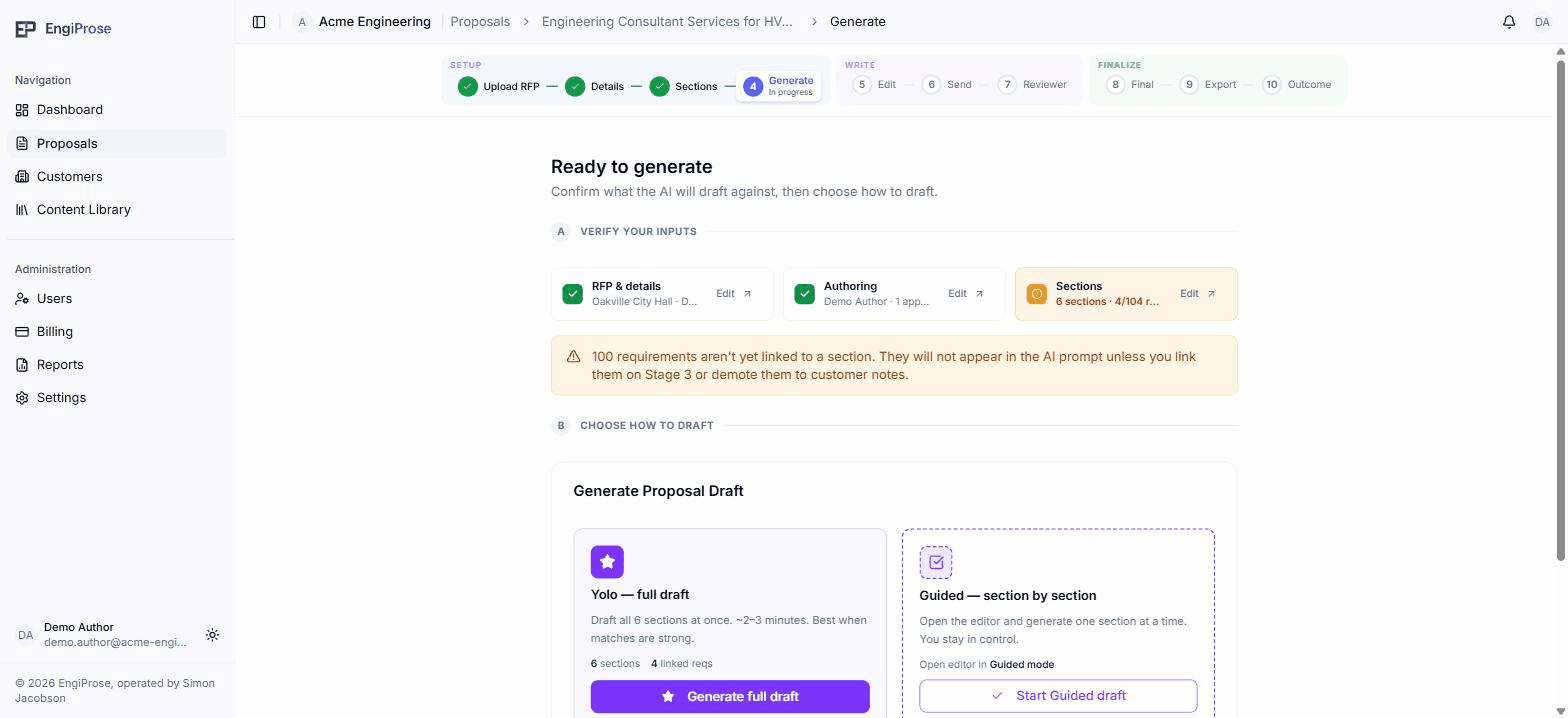
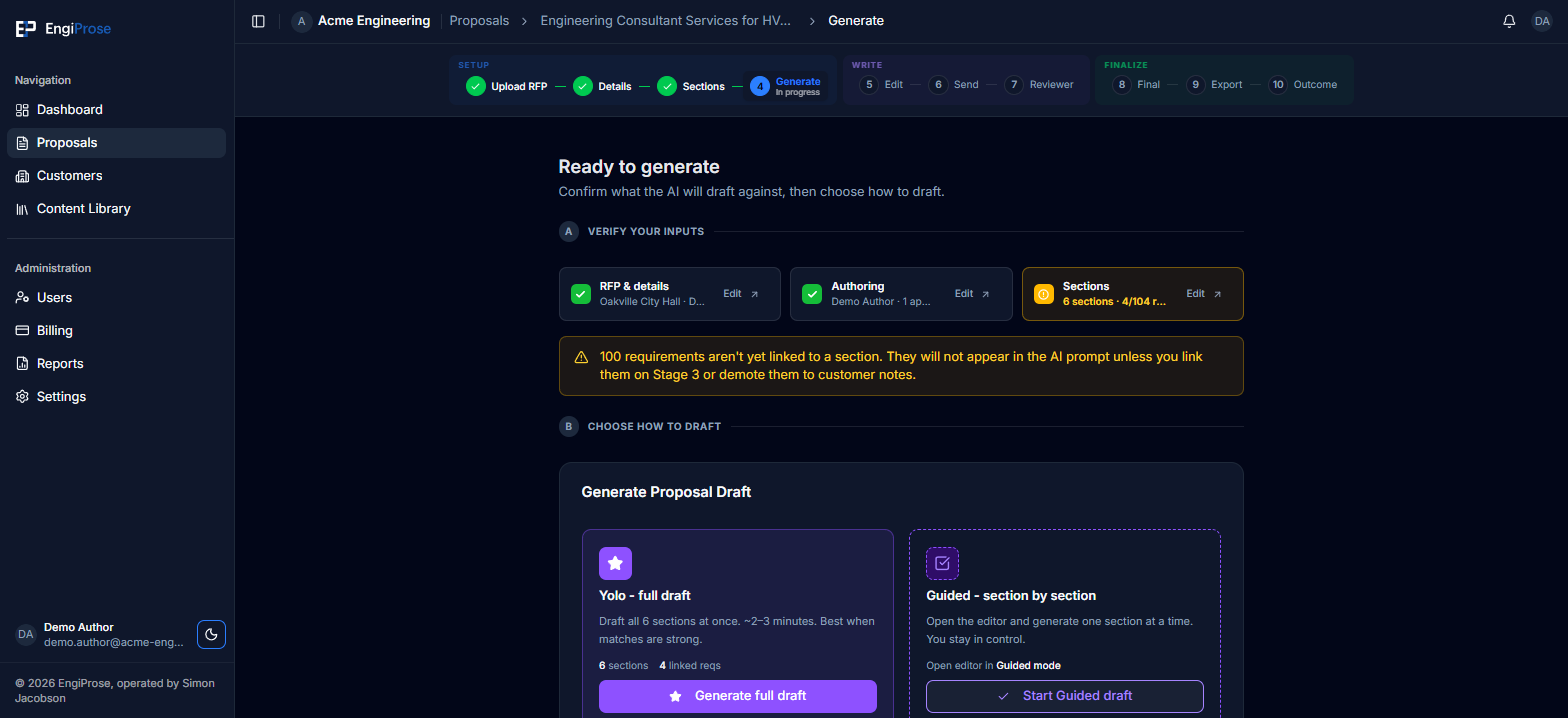
Yolo drafts every section at once, in a couple of minutes, and works best when your requirement matches are strong. Guided opens the editor so you generate and review one section at a time, staying in control the whole way. Neither mode is a per-section setting: you pick one for the whole proposal.
The Yolo confirmation
Selecting Generate full draft opens a confirmation before anything runs:
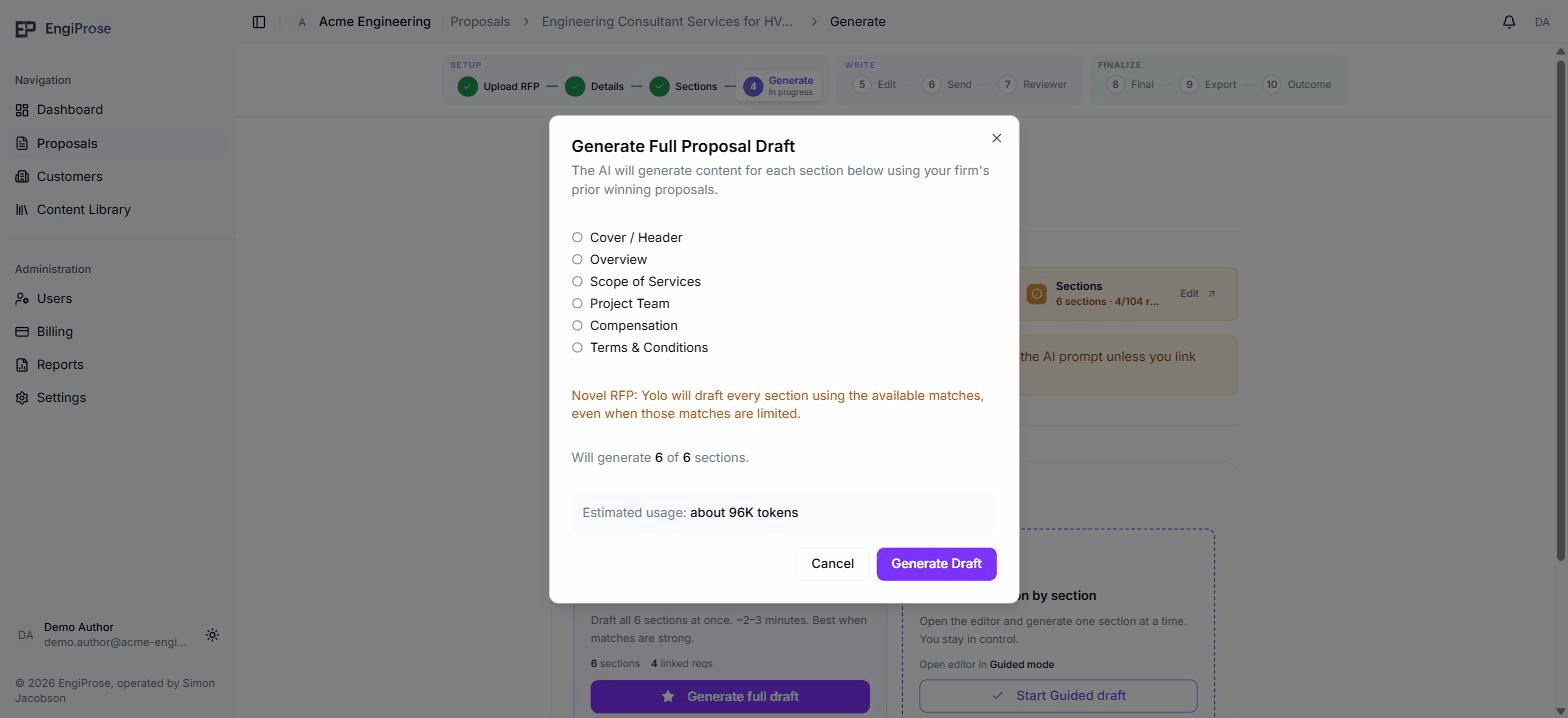
- Every section that will be drafted
- The estimated AI token usage for this run
- Generate Draft and Cancel: the dialog's two exits, bottom right
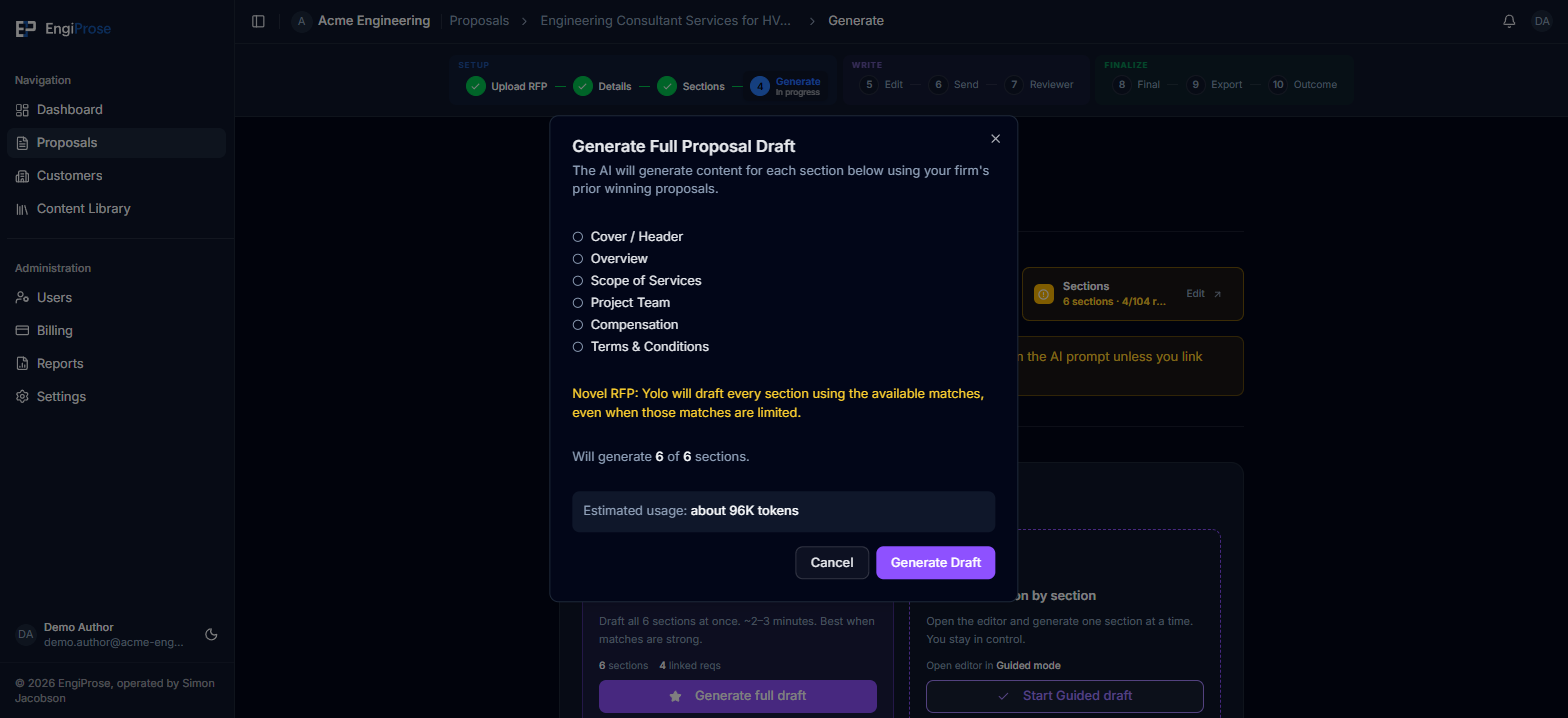
"Generate Full Proposal Draft: The AI will generate content for each section below using your firm's prior winning proposals." The dialog lists every section it will draft, along with "Will generate N of N sections" and an estimated token cost. If the RFP is unusually unfamiliar territory for your firm, the dialog adds: "Novel RFP: Yolo will draft every section using the available matches, even when those matches are limited."
Select Generate Draft to start, or Cancel to go back and choose Guided instead.
If your firm's AI token allowance is already used up, the dialog shows a banner in place of the estimate and Generate Draft stays disabled until tokens are available again.
If drafting stops partway
Yolo can also run out of allowance mid-draft. The Generate step then reads "Generation paused: AI token limit reached", followed by "Some sections were drafted before your AI token allowance for this billing period ran out." and one of two closing sentences, depending on your role:
- For an Organization Admin: "Continue editing manually or purchase additional tokens."
- For everyone else: "Continue editing manually or contact your Organization Admin to purchase additional tokens."
The sections that were drafted are kept. Open the editor to keep working on the rest by hand, or come back once more tokens are available. An organization that has never had an allowance sees "Generation paused: no AI token allowance" instead, with the same closing sentence.
Common questions
Can I switch from Guided to Yolo partway through?
Yes, the Generate step is always available; choosing Yolo drafts every section the same way it would have from the start.
Does Yolo draft every section, even ones I've already written?
Yes. The confirmation always lists every section in your proposal; there's no way to draft only some of them from this dialog.