

Browse help topics
Assign the proposal team
Use RFP-based suggestions or search your organization's profiles to assemble the right team for a proposal.
If you do not see Team in the proposal sidebar, your Organization Admin has not enabled the Team step. Your proposal will move directly from Sections to Review. See Configure proposal lifecycle options for how that choice works.
When the Team step is available, use it to record the people contributing to this proposal. You can review suggestions based on the RFP or choose people yourself. Assigning a team is optional, so you can continue with nobody assigned.
What you'll do
- Review the people already assigned
- Ask EngiProse to suggest people from the RFP
- Add a person manually and confirm their proposal role
- Remove an assignment that no longer fits
Prepare useful team profiles
EngiProse suggests and searches only among profiles in your organization's Team area. A useful profile includes the person's name, title, expertise, certifications, availability, and other relevant experience.
Each person can maintain their own details under Team > My profile. People with permission to manage the team can use Team > Manage. If the Team step says your team is empty, add profiles there before requesting suggestions.
Review AI suggestions
Select Suggest team from RFP. EngiProse compares the RFP with your organization's team profiles and can return several candidates ranked by fit. Each suggestion shows the person's profile details, a proposed role, and why their experience may suit the opportunity.
For each suggestion:
- Select Add to place the person under Currently assigned with the suggested role.
- Select Dismiss to remove the suggestion from the current list without assigning the person.
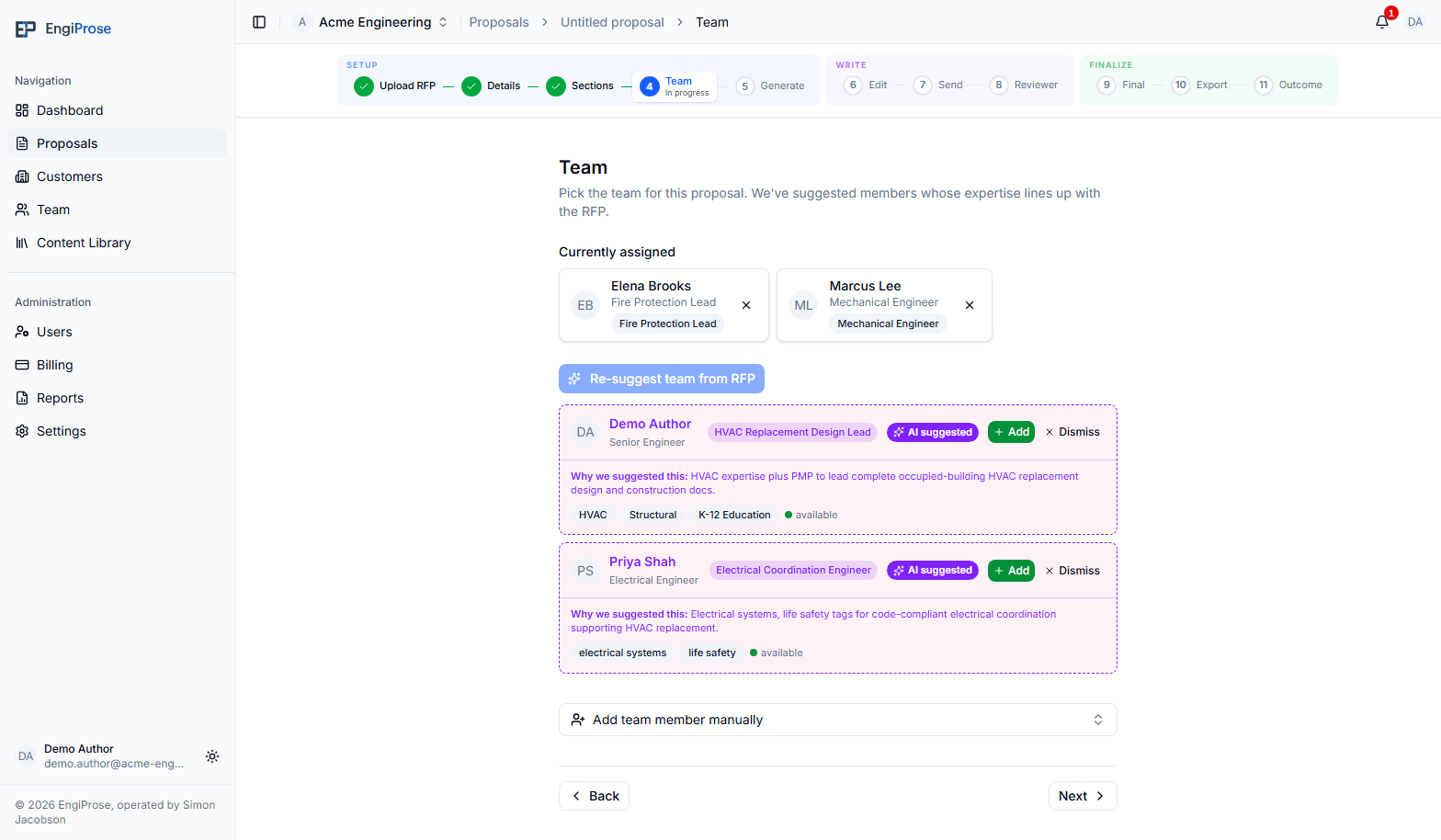
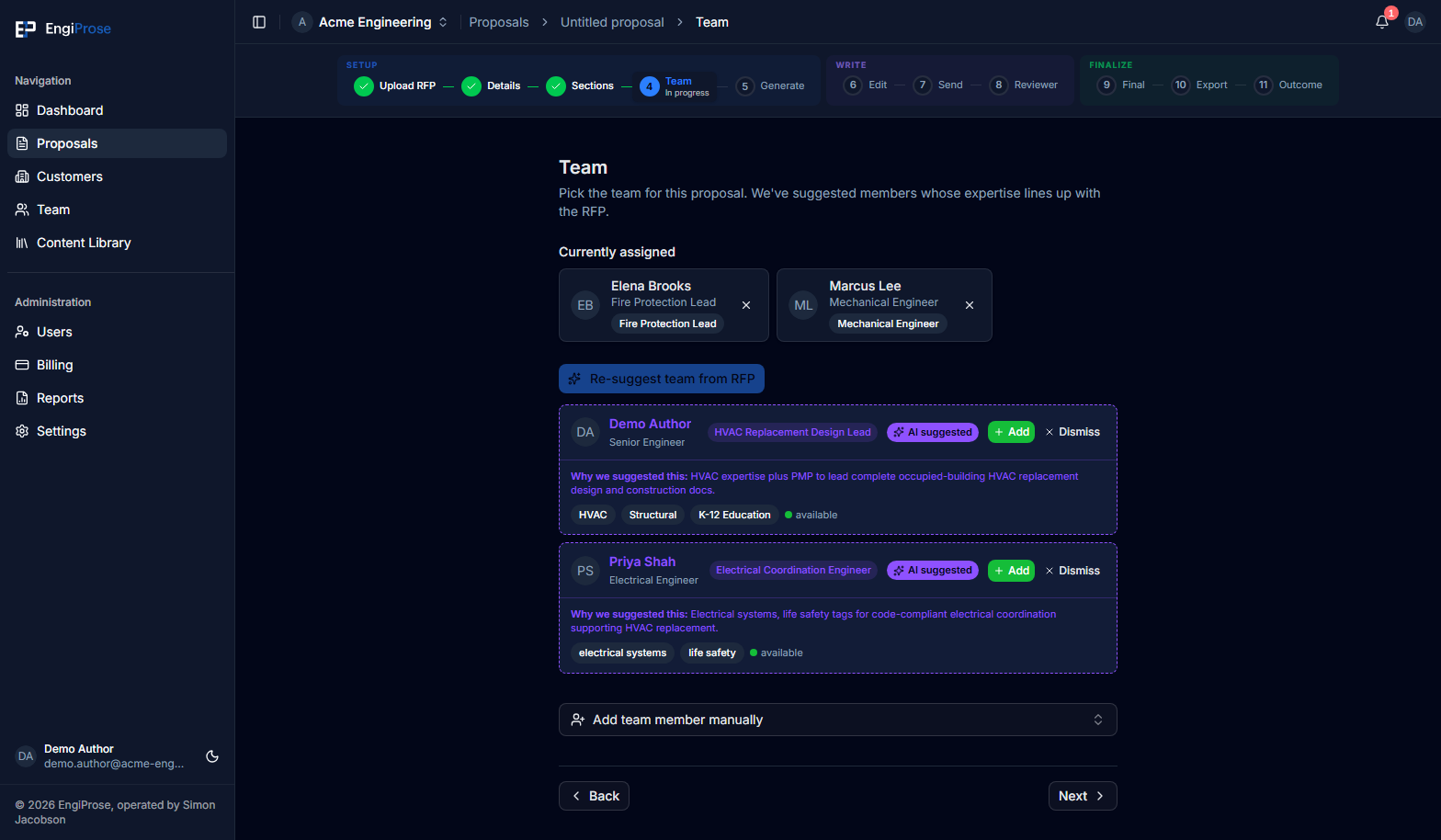
Resolve every visible suggestion before selecting Re-suggest team from RFP. A dismissed person may appear in a later set of suggestions because dismissal applies only to the current suggestion list.
AI suggestions need requirements from a parsed RFP. If this proposal does not have one, you can still add team members manually.
Add a team member manually
Select Add team member manually, then search by name, title, or expertise. People already assigned to the proposal are left out of the results.
Choose a person, review Role on this proposal, and edit the role if needed. The field starts with the person's profile title when one is available. Select Add to complete the assignment.
Remove or revisit an assignment
Under Currently assigned, each person appears with their proposal role. Use the remove action on a person's chip and confirm the prompt to take them off this proposal's team. Their organization profile is not deleted.
You can return to the Team step later to add or remove assignments. Team changes do not alter the generated proposal draft.
Continue to Review
Select Next when the assignment list is ready. The Team step has no minimum number of people, so Next remains available when the list is empty.
Common questions
Why is Suggest team from RFP unavailable?
EngiProse may still be preparing suggestions, the current suggestions may need to be resolved, or the proposal may not have parsed RFP requirements. Manual assignment remains available when team profiles exist.
Why can't I find someone in manual search?
They may already be assigned or may not have a profile in your organization's Team area. Check the assigned list, then check Team > Manage.
Does removing someone delete their team profile?
No. It removes only this proposal assignment. The person's organization profile remains available for other proposals.