

Browse help topics
Start a proposal without an RFP
Queue a proposal with just a title and customer, then work through it later, with or without an RFP file.
Not every proposal starts with an RFP in hand. Plan proposal captures the essentials now, so the proposal exists and shows up on your list, and lets you fill in the rest when you're ready.
What you'll do
- Capture a proposal with Plan proposal
- Understand what happens when you open it
- Move past the Upload RFP step without a real RFP
Plan a proposal
From New Proposal, choose Plan proposal. "Capture one or more proposals to be worked on later."
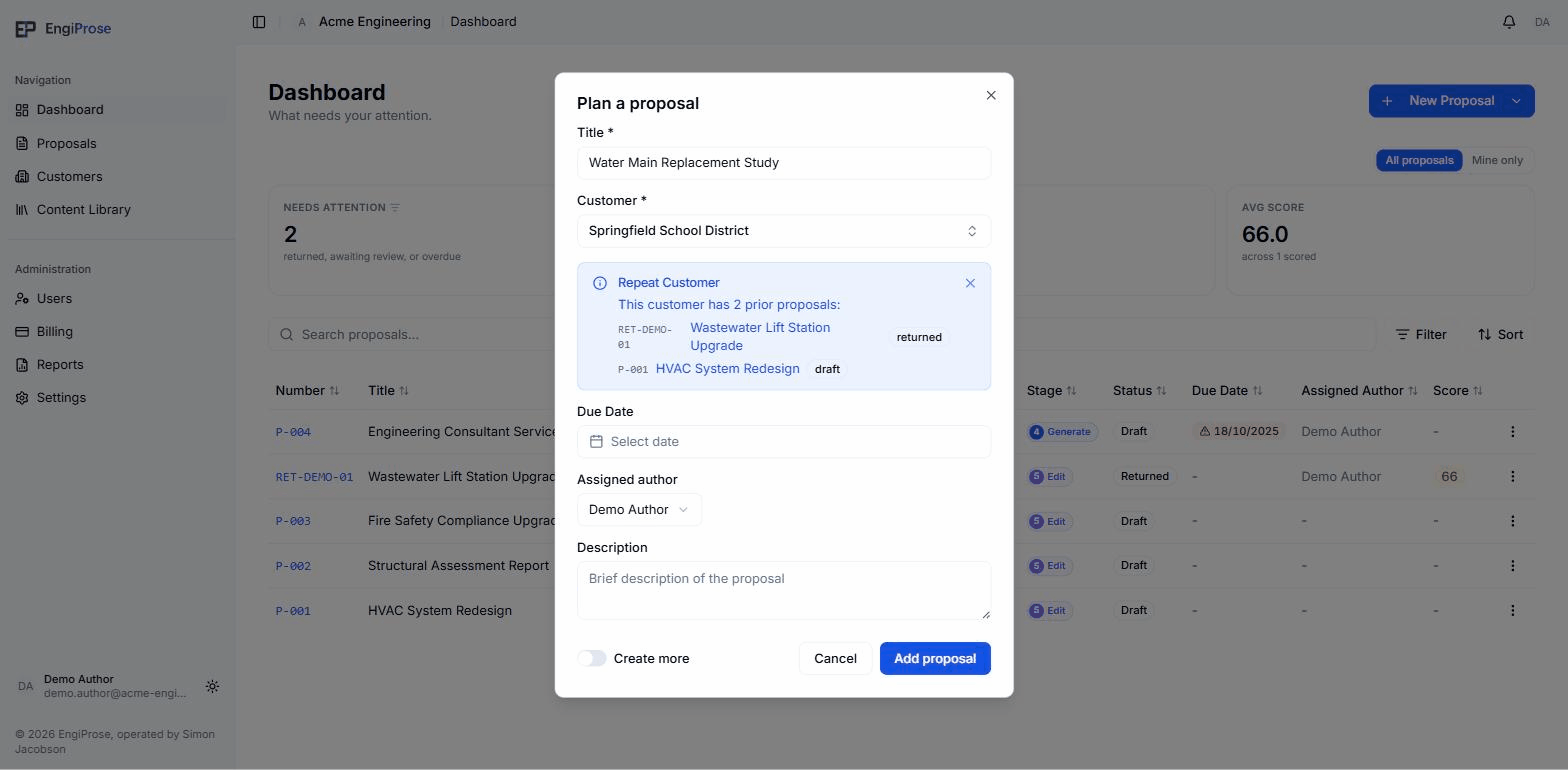
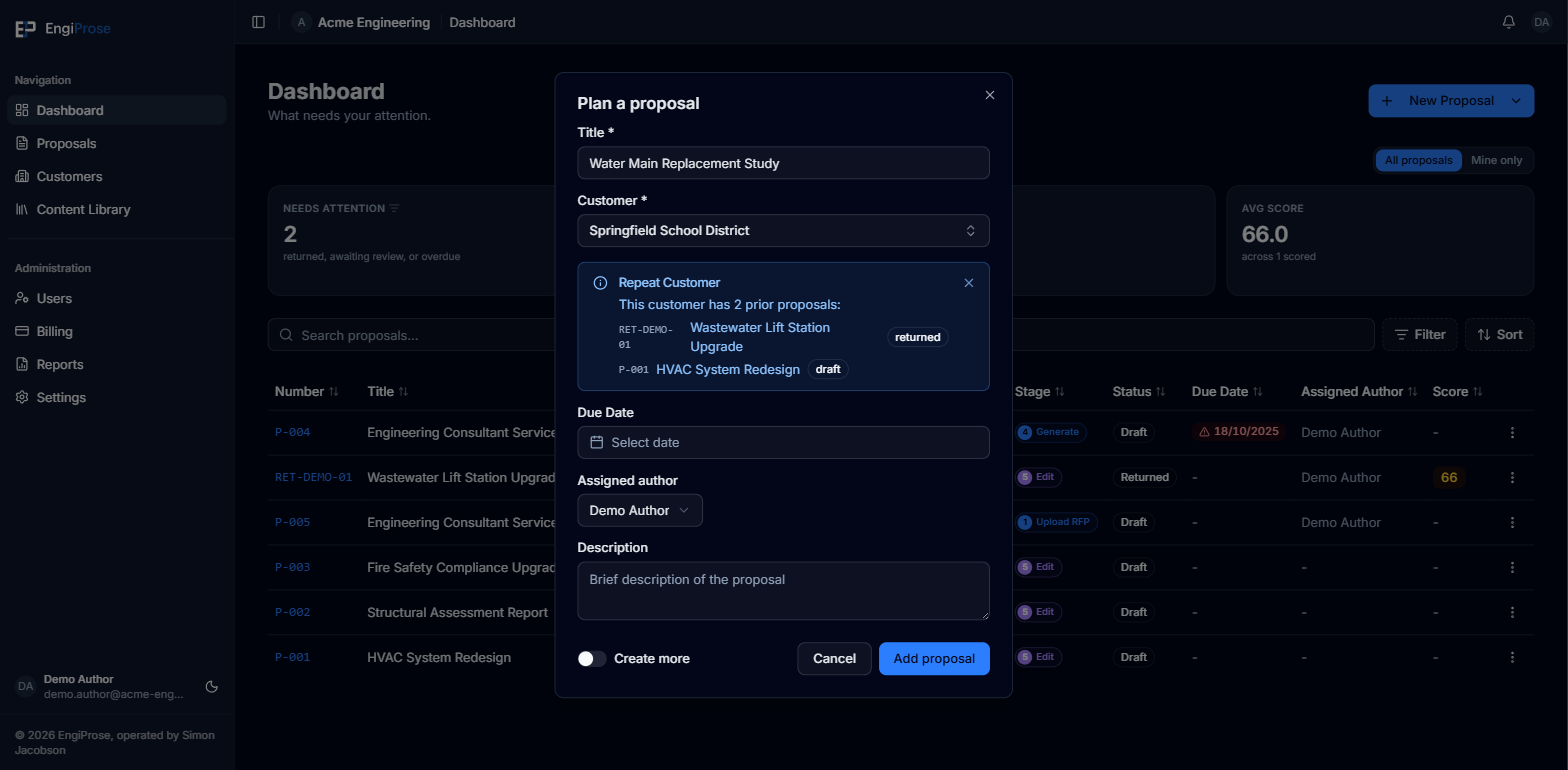
Fill in the Title and Customer (both required); Due date, Assigned author, and Description are optional. If the customer has prior proposals with your firm, a panel surfaces them for reference. Turn on Create more to keep the dialog open and plan several proposals in a row. Selecting Add proposal saves it and shows a confirmation with an Open shortcut straight into it.
Opening a planned proposal
A planned proposal is a normal Draft proposal with no RFP attached yet. Opening it lands you on the same Upload your RFP step every proposal starts on, because that step is also where EngiProse checks for a customer match, sets the proposal number, and prepares the wizard.
The step needs some source before it lets you continue; with nothing attached, Next stays disabled and explains why: "An RFP is required. Upload one above to continue." If there is no RFP document, use Paste Content and paste whatever you do have, such as the customer's email or your own notes on the job. EngiProse extracts what it can, and you continue to Details as normal. If it cannot parse what you pasted, the same Skip - enter details manually option covered in Start from an RFP takes you straight to Details:
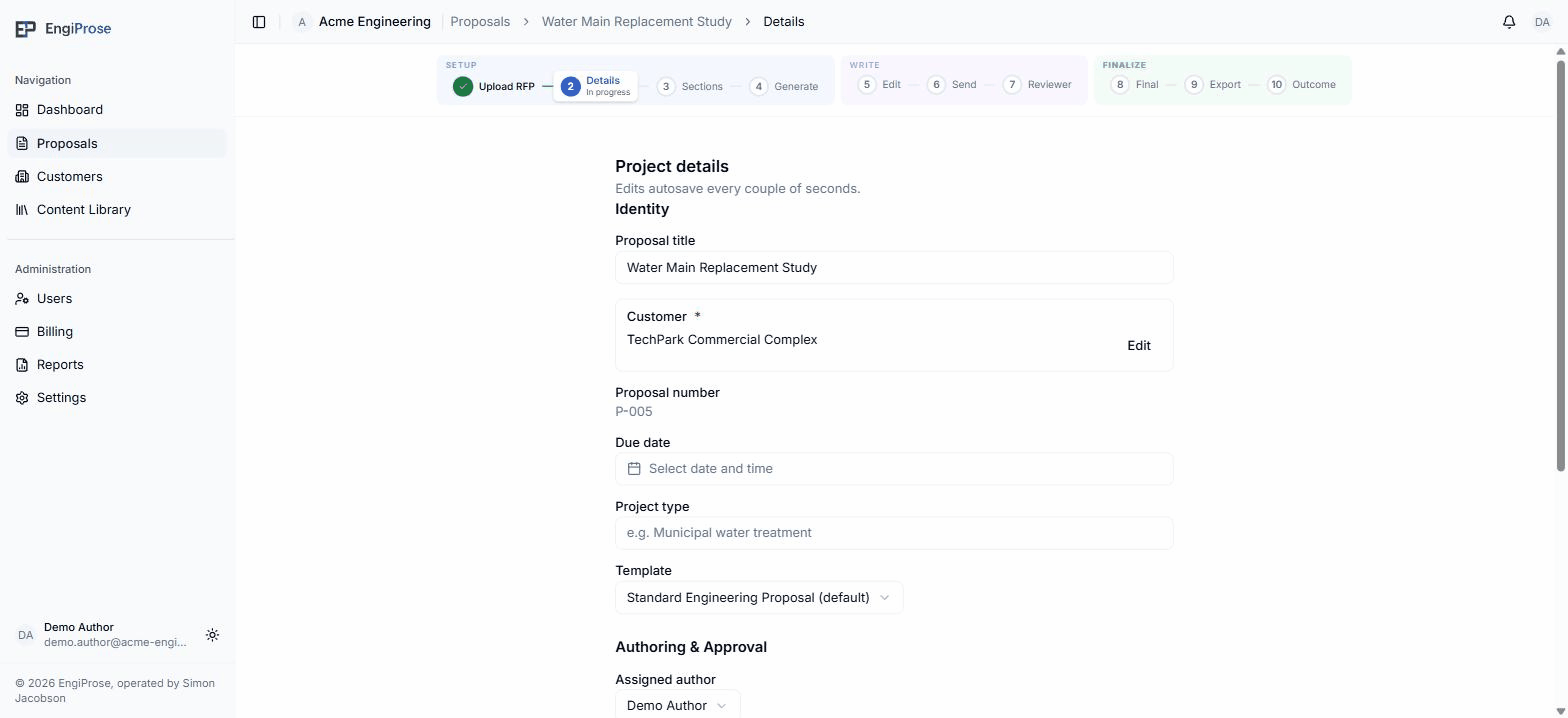
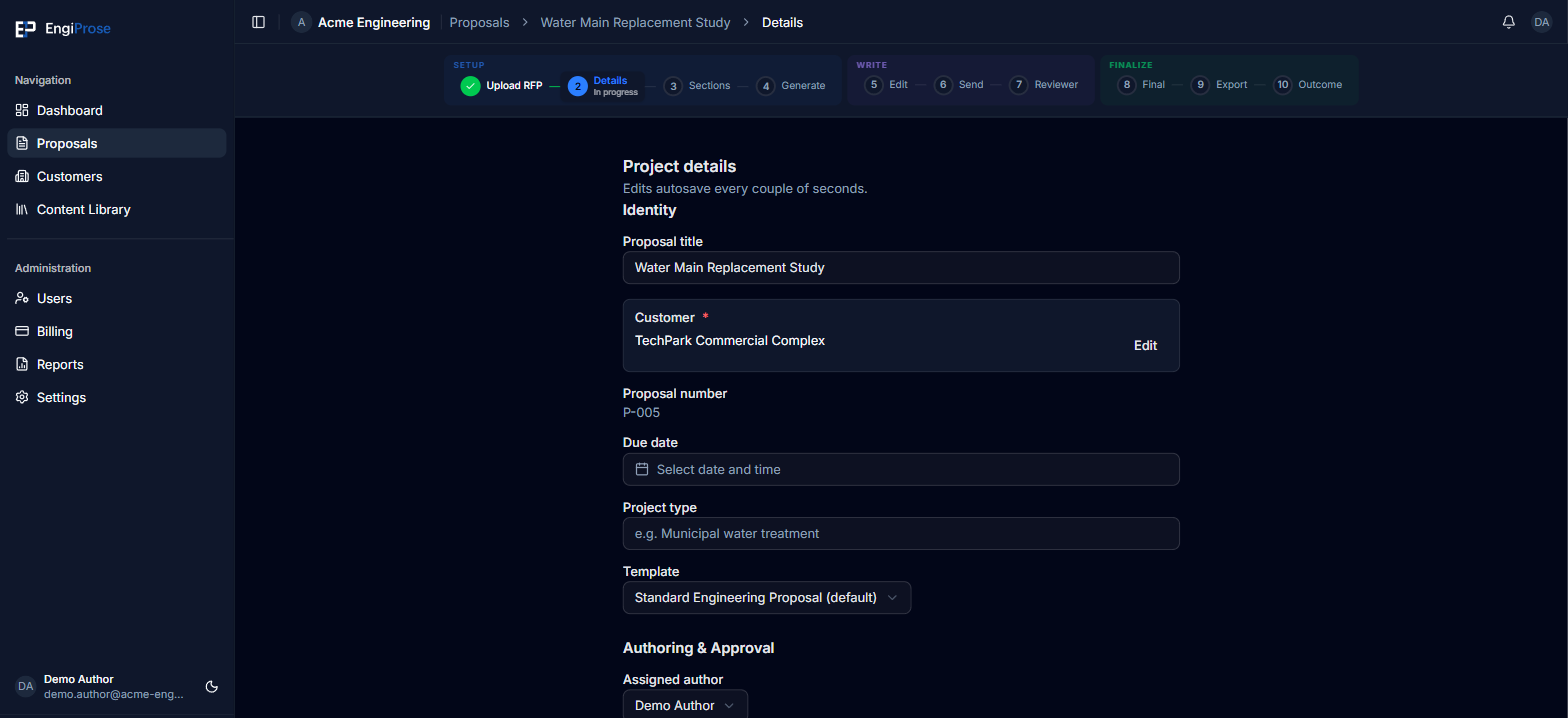
Details filled in this way have no AI-suggested values (no "from RFP" badges): you type the due date, project type, and everything else yourself.
There isn't a dedicated "I have no RFP" button on the Upload RFP step itself. Pasting the brief you have is the intended route; Skip exists for the case where parsing fails.
Common questions
Can I add the RFP later, after planning the proposal?
Yes. Open the proposal and use the Upload RFP step at any time to attach and parse one.
Does Plan proposal use one of my firm's seats or tokens?
No. Creating the draft is free; AI token usage only happens once you parse an RFP or generate content.