

Browse help topics
Start a proposal from an RFP
Upload the RFP and EngiProse extracts requirements and matches them against your firm's past proposals automatically.
This is the fastest way into a proposal: you already have the RFP, so upload it and let EngiProse do the reading. This article covers the upload, what happens while it parses, and what to do if parsing fails. If you don't have an RFP yet, see Start without an RFP.
What you'll do
- Choose Start proposal and upload your RFP
- Watch it parse into requirements
- Know what to do if parsing fails
Choose how to start
Open New Proposal from the dashboard or the Proposals list. The menu offers two starting points:
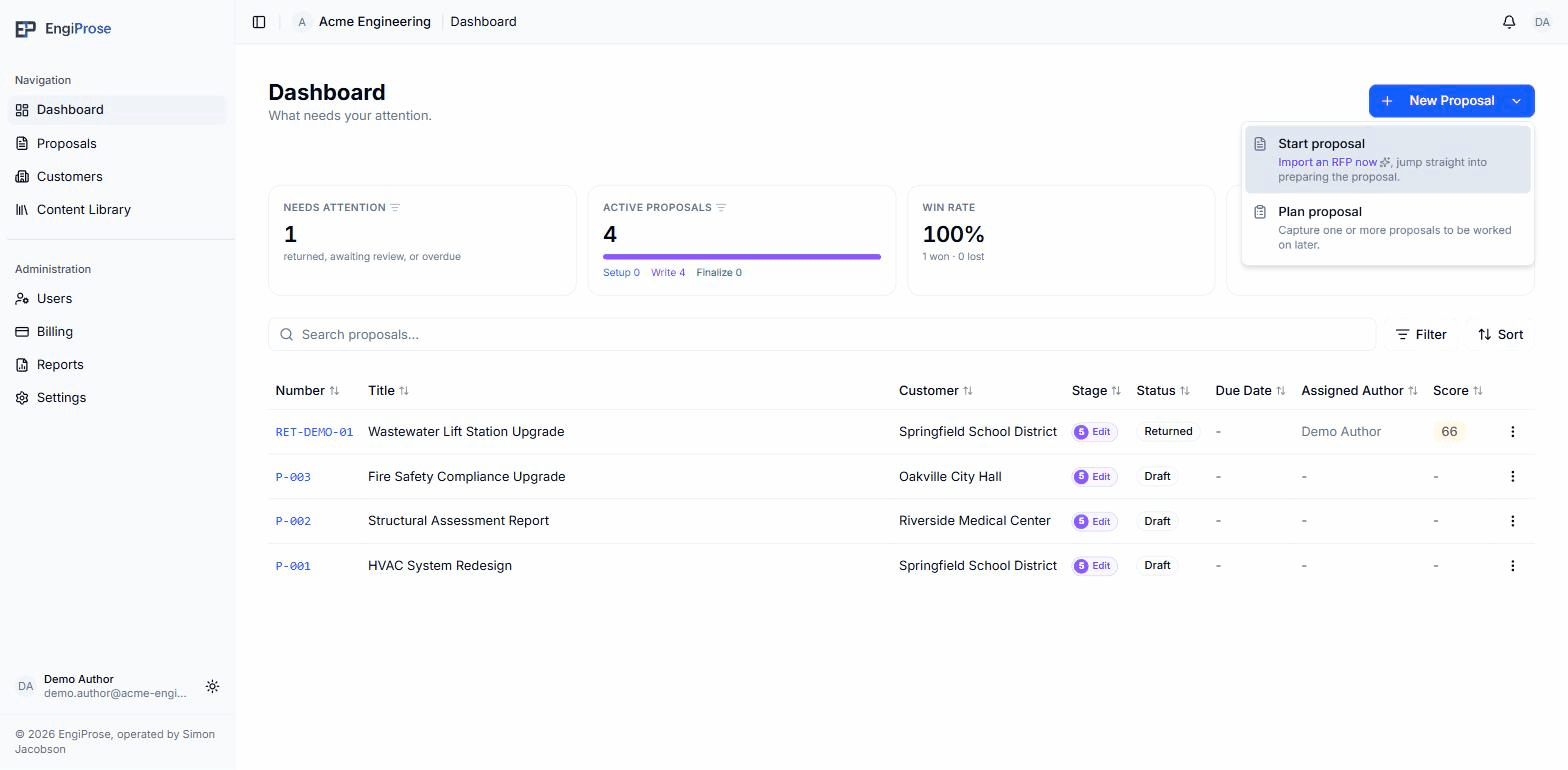
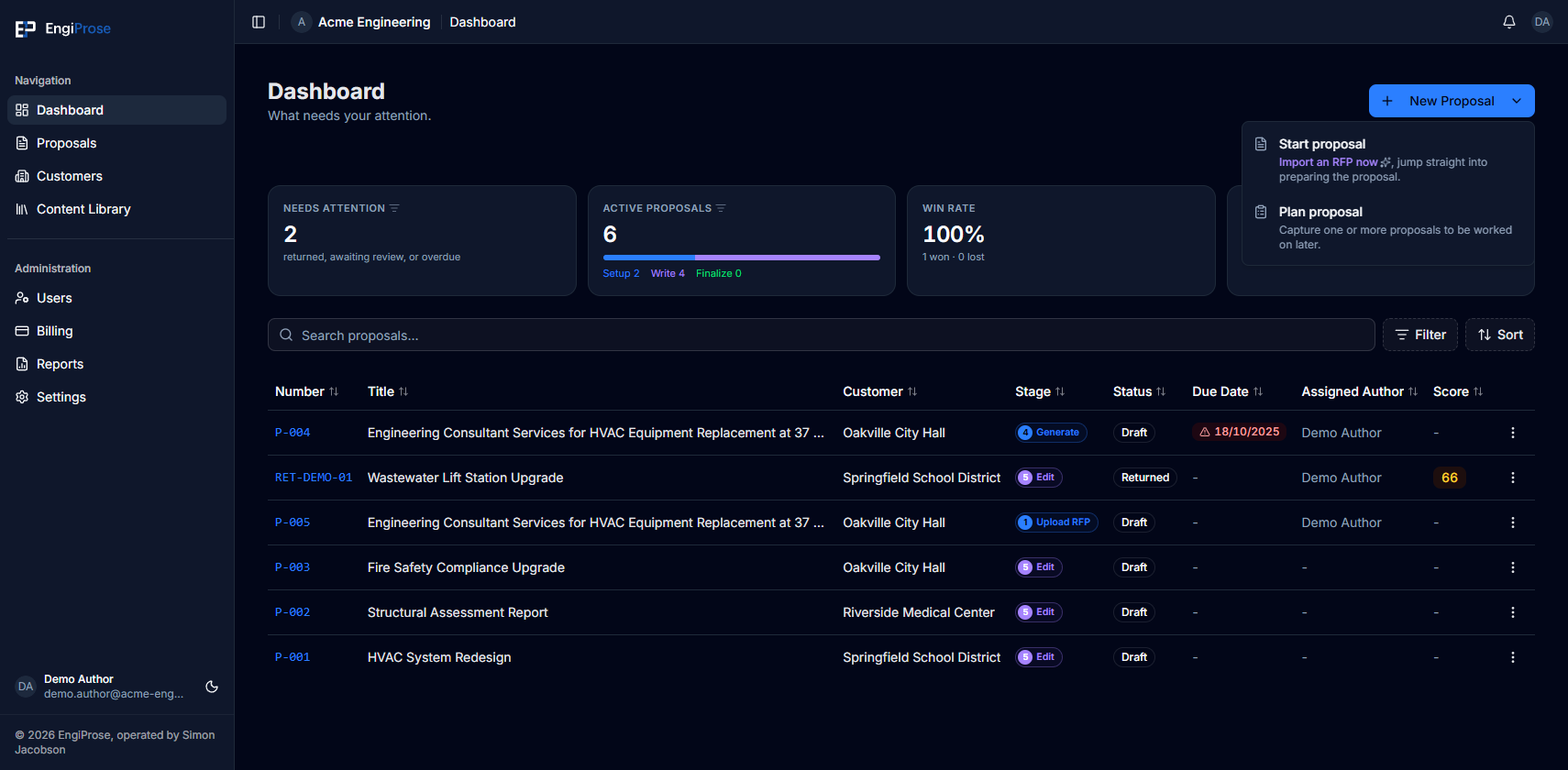
Start proposal is this article's path: it jumps straight into the wizard so you can upload an RFP right away. Plan proposal captures the basics now and lets you attach an RFP later.
Upload the RFP
Choose Start proposal. You land on Upload your RFP, the wizard's first stage. The Upload File tab is open: choose your document or drag it onto the drop zone. To paste the text instead, choose Paste Content. "PDF or DOCX. We'll extract requirements and suggest matched content from your past proposals."
Once the file is attached, EngiProse starts parsing it automatically. This takes anywhere from a few seconds to a minute or two, depending on the document.
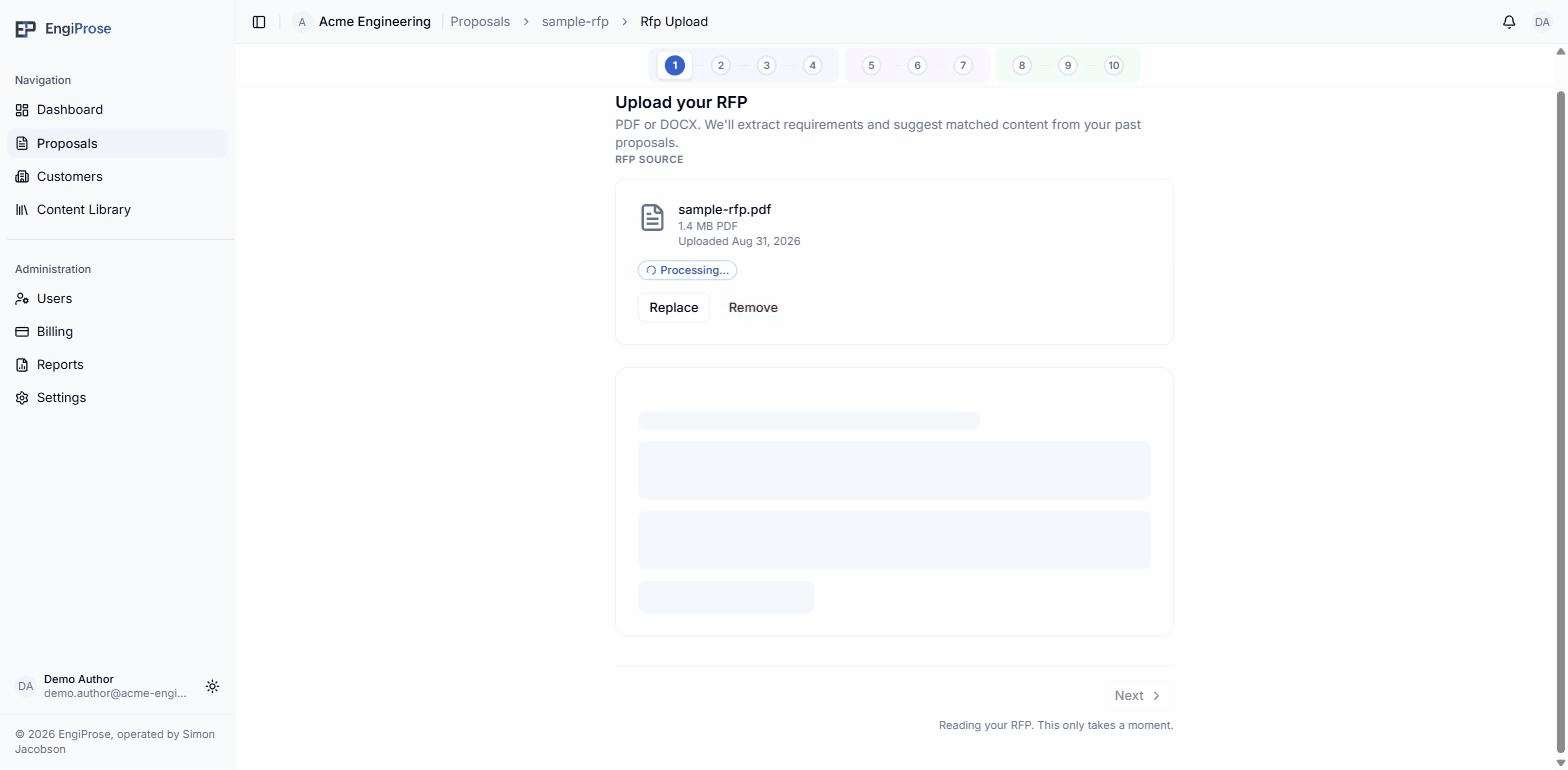
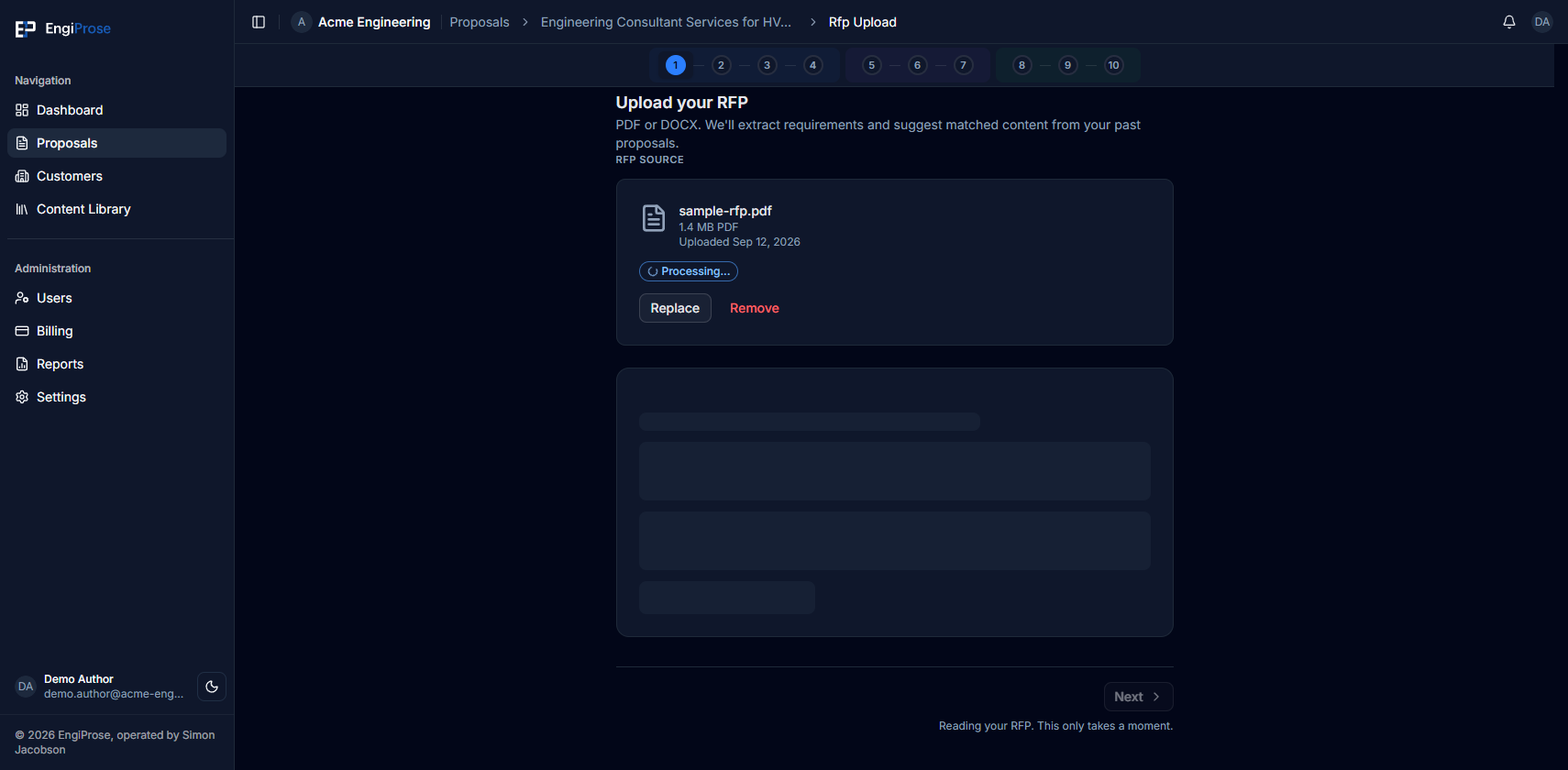
Parsing in progress When parsing finishes, you'll see a requirements count (for example, "104 requirements, 12 set aside as customer notes") and a Match to past proposals button. Selecting it runs content matching against your firm's past winning proposals, and the result feeds the requirement review step.
A parse can succeed and still turn up nothing: if your RFP has no extractable requirements, the page shows "No requirements were extracted from this RFP. You can add them manually as you build the proposal." Next stays available, so you can continue to Details.
If parsing fails
Parsing can fail on a corrupted file, a scanned image with no extractable text, or a transient error. When it does, EngiProse shows a clear failure state rather than leaving you stuck:
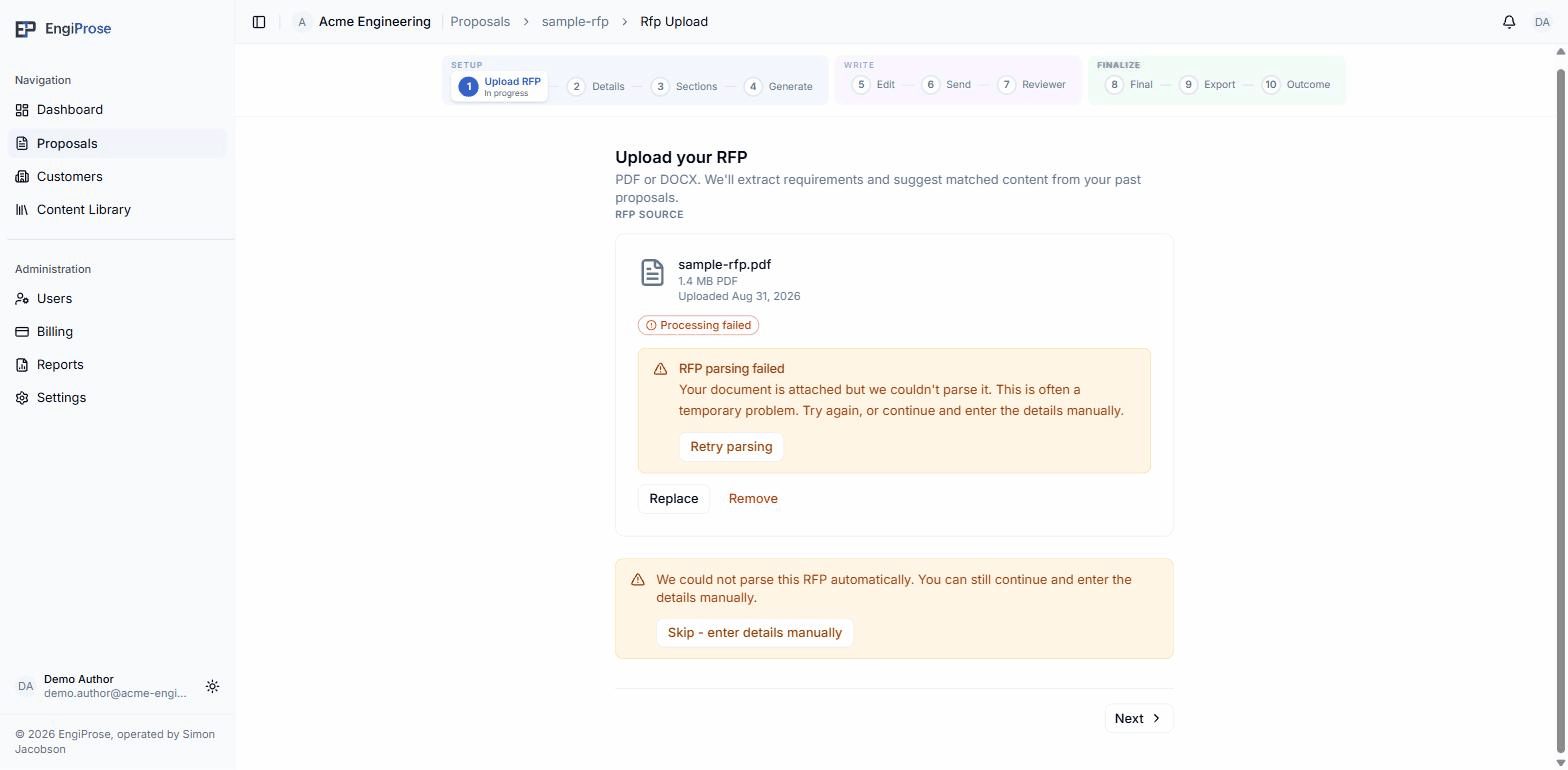
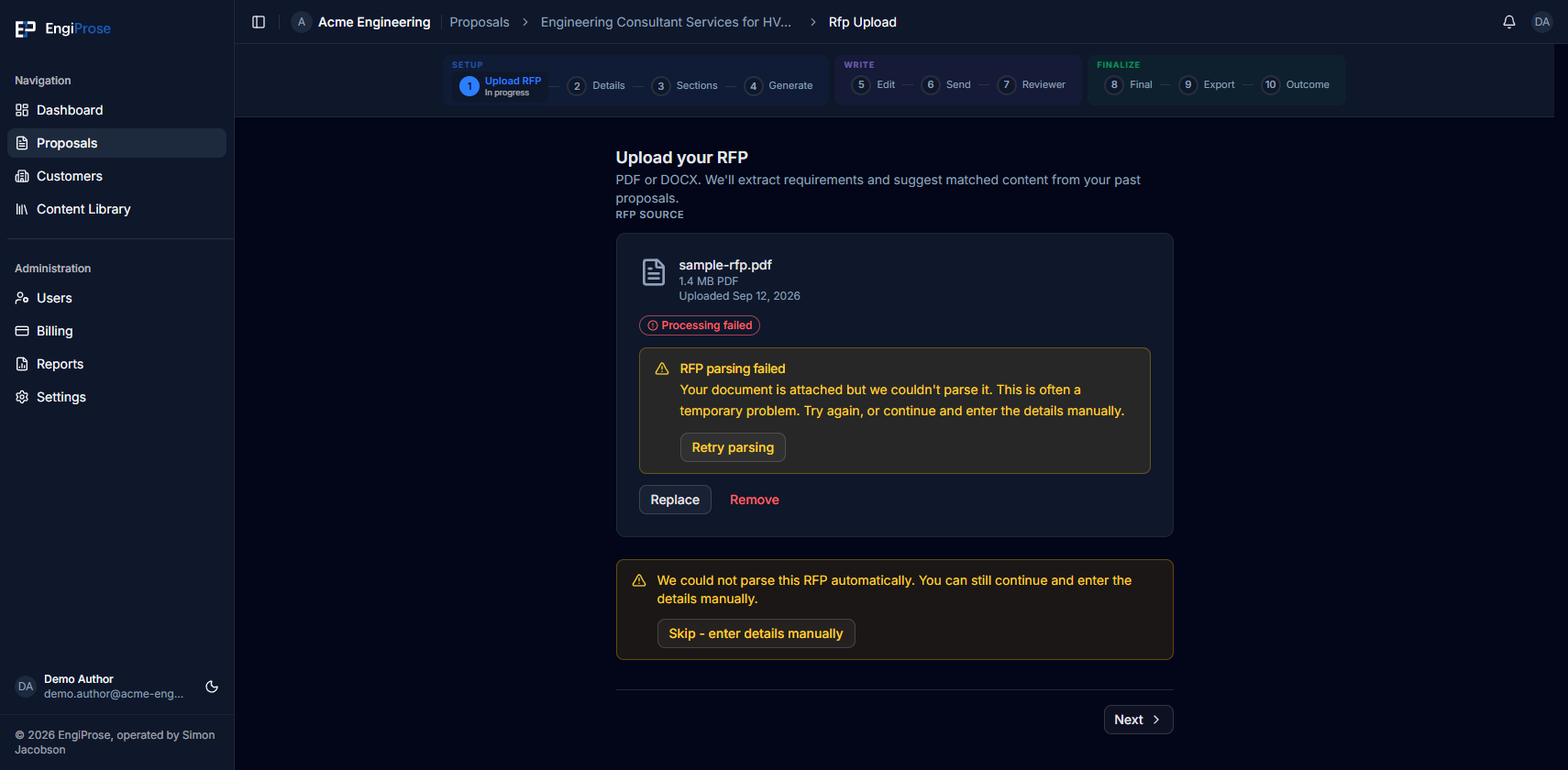
You have two options: Retry parsing tries again with the same file, or Skip - enter details manually moves you straight to the Details step without extracted requirements.
Skipping past a failed parse means no requirements are extracted from that RFP. There's currently no way to type requirements in by hand to replace what a failed parse would have found; you can still add individual requirements later from the Sections step, but there's no bulk manual entry path for a whole RFP's worth.
An RFP that exceeds your firm's AI token allowance for the billing period shows a similar banner naming the token limit instead of a parse error, with the same Skip option.
Common questions
What file types can I upload?
PDF or DOCX. Files up to 50MB.
Can I paste the RFP text instead of uploading a file?
Yes. Choose Paste Content instead of Upload File on the same step.
What happens to the proposal if I never come back to it?
It stays in Draft on your Proposals list. Nothing is deleted or sent automatically.