

Browse help topics
Complete proposal details
Review the customer, dates, author, approvers, scope, and sub-consultant details before building your proposal.
The Project details step turns the information gathered so far into the working record for your proposal. Review any details found in the RFP, fill in what is missing, and confirm who will write and approve the proposal.
Before you continue
- Confirm the proposal title, customer, due date, and template
- Choose the assigned author and proposal approvers
- Review the scope summary
- Record whether sub-consultant input is needed
Review the proposal identity
Start with the Identity group. It contains the proposal title, customer, proposal number, due date, project type, and template.
If EngiProse found a title or due date in the RFP, compare the suggestion with the current value. You can accept the suggestion or keep your own value. The proposal number is assigned automatically and is shown for reference.
The customer is required. Depending on what EngiProse found in the RFP, you may be able to select a suggested match, choose between several possible matches, or search your organization's existing customers. Organization Admins can create a customer when no suitable record exists.
Review the selected proposal template and any suggested alternative. You can keep the selected template or choose another available template. Use Project type for a short description of the work when that context will help the proposal team.
You cannot continue until a customer is selected. This connects the proposal to the correct customer record and keeps customer-based search and reporting accurate.
Choose the author and approvers
In Authoring & Approval, select the person responsible for drafting the proposal as the Assigned author.
The Approvers list controls who must approve this proposal. Your organization's default approvers may already be present. Add or remove people to fit this proposal without changing the defaults used for future proposals. See Set default proposal approvers for the organization-wide setup.
Confirm the scope and sub-consultant status
In Scope & Subconsultants, review the Scope summary. If EngiProse found a scope in the RFP, accept the suggestion or keep your own summary.
Turn on Requires Sub-Consultant Input when part of the proposal depends on an outside contributor. Then set the status to:
- Pending while you are waiting for their material.
- Received after their material has arrived.
Leave the switch off when no sub-consultant input is required.
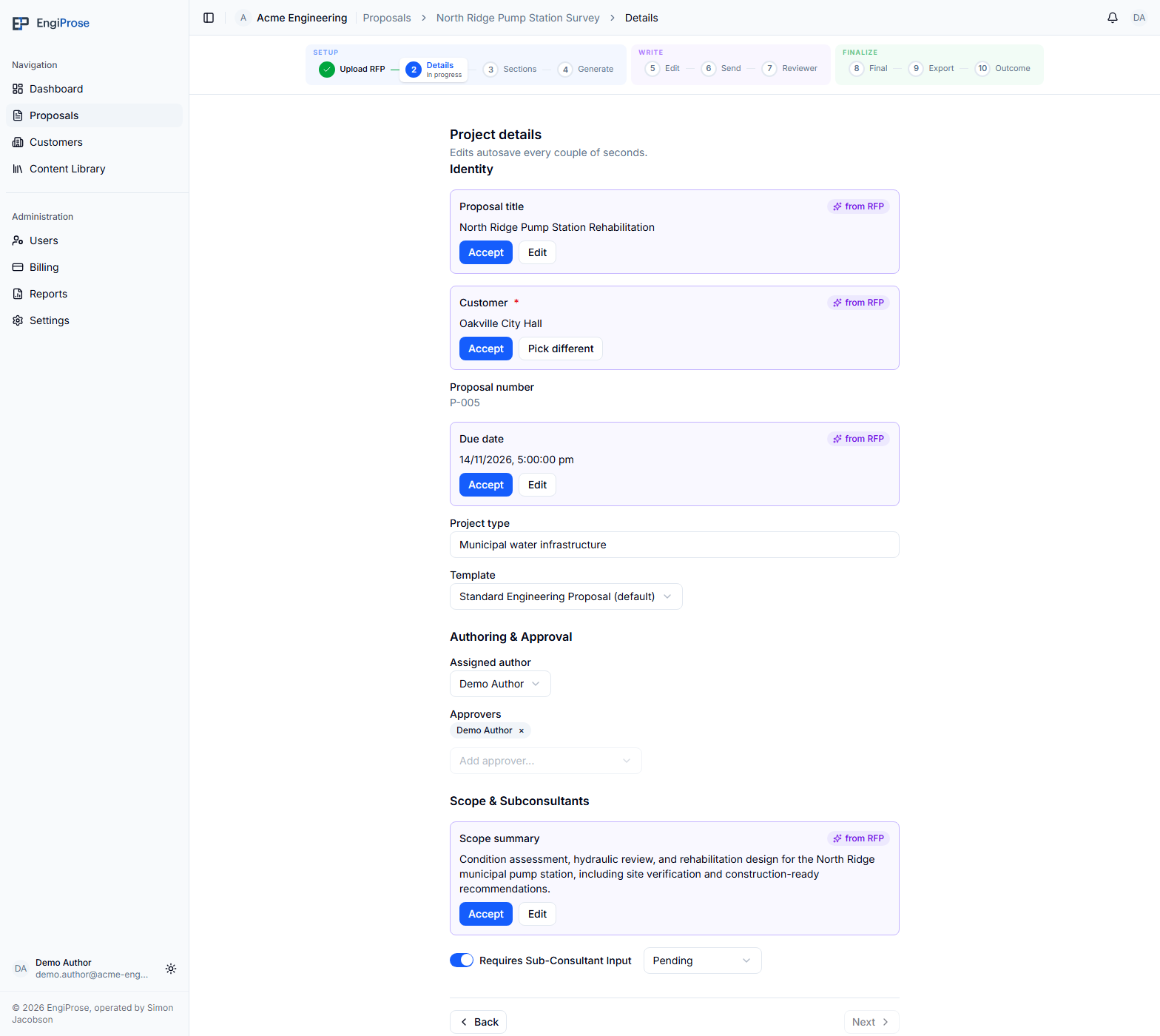
- RFP suggestions for the identity fields
- Author and approver choices for this proposal
- Scope summary: RFP-suggested work to review
- Pending: outside contributor input is awaited
Save and revisit the details
During proposal setup, edits save automatically every couple of seconds. After selecting a customer and completing your review, use Next to continue to the proposal sections.
You can revisit Project details later. If you have editing access, select Edit, make your changes, then select Save. Select Cancel to discard the changes from that editing session.
Common questions
Why are some values already filled in?
EngiProse can use the uploaded RFP and your organization settings to prepare details for review. Confirm each value before continuing because the source document may be incomplete or ambiguous.
Why can't I continue to the next step?
A customer has not been selected. Choose an existing customer or, if you are an Organization Admin, create the missing customer record.
Does changing this proposal's approvers change the defaults?
No. The approver list on Project details applies only to this proposal. Your organization's default approvers remain unchanged.