

Browse help topics
Notifications
Choose how EngiProse reaches you across in-app, email by category, and push on this device.
EngiProse reaches you three ways: in-app, email, and push to this device. This article covers all three, and where to find the bell's notification history once you have read them.
What you'll do
- Turn email on or off for each kind of update
- Turn on push notifications for this device
- Find your notification history from the bell
Three channels
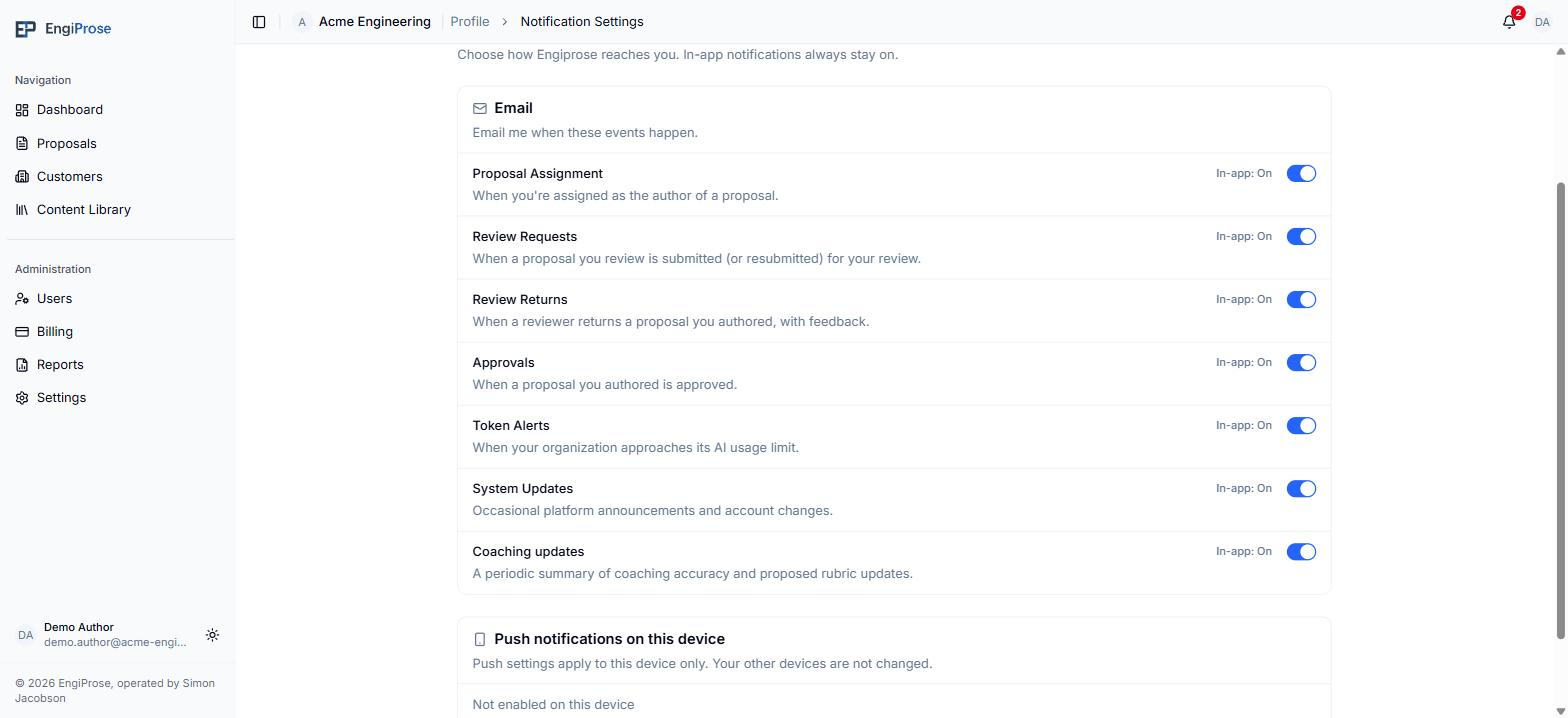
Open Notification Settings from your profile. "Choose how Engiprose reaches you. In-app notifications always stay on."
In-app notifications cannot be turned off: every row shows a fixed, muted "In-app: On" label rather than a toggle, because there is always a home for your notifications inside the product. Email is a per-category switch. Push is per-device, covered below.
Email, by category
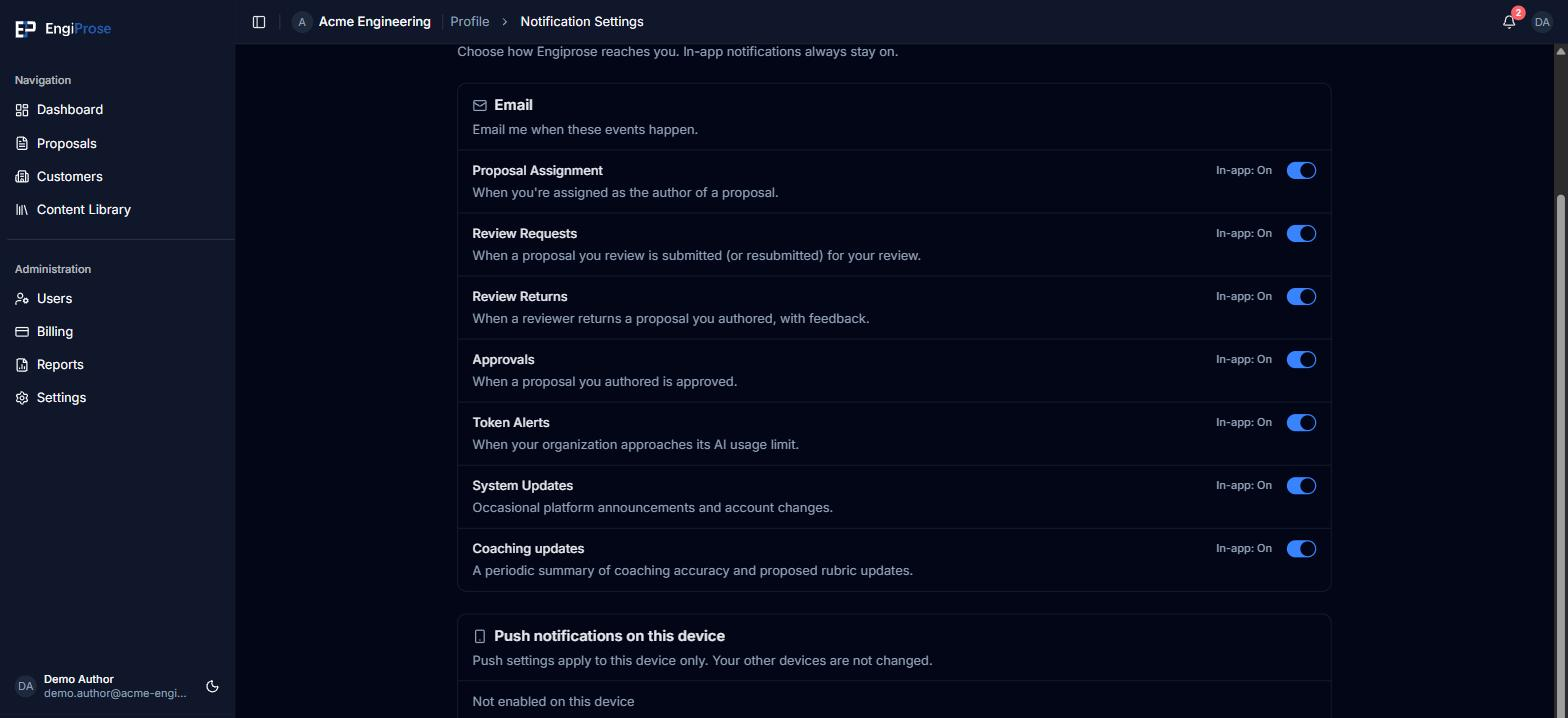
"Email me when these events happen." Every category starts on for a new account. Flipping a switch saves instantly, no separate Save button.
- Proposal Assignment: "When you're assigned as the author of a proposal."
- Review Requests: "When a proposal you review is submitted (or resubmitted) for your review."
- Review Returns: "When a reviewer returns a proposal you authored, with feedback."
- Approvals: "When a proposal you authored is approved."
- Token Alerts: "When your organization approaches its AI usage limit."
- System Updates: "Occasional platform announcements and account changes."
- Coaching updates: "A periodic summary of coaching accuracy and proposed rubric updates."
The Coaching updates category controls email for the periodic coaching digest. When your organization has new coaching information to review, Organization Admins receive an in-app digest summarizing recent score accuracy and any pending rubric updates. Its link opens Coaching Profile, where the details can be reviewed. For more about that workspace, see Manage your coaching profile.
These category switches control email only. Turning an email category off does not remove its in-app notifications or change push for a device.
Push notifications on this device
Below Email is a second section, Push notifications on this device. "Push settings apply to this device only. Your other devices are not changed." Enabling push here does not touch your phone if you set it up on your laptop, and the other way round.
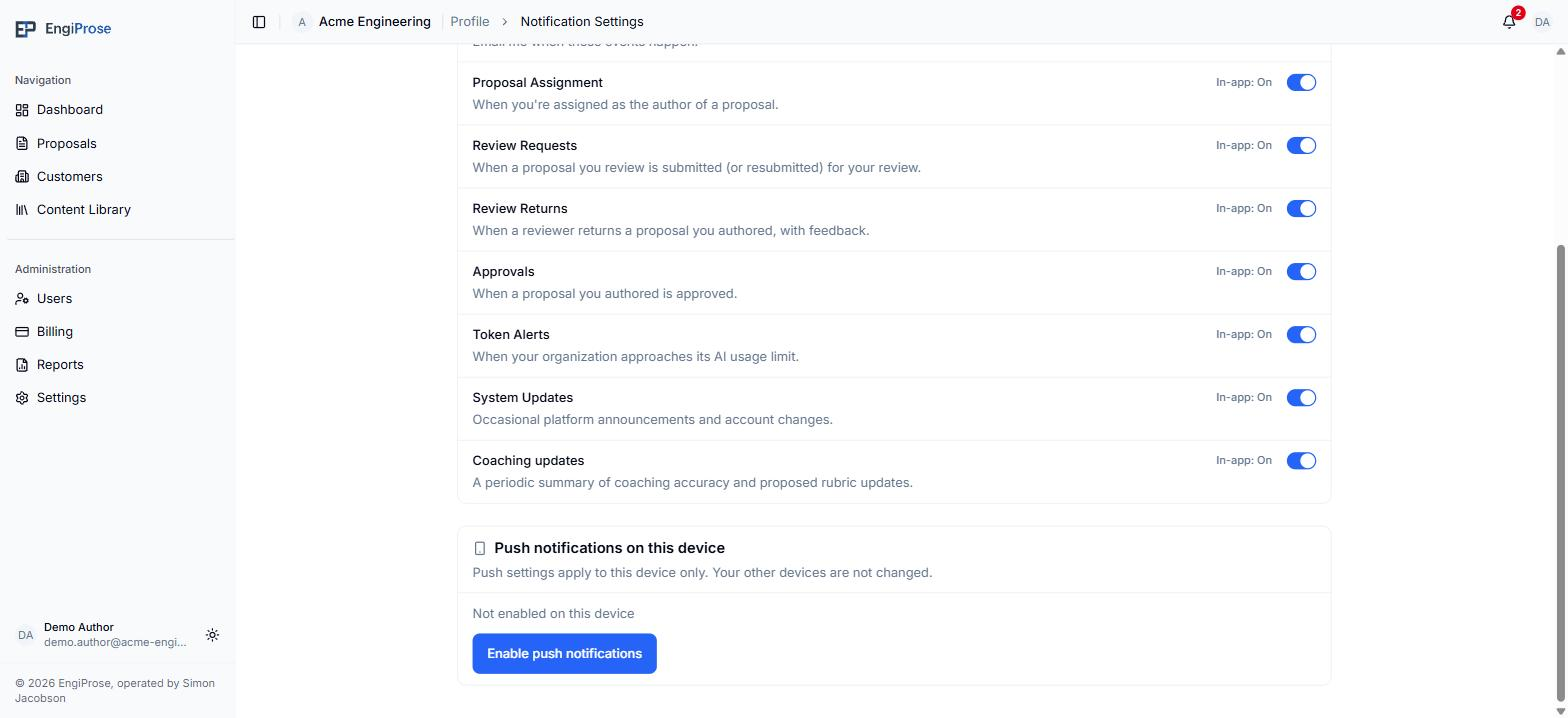
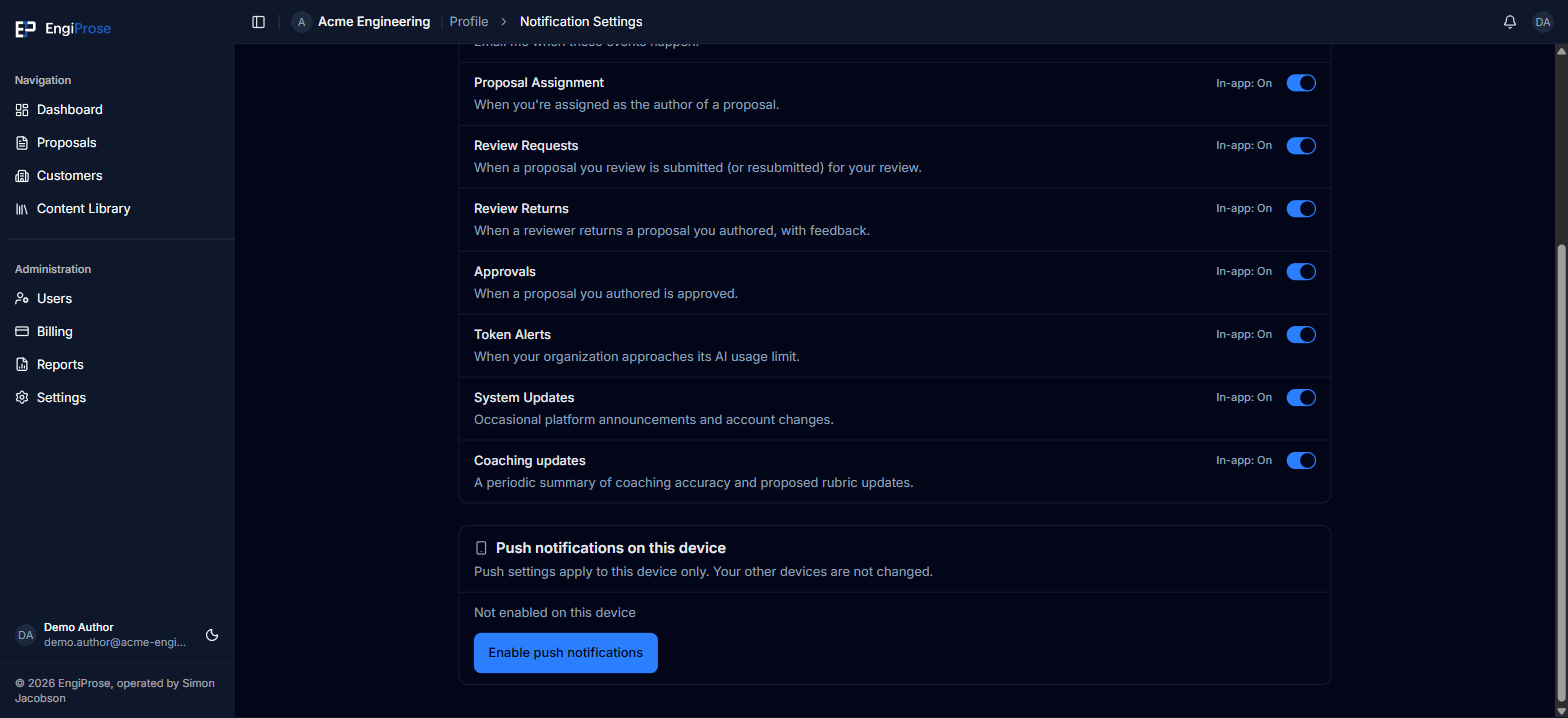
Select Enable push notifications. Your browser asks you to allow notifications for this site; allow it.
Once it is on, the status line reads "Push notifications are on for this device." and the button changes to Turn off on this device, so turning push off again is just as easy as turning it on.
Two other states you might see instead of the enable button:
- Blocked: "Notifications are blocked for this site in your browser. To turn them back on, open your browser's site settings for this page and allow notifications." No button shows here, since there is nothing the app itself can do until you unblock it.
- Unsupported: "Install this app to your home screen to receive notifications on this device." This is the common case on a phone browser that has not added EngiProse to the home screen yet.
Your notification history
The bell in the top bar opens your recent notifications, grouped into Today, Yesterday and Older. Mark all as read clears your unread count without leaving the panel. With nothing yet, it reads "No notifications yet" with "Updates about your proposals will appear here." underneath.
Long notifications show Show more only when their text is cut off. Select it to read the complete message and sender in place, then select Show less to collapse the row. Expanding a row does not open it or mark it as read. Select the notification itself when you are ready to follow its link and mark it read.
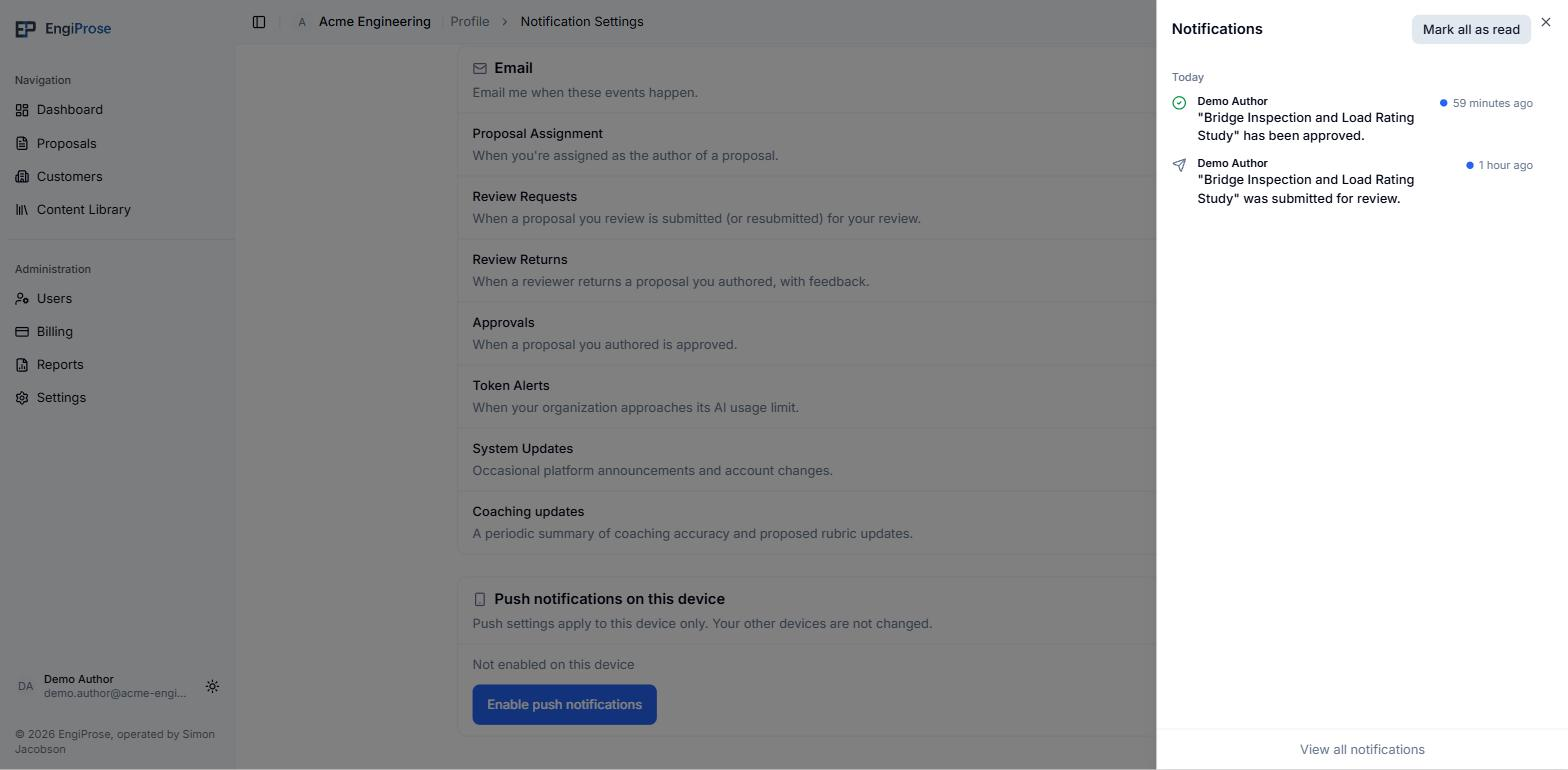
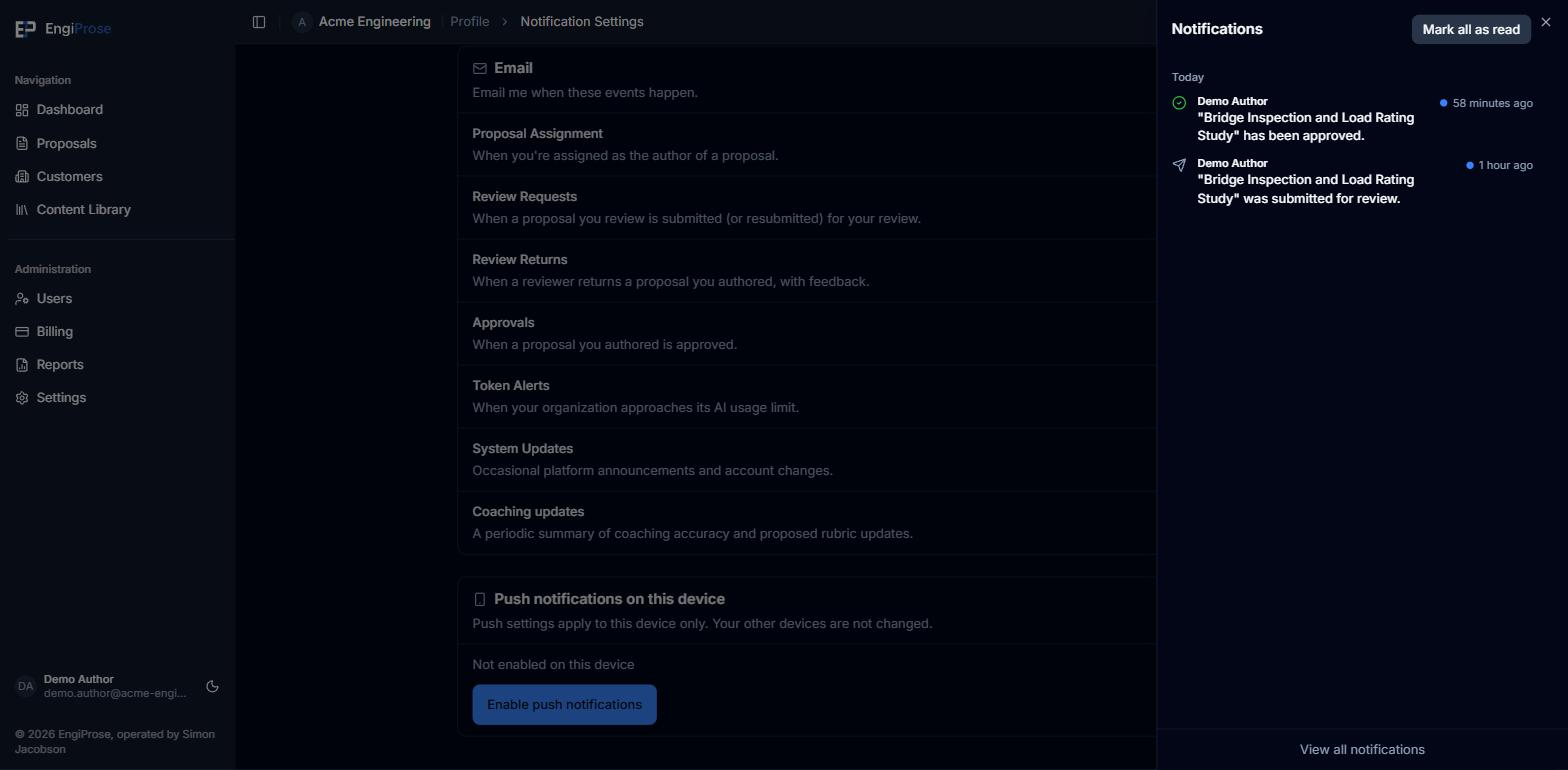
Select View all notifications at the bottom of the panel for the full list on its own page.
Common questions
Will I get an email for every notification I see in-app?
Only for the categories you leave on above. The in-app notification and the bell count always fire regardless of your email settings; email is the one channel you control per category.
Why does a notification have a Show more action?
Its message is longer than the collapsed row can display. Show more reveals the complete text without opening the notification or marking it read.
Why don't I see an option to enable push on my phone?
If your phone's browser has not added EngiProse to its home screen, the section reads "Install this app to your home screen to receive notifications on this device." instead of an enable button. Add it to your home screen first, then come back to this page.
I turned on push on my laptop. Why doesn't it work on my phone?
Push is per device on purpose. Turn it on separately on each device you want to receive it on.