

Browse help topics
Restrict invitations by email domain
Limit new invitations to email domains your organization owns without changing existing memberships.
The email domain allowlist controls which email addresses can be invited to your organization. It applies to future invitations only, so changing it never removes or changes an existing member.
Only an Organization Admin can view or change this setting.
What you'll do
- Add the email domains your organization allows
- Remove a domain or return to unrestricted invitations
- Understand which changes require confirmation
Choose the allowed domains
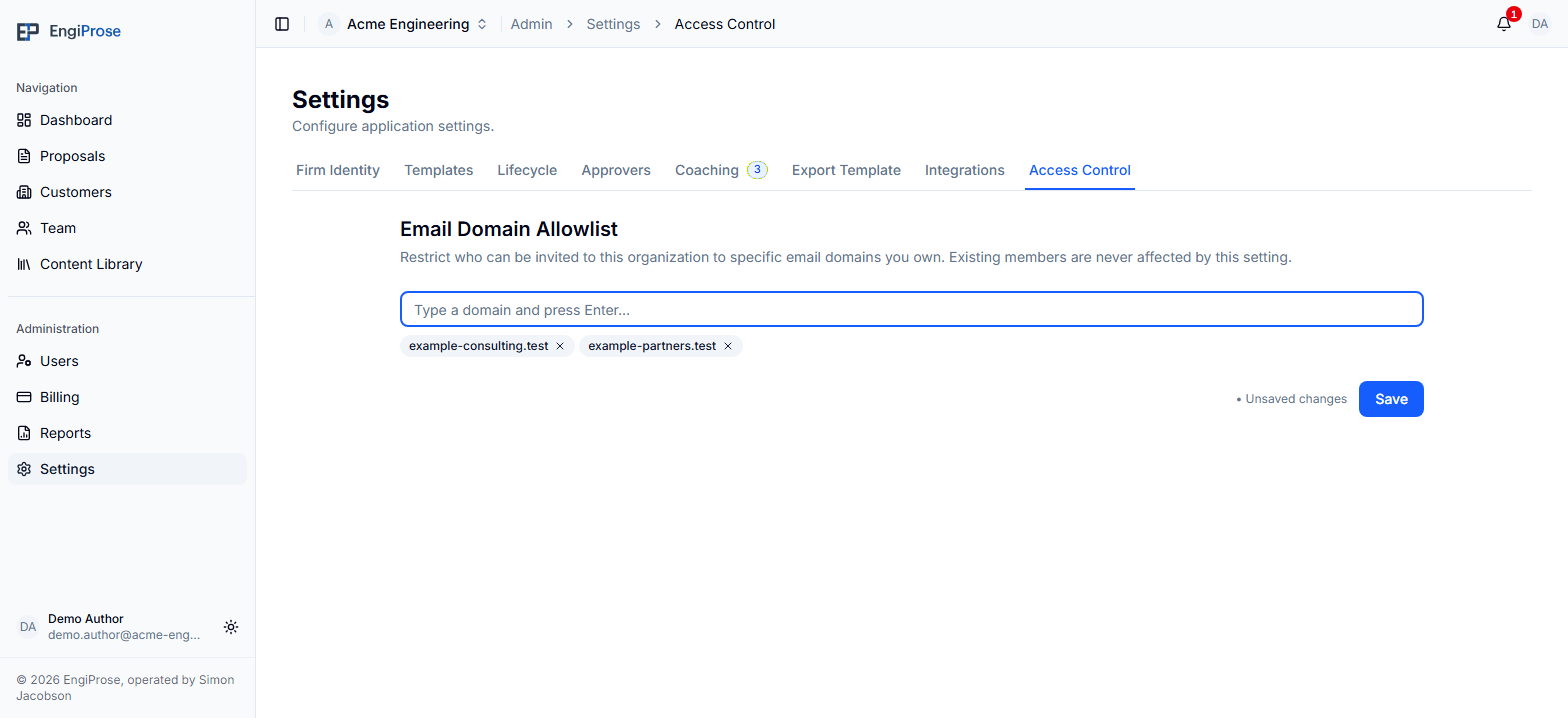
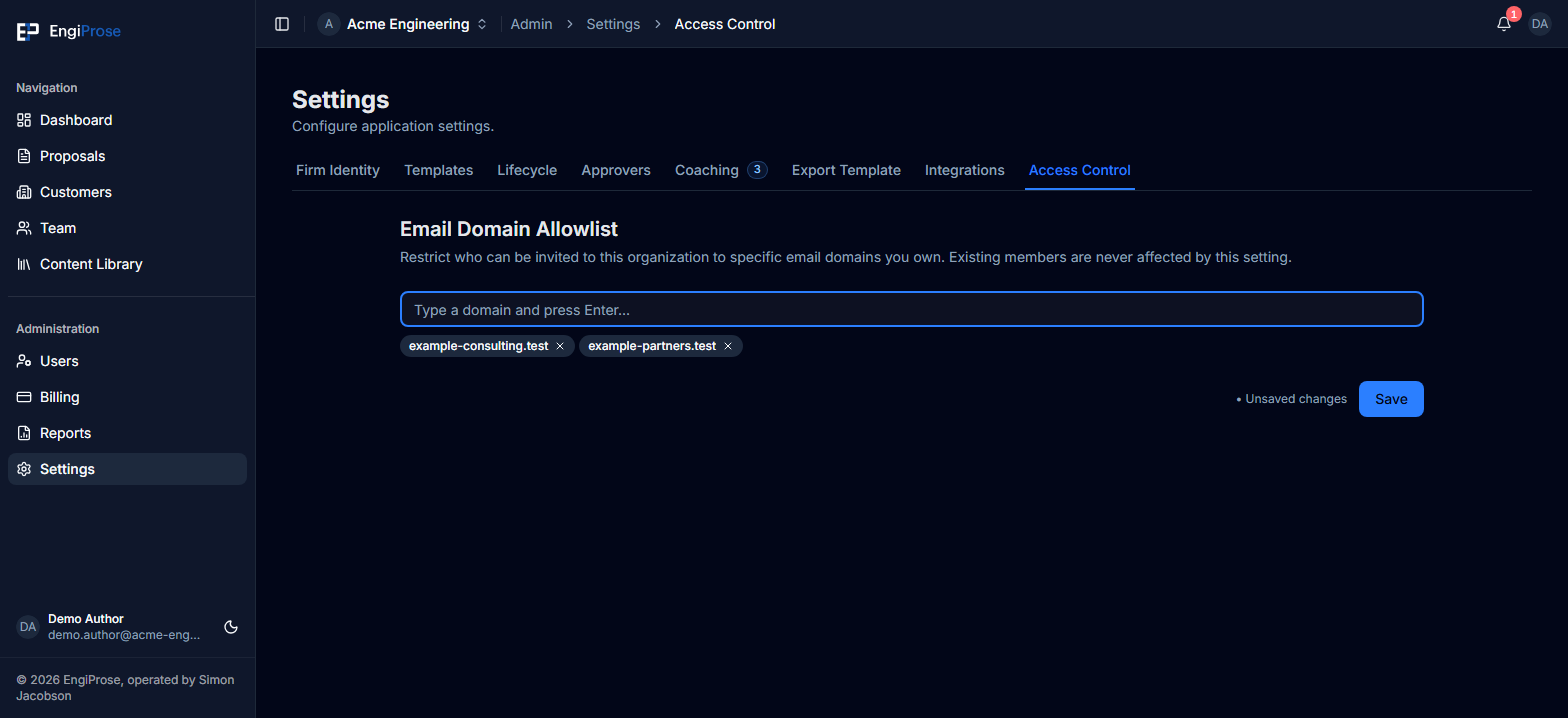
Open Settings, select Access Control, then find Email Domain Allowlist.
An empty list means Unrestricted - any email domain may be invited. Add one or more domains to restrict invitations to those domains.
In Add an email domain, type the part after the
@symbol, such asacme.com, then press Enter.Add every domain your organization wants to allow. You can list up to 20.
Select Save. If EngiProse asks you to confirm the change, review the listed domains and select Save Changes.
EngiProse removes surrounding spaces and saves domains in lowercase. Do not
include @, https://, a path, or an email address. Duplicate entries are
ignored.
Domains match exactly. Allowing acme.com does not automatically allow a
different subdomain such as consulting.acme.com. Add each domain that should
be accepted.
Remove a restriction
Select the remove control on a domain chip, then select Save. Removing one domain narrows who can be invited and saves without a widening warning.
Removing every domain returns the organization to unrestricted invitations. Because that allows any email domain again, EngiProse asks you to confirm the change before it is saved.
Understand the confirmation
EngiProse asks for confirmation when a save changes who may be invited:
- Setting the first allowed domains changes the organization from unrestricted invitations to the listed domains.
- Adding a domain allows invitations from that additional domain.
- Clearing the whole list allows invitations from every domain.
All Organization Admins are notified when one of these confirmed changes is saved. The page also marks unsaved changes until the save succeeds.
What happens during an invitation
When the allowlist contains domains, a new invitation or membership addition must use an email address from one of them. An address from another domain is refused before the membership is created.
If a legitimate invite is refused, an Organization Admin can add the needed domain under Access Control, save it, and then try the invitation again.
Common questions
Will this remove people who already joined?
No. The allowlist affects new invitations and additions only. Existing members are never changed by this setting.
Why can't I open Access Control?
This setting is reserved for Organization Admins. Other roles do not see the tab.
What does an empty list mean?
It means invitations are unrestricted by email domain. Any valid email domain may be invited.