

Browse help topics
Understand your organization's reports
Read feature adoption, time investment, proposal activity, AI usage, and current operational totals.
Reports show how your organization uses EngiProse across the proposal lifecycle. Admins and Organization Admins can open the Reports workspace and move between Feature Usage, Time Investment, and Usage Monitoring.
What you can learn
- See which proposal features your team uses
- Compare engagement, confidence, throughput, and seat use
- Understand where in-app proposal time is invested
- Track proposal activity, AI token use, and document storage
- Export usage-monitoring data to CSV
Choose a reporting period
Each report has a Reporting period control. Choose this month, a completed month range, or a custom range. The selected period stays with you when you switch between report tabs.
For a range of completed months, charts can also show the current month as an in-progress tail. Read the caption carefully: some reports exclude that tail from completed-period totals and comparisons, while Time Investment includes current in-app activity in its selected-period total.
Most report figures update about every hour. A change to an earlier month, such as an outcome recorded for an older proposal, can take up to a day to appear. Score accuracy updates once a day.
Read Feature Usage
Open Feature Usage to see how proposals move through Setup, Write, and Finalize and which features the team uses at each step.
The summary area includes:
- Score accuracy, showing how often scores agreed with recorded review decisions during its fixed quarter window. Expand the card to inspect misses, follow a proposal link, or select Manage coaching.
- Seats, including seats in use and a roster ordered by least recent activity.
- Engagement, showing active-user engagement over time.
- Average confidence, based on answers to the confidence survey after a proposal is submitted.
- Throughput, comparing proposals created, sent, and given a recorded outcome.
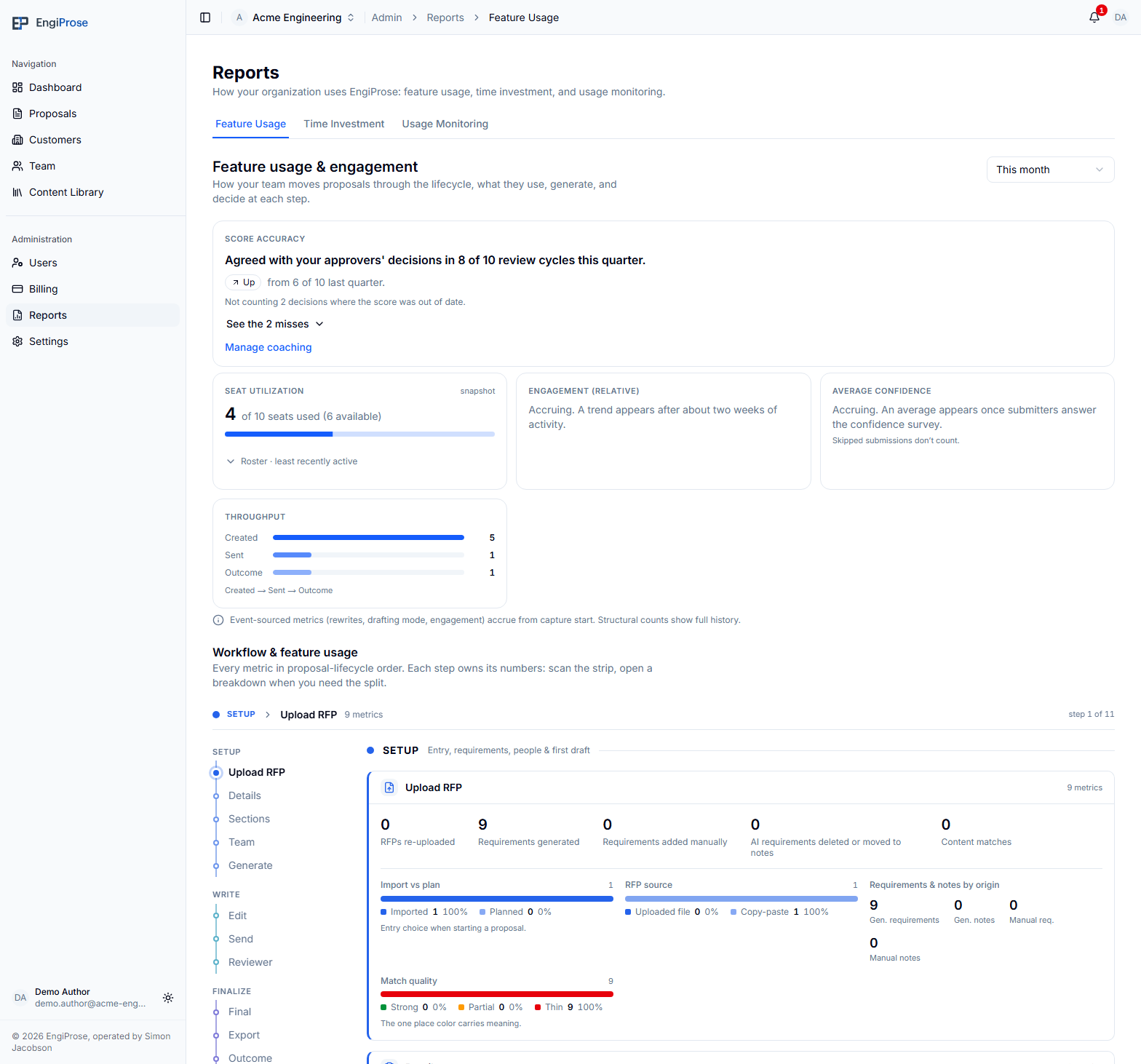
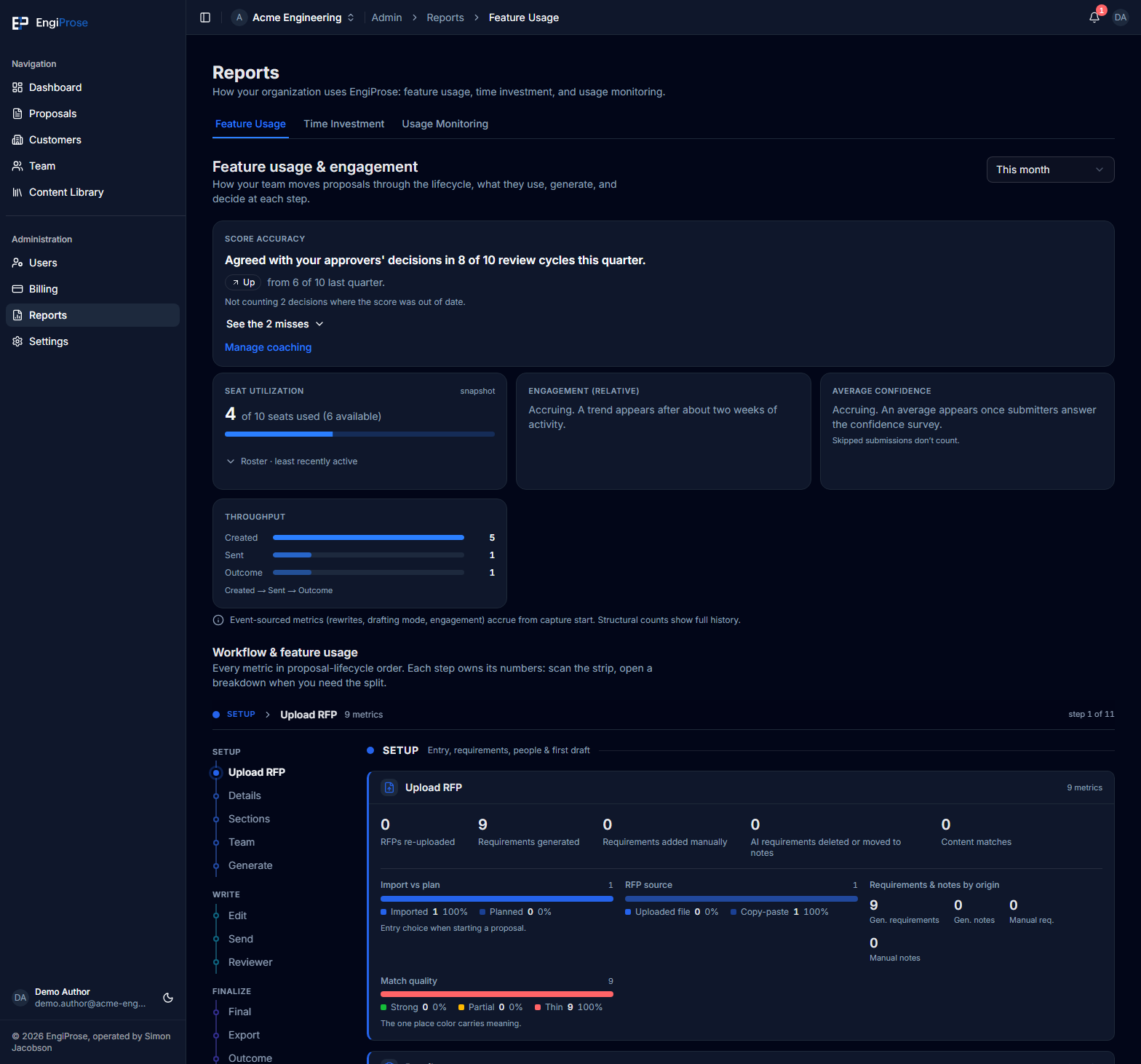
Below the summary, Workflow & feature usage follows the proposal lifecycle. Select a step in the navigation strip to focus its metrics. The report can show details such as how RFPs entered the workflow, requirement match quality, template and project-type use, team size, drafting mode, AI rewrites, review outcomes, exports, and recorded outcomes.
Some metrics cover the full proposal history. Metrics that depend on captured events begin from the date that capture became available, so earlier activity is not invented or backfilled.
Read Time Investment
Open Time Investment to understand active time spent working in EngiProse. It shows the average time per proposal, the change from the previous period, total active time, how time is distributed by content-match quality, and the average for each proposal-lifecycle phase.
Treat the report as a direction, not a productivity score. A complex or higher-value proposal can reasonably take longer. The report measures hands-on time inside EngiProse only. Work completed in Microsoft Word after export is not visible, and time from before tracking began is not backfilled.
Read Usage Monitoring
Open Usage Monitoring for period activity and a current operational snapshot.
The Activity section compares these flow metrics with the previous period:
- Proposals created
- Active users
- AI tokens used
- Storage added
The Current state section shows active proposals by status, requirement coverage quality, and total document storage as of the latest hourly refresh. These snapshot totals do not change when you change the reporting period above them.
Select Export CSV to download the usage-monitoring data for the chosen period. If the export fails, use Retry Export from the error message.
Use Dashboard for today's priorities
Reports help you understand patterns. For a live action list, open Dashboard. Its insight cards show proposals needing attention, active proposals by phase, win rate, and average score. Use Mine only to narrow the cards and proposal list to your assigned work, or select an insight card to filter the list to that set.
Common questions
Why did a report change after I switched periods?
The period control is shared by all three report tabs. A selection made on one tab carries to the others.
Why does an earlier period show no event or time data?
Captured-event and time-investment history starts when each measurement became available. EngiProse does not create estimates for earlier activity.
Why does Current state stay the same when I change the period?
It is a latest-refresh snapshot, not a historical flow. The Activity cards above it are the period-sensitive part of Usage Monitoring.
Why hasn't a report changed since I recorded something?
Most report figures update about every hour, and Score accuracy updates once a day. Dashboard insight cards are live.