

Browse help topics
Manage billing, seats and AI tokens
Start and manage your subscription, monitor AI token usage, buy add-ons, and find invoices.
The Billing workspace brings your subscription, seats, AI token usage, payment method, and invoices together. Only an Organization Admin can open it.
Open Billing, then move between Overview, Usage, and Payments.
What you can manage
- Choose a billing period and the number of member seats
- Review your current subscription and renewal details
- Monitor AI token usage and set alert thresholds
- Add more AI tokens when you need them
- Manage your payment method and find invoices
Start a subscription
If your organization does not have an active subscription, Overview shows the available plan and its current seat-price schedule. Choose monthly or annual billing, then enter the number of member seats you need. You can type a whole number or use the minus and plus controls.
The total updates as the seat count or billing period changes. Seat pricing is graduated, so each group of seats uses the rate shown for its band. Read the live total rather than multiplying one band's rate by every seat.
When the choices look right, select Continue to secure payment. EngiProse opens Stripe to collect payment and returns you to Billing when checkout is finished. Your subscription starts after payment succeeds.
Your included AI tokens are based on the purchased seats and renew each billing period. They reset on the renewal date and do not carry over.
Review and manage an active subscription
For an active subscription, Overview shows the plan, total price for the purchased seats, billing cycle, renewal date, included AI token allowance, and seat usage. It also summarizes current token usage and your saved payment method when one is available.
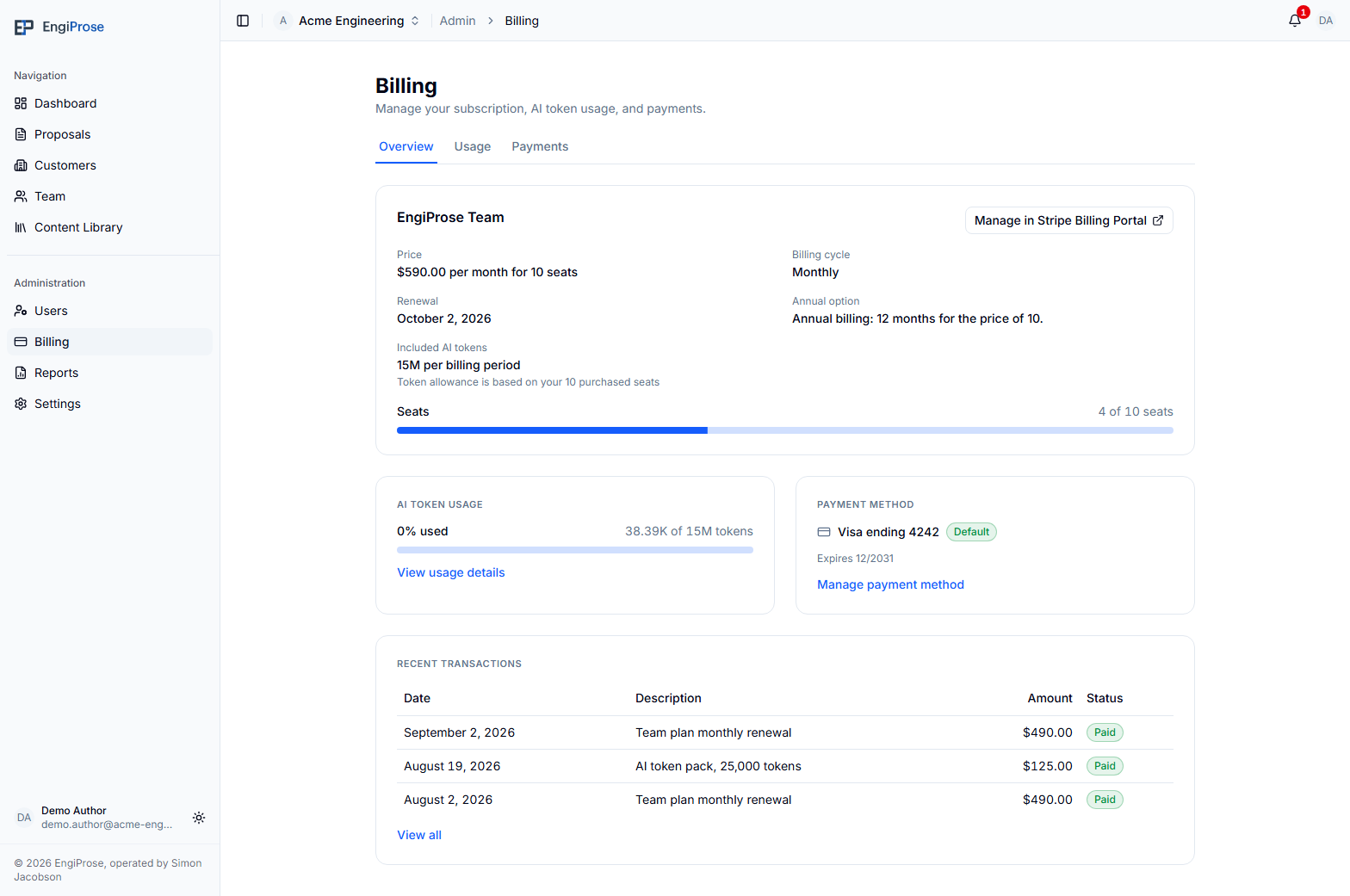
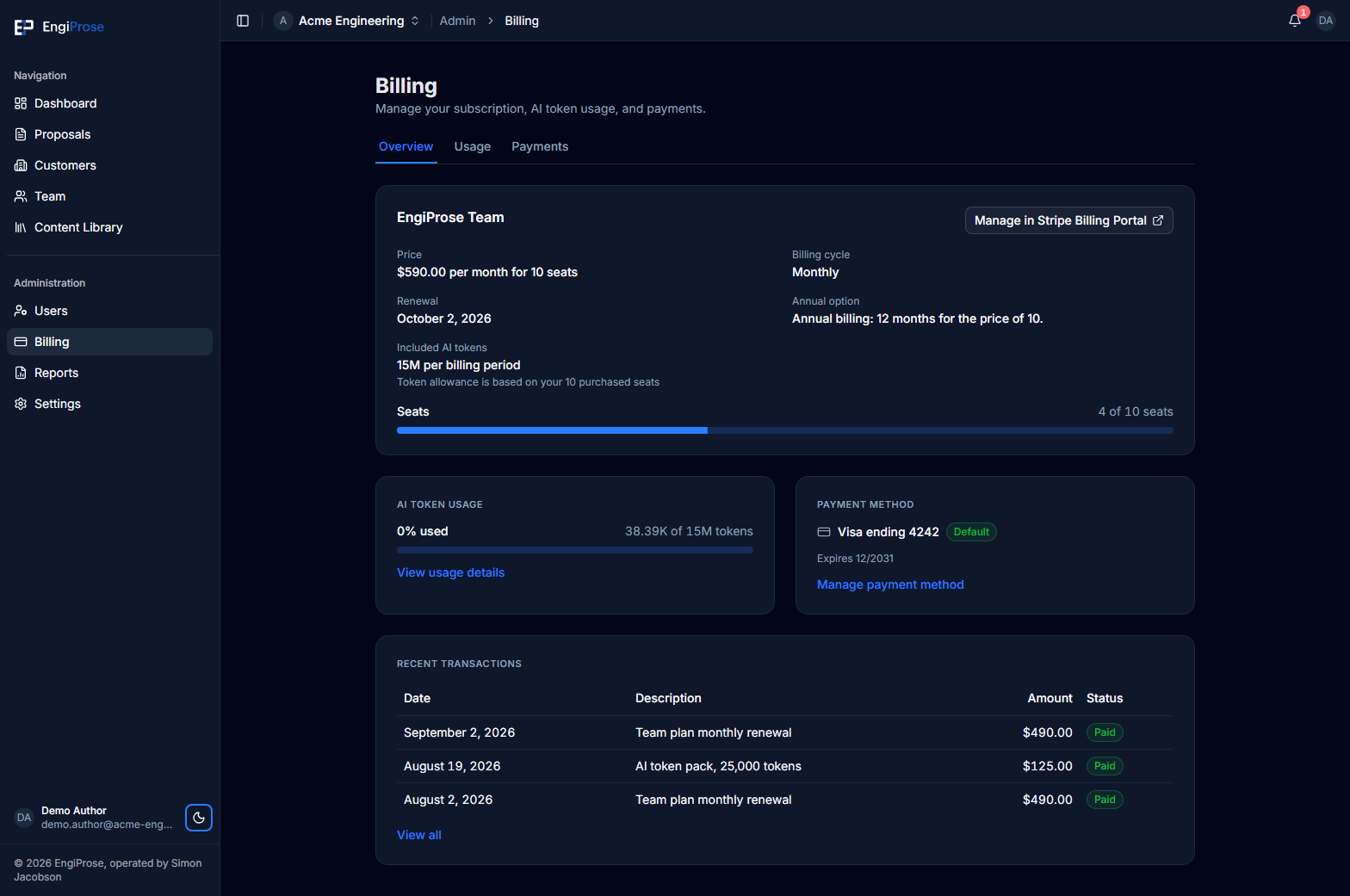
Select Manage in Stripe Billing Portal to make the subscription and payment changes offered for your account. If a payment is past due, Billing shows a warning so an Organization Admin can resolve it through the portal.
Monitor AI token usage
Open Usage to see how the organization is using AI tokens during the current billing period. The dashboard includes:
- Tokens used and the daily average
- A projected period total
- Daily usage for the last 30 days
- Proposals responsible for the largest share of generation usage
- Active token add-ons, their remaining balances, and expiry dates
The main usage meter is measured against the plan allowance. Add-on tokens are shown separately and are used after that allowance runs out.
Set usage alerts
In Alert thresholds, add the percentage levels that matter to your organization. Organization Admins and Admins are notified when usage crosses each threshold during a billing period. Remove a threshold when you no longer need that alert.
Add more AI tokens
Open Payments and find Token add-ons. Each available pack shows its current token quantity, price, and validity. Select the pack you want, then use the action shown to purchase or request it.
Depending on your organization's billing setup, the action may read Purchase or Request token add-on. An open request appears on Payments and can be cancelled while it is still pending.
Purchased add-on tokens are used after the plan allowance. They remain available for the validity period shown when you buy them, and packs with the nearest expiry are used first. Return to Usage to see each active balance and expiry date.
Manage payment details and invoices
When Payments shows a saved card, it displays the brand, last four digits, expiry, and whether it is the default. Select Manage in Stripe Billing Portal to update it. Stripe stores and processes the card details, so EngiProse does not receive the full card number.
The Payment history section lists subscription and add-on transactions. Use its search, date, status, and sort controls to narrow the list. Open or download an invoice from a transaction when that action is available.
Common questions
Why is my subscription total not one seat price multiplied by every seat?
Seat pricing is graduated. Seats in each band use that band's rate, and Billing calculates the combined total for you.
Do unused plan tokens carry into the next billing period?
No. Included plan tokens reset on the renewal date. Add-on tokens follow the separate expiry date shown for each pack.
Why can I not open Billing?
Billing is available to Organization Admins. Ask an Organization Admin in your organization to make the billing change or review the information with you.