

Browse help topics
Manage your coaching profile
Review proposed coaching updates, tune your scoring rubric, understand score accuracy, and see what EngiProse has learned about your firm.
The Coaching Profile settings show how EngiProse is adapting scoring and coaching to your firm. An Admin or Organization Admin can review proposed updates, choose the language and weight of each scoring category, check how scores compare with real decisions, and read the history of rubric changes.
Open Settings and select Coaching Profile.
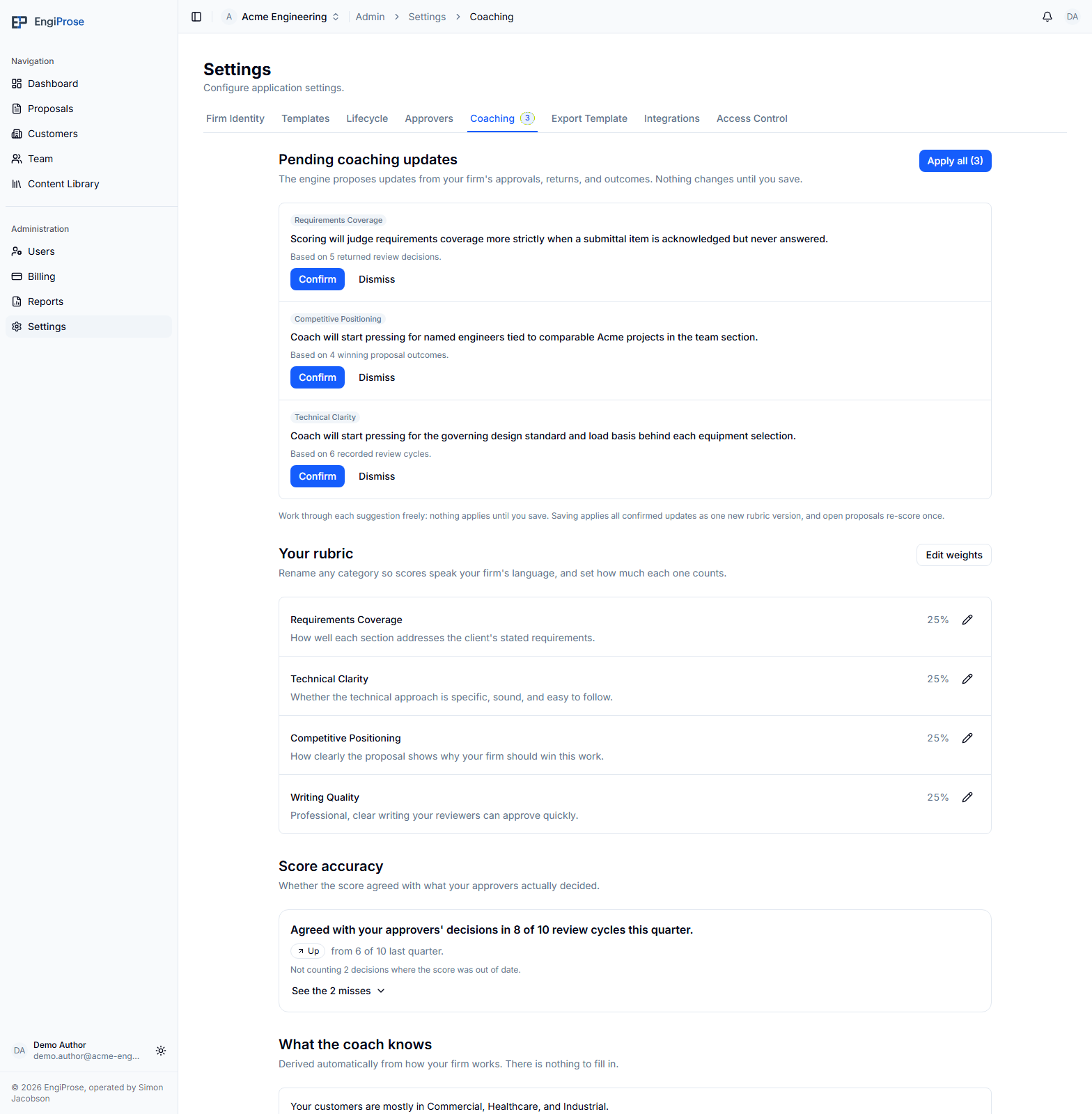
What you can manage
- Review and apply pending coaching updates
- Rename scoring categories and edit their weights
- Check score accuracy and investigate misses
- See the firm context available to the coach
- Review the rubric changelog
Review pending coaching updates
Pending coaching updates appears when EngiProse has suggestions based on your firm's approvals, returns, and recorded outcomes. Each suggestion explains the proposed change and the evidence behind it.
Use the controls on each suggestion:
- Confirm stages the update for application.
- Dismiss stages a dismissal and lets you add an optional reason that can improve future suggestions.
- Undo or Re-open changes your staged decision before saving.
Nothing changes while you work through the list. Select Save and apply to apply all staged decisions together. Confirmed changes become one new rubric version, and open proposals re-score once. Select Apply all to confirm and apply every remaining suggestion in one action.
Apply all includes suggestions you have not reviewed individually. Read the list first when a change could alter how sections are scored.
Rename scoring categories
Your rubric lists the four scoring categories, their descriptions, current weights, and any coaching evidence already in use.
Select the edit action beside a category to change its Category name and One-line description. You can choose a suggested name or type your own. Each category needs a distinct name. Select Reset to default to refill the default name and description, then select Save to apply them.
Renaming a category changes the words your team sees throughout scoring. It does not change any score.
Change how much each category counts
Select Edit weights to replace the displayed percentages with editable fields. Enter whole-number weights that total 100%, then select Save.
Changing weights affects the score calculation, so existing proposal sections re-score under the new balance. It does not rename the categories or discard the evidence shown beneath them.
Only one rubric editor can be open at a time. Opening a category-name editor closes the weight editor, and opening the weight editor closes any category editor. Save before switching if you want to keep those changes.
Read score accuracy
Score accuracy compares the score available at the decision point with what happened afterward. When in-system review is enabled, it reports agreement with approver decisions. Otherwise, it uses proposals recorded as won or lost. Score accuracy updates once a day, so a decision or outcome recorded today can take up to a day to count.
The card starts with a "Still learning" state while evidence accumulates. As more proposals reach a decision, it can show the number of agreements, a trend against the previous quarter, and the decisions where the score did not align. Expand the misses list to investigate those examples.
A decision made from an out-of-date score is left out of the accuracy result and is identified as excluded. This keeps the comparison focused on the score people actually had when deciding.
See How scoring works for the section scores and coaching shown while writing a proposal.
See what the coach knows
What the coach knows summarizes the firm context EngiProse can derive from your customer records and imported RFPs, including the industries that appear most often. The source counts appear with the summary when there is enough context to make one.
There is nothing to fill in here. If it still says EngiProse is learning, keep customer industries current and continue creating proposals from RFPs.
Review rubric history
Rubric changelog lists every change to how your team is coached, newest first. It records new rubric versions, weight changes, and category-language changes. Language-only rows state that scores were not affected.
The five latest changes are shown first. Expand the list to see the complete history, then collapse it when you are finished.
Common questions
Do confirmed suggestions take effect immediately?
Not until you select Save and apply. Confirm, dismiss, undo, and re-open are staged choices, so you can review the batch before anything changes.
Why can't I save new rubric weights?
Use whole numbers and make sure all four weights add up to exactly 100%.
Why does Score accuracy still say Still learning?
The organization does not yet have enough completed review cycles or decided outcomes for a firm verdict. The card becomes more conclusive as evidence accumulates.
Why didn't Score accuracy change after I recorded an outcome?
It updates once a day. Check again tomorrow.