

Browse help topics
Use EngiProse on a phone or tablet
Know what changes on a smaller screen, what you can do on a phone, and when to use a tablet or desktop.
EngiProse adapts to phones and tablets without creating a separate account or copy of your work. You can check proposals, continue setup, make light edits, review, approve, and respond to notifications while you are away from your desk.
What you'll learn
- Find your way around on a phone or tablet
- Know which proposal tasks work on a phone
- Add EngiProse to your home screen
Find your way around
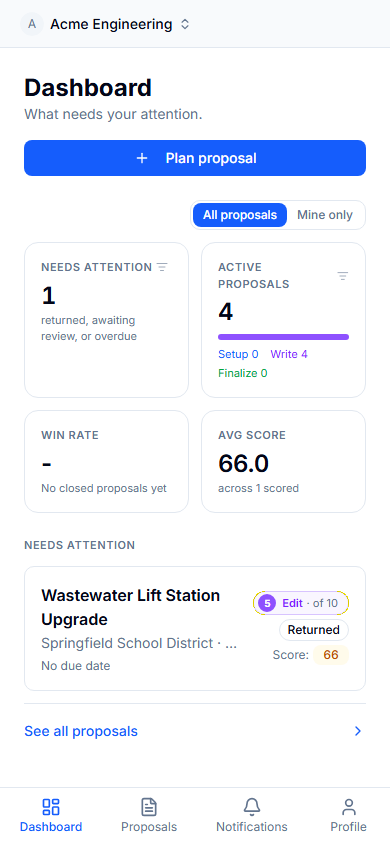
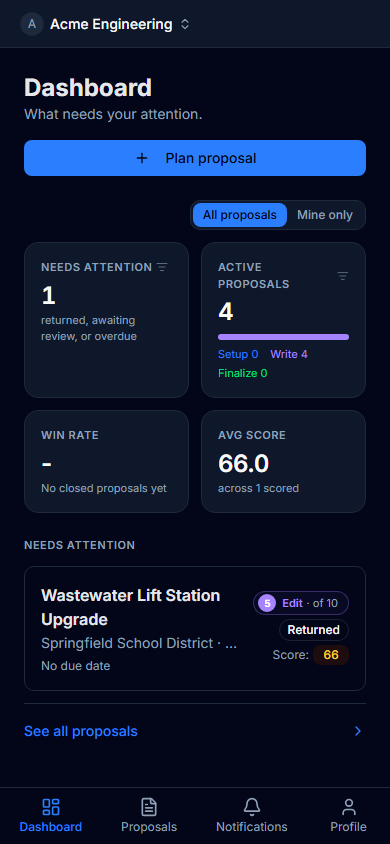
On a phone, the sidebar becomes a bottom bar with Dashboard, Proposals, Notifications, and Profile. The unread badge on Notifications shows up to 9 unread items, then reads 9+. When you open a proposal, a back button and the proposal title replace the organization name in the top bar.
The phone Dashboard is a quick summary. It shows proposal totals and the work that needs attention. Open Proposals for the full card list, search, filters, sorting, and pagination.
On a tablet, EngiProse keeps the sidebar layout. It may open as a narrow icon rail to leave more room for your work. Use the sidebar control to expand or collapse it.
Work on proposals from a phone
You can open proposal details and continue a proposal that has already been started. All five setup steps are available, and you can move through sections and requirements by touch.
Starting a brand-new proposal with Start proposal needs a tablet or desktop. On a phone, New proposal instead offers Plan proposal, which lets you capture work to return to later. Once a proposal has been started on a larger screen, you can continue its setup on your phone.
If you follow a direct link to start a new proposal on a phone, EngiProse asks you to use a tablet or desktop and gives you a Go back button. Your existing proposals remain available.
Edit on a phone
The editor becomes one continuous column. A numbered section row stays at the top as you scroll. Select a number to move to that section, or select the score at the start of the row to open proposal coaching.
Tap in the text to make a quick change. While the on-screen keyboard is open, a compact toolbar gives you Bold, Italic, Bullet list, and Numbered list. Each section also keeps its Generate with AI or Regenerate action and AI Rewrite action below the text. Secondary editor actions are collected under More so the main action remains in reach.
The phone editor is intended for reading and light changes. For a wide editing canvas and the full desktop tool layout, move to a tablet or desktop.
Review and approve
When you are an active reviewer, the bottom bar changes to the review actions available to you. Use Approve, Return, or Comment without leaving the proposal. Returning a proposal still requires a note, and approving uses the same confirmation and locking rules as on a larger screen.
To comment on specific wording, select the text and choose Comment. Comments open in a bottom panel where you can read the thread, reply, resolve it, or delete a comment when permitted. Tracked-change controls are also sized for touch.
Notifications and your home screen
Open Notifications from the bottom bar to see the full notification list. Items are grouped by day, and selecting one takes you to the relevant work.
For quicker access, add EngiProse to your phone's home screen using your browser's add-to-home-screen action. When your browser supports installation and EngiProse is not already installed, the Account page under Profile shows an Add to home screen for the best experience hint.
After installing, open Profile, then Notification Settings, to enable push notifications on that device. Push is set separately on each phone, tablet, or computer. See Notifications for the complete setup and troubleshooting steps.
Common questions
Can I start a proposal on my phone?
You can use Plan proposal on a phone and continue every setup step for a proposal that has already been started. Use a tablet or desktop for the initial Start proposal flow.
Why do I see a sidebar on my tablet instead of the phone tabs?
Tablets use the larger-screen layout. The sidebar may begin as an icon rail, and you can expand it when you want the full labels.
Why doesn't EngiProse offer an install button?
Installation is handled by your browser. Use its add-to-home-screen action. The hint appears only on supported phones when EngiProse is not already installed, and it stays hidden after you dismiss it.