

Browse help topics
Format content in the editor
Format text, tables, lists, links, engineering notation, page breaks, and figure placeholders for a clear Word-ready proposal.
The editor keeps document structure and formatting with your proposal so the
same intent can carry into Word. Use the toolbar for common formatting, or
type / on an empty line to open the insert menu for blocks and engineering
symbols.
What you can format
- Apply text styles and headings
- Build nested lists and working links
- Insert and adjust tables
- Add engineering symbols, notation, and fractions
- Place page breaks and numbered figure placeholders
- Reorder whole content blocks
Format text and headings
Select text, then use Bold, Italic, Underline, or Strikethrough. Use Heading 2 and Heading 3 to create hierarchy inside a proposal section. More formatting contains Superscript and Subscript for technical notation.
On a phone, the compact toolbar contains Bold, Italic, Bullet list, and Numbered list. Use a tablet or desktop for the complete formatting toolbar.
Build lists that stay structured
Use Bullet list or Numbered list for a new list or selected paragraphs. Press Tab to nest an item under the item above, and Shift+Tab to move it back out. The first item cannot be nested until there is an item above it.
Nested numbering is exported as a real multilevel Word list, so Word can continue and renumber it instead of treating the numbers as typed text.
Add and open links
Select the words that should become a link, then select Link or press
Ctrl+K on Windows and Cmd+K on a Mac. Enter an http, https, or email link
and select Apply. If you omit the web protocol, EngiProse starts with
https.
Open an existing link to edit its address, select Open link in a new tab, or choose Remove link while keeping the visible text. Links remain clickable in Word export.
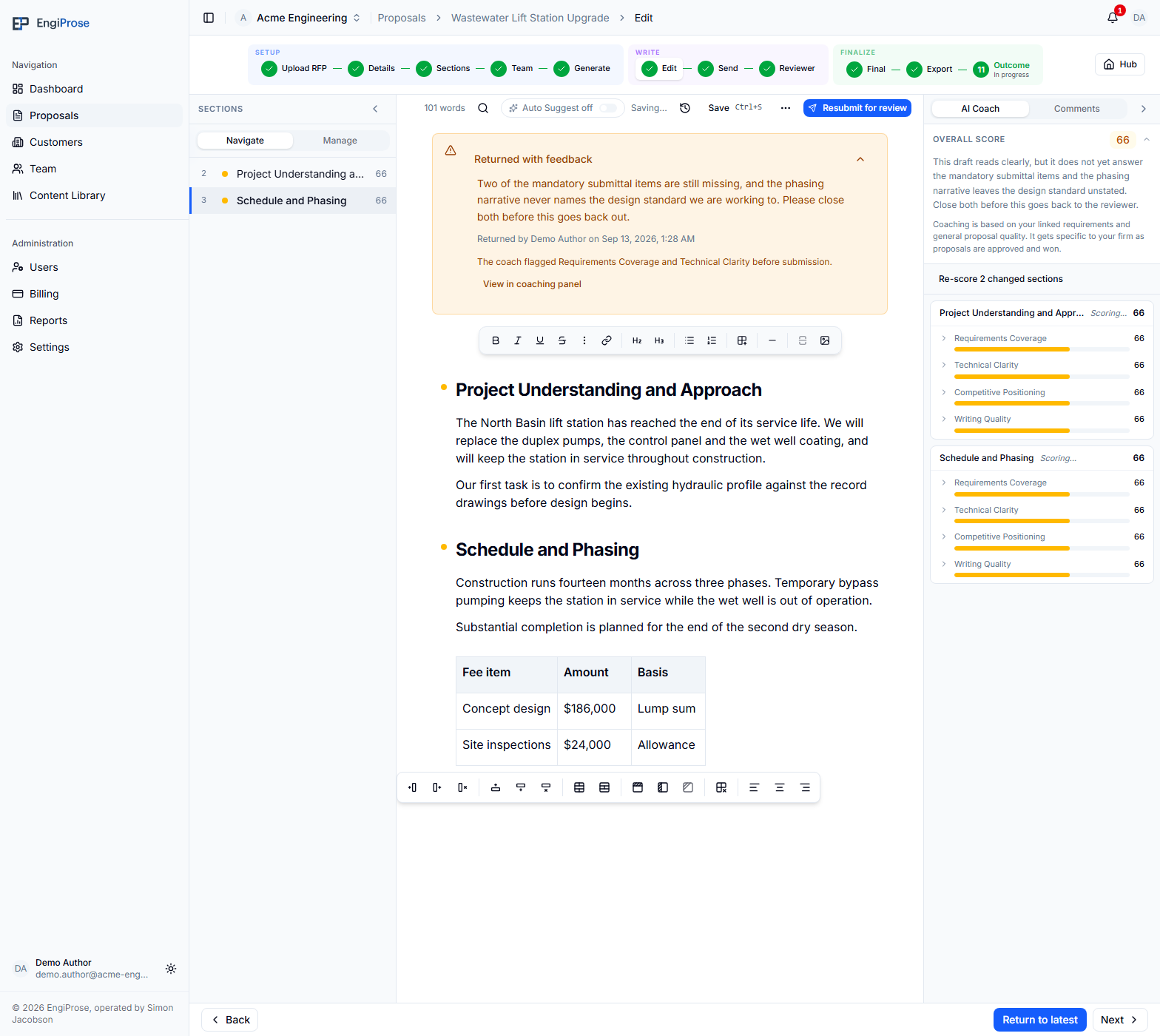
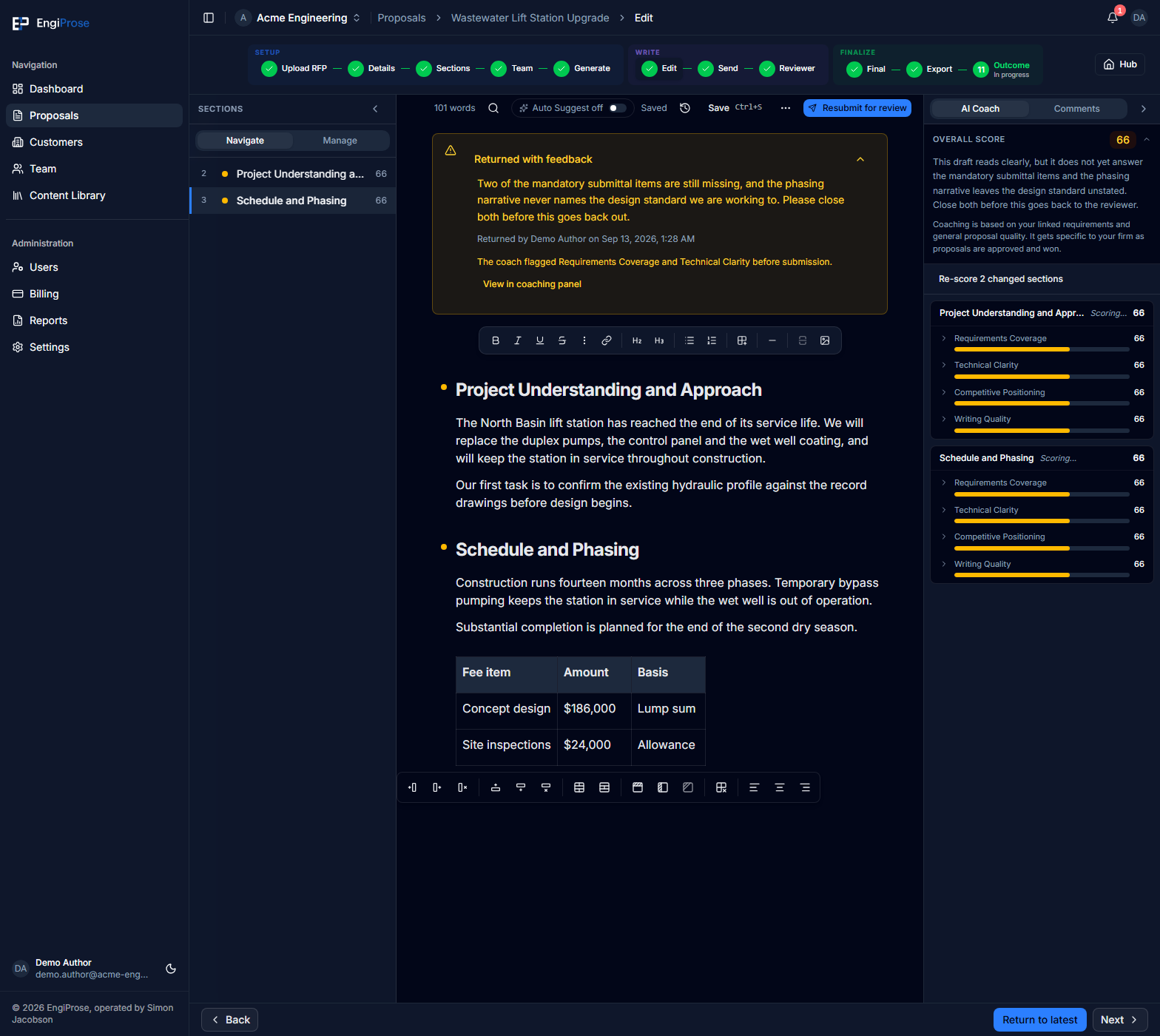
Insert and adjust a table
Select Insert table to add a table with three rows, three columns, and a header row. When the cursor is inside the table, Table options lets you:
- Insert or delete rows and columns.
- Merge selected cells or split a merged cell.
- Toggle header rows, columns, or individual cells.
- Align cell content left, center, or right.
- Delete the table.
Drag a column boundary to change its width. Authored column proportions and cell alignment carry into Word, which is especially useful for fee tables.
Write engineering notation
Open More formatting to apply superscript or subscript to selected text.
For common symbols, type / and search the Insert symbol group. It
includes degree, plus-minus, diameter, micro, multiplication, delta, omega,
comparison symbols, squared, and cubed.
Type a proper fraction such as 5/16 followed by a space to convert supported
engineering denominators automatically. For any one-to-three-digit numerator
and denominator, type /fraction, enter both values in Insert fraction,
then select Insert. The result uses numerator and denominator formatting
that also carries into Word.
If you ask AI to rewrite selected text that contains superscript or subscript, EngiProse warns that the rewrite will remove that notation. Cancel to preserve it, or continue and reapply the notation afterward.
Control pages and planned figures
Select Page break, or type /page break, where the next content should
begin on a new Word page. The editor shows a labeled divider. Select it and
press Backspace or Delete to remove it. A page break can sit between blocks in
a proposal section, but not inside a list item, table cell, or quotation.
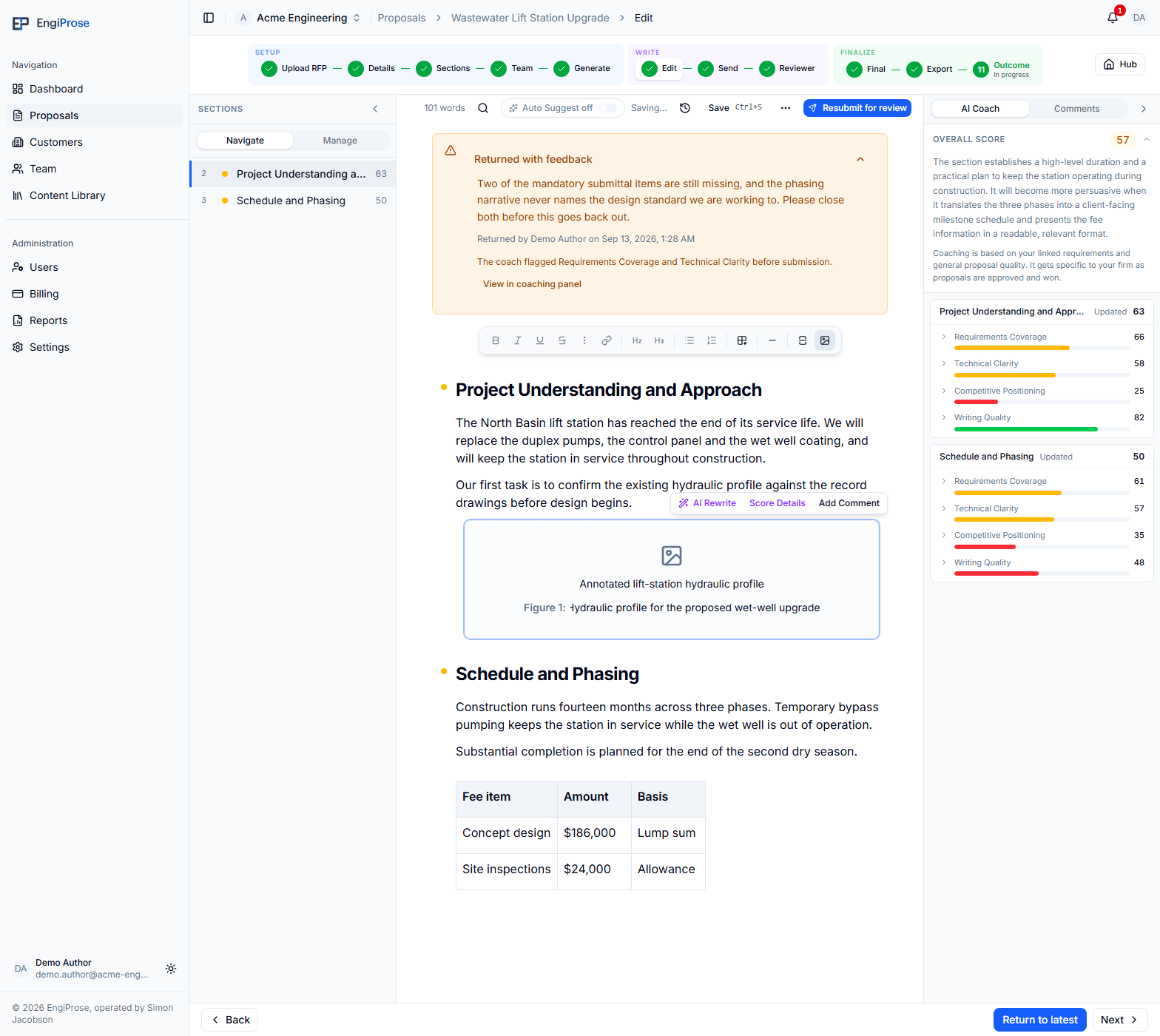
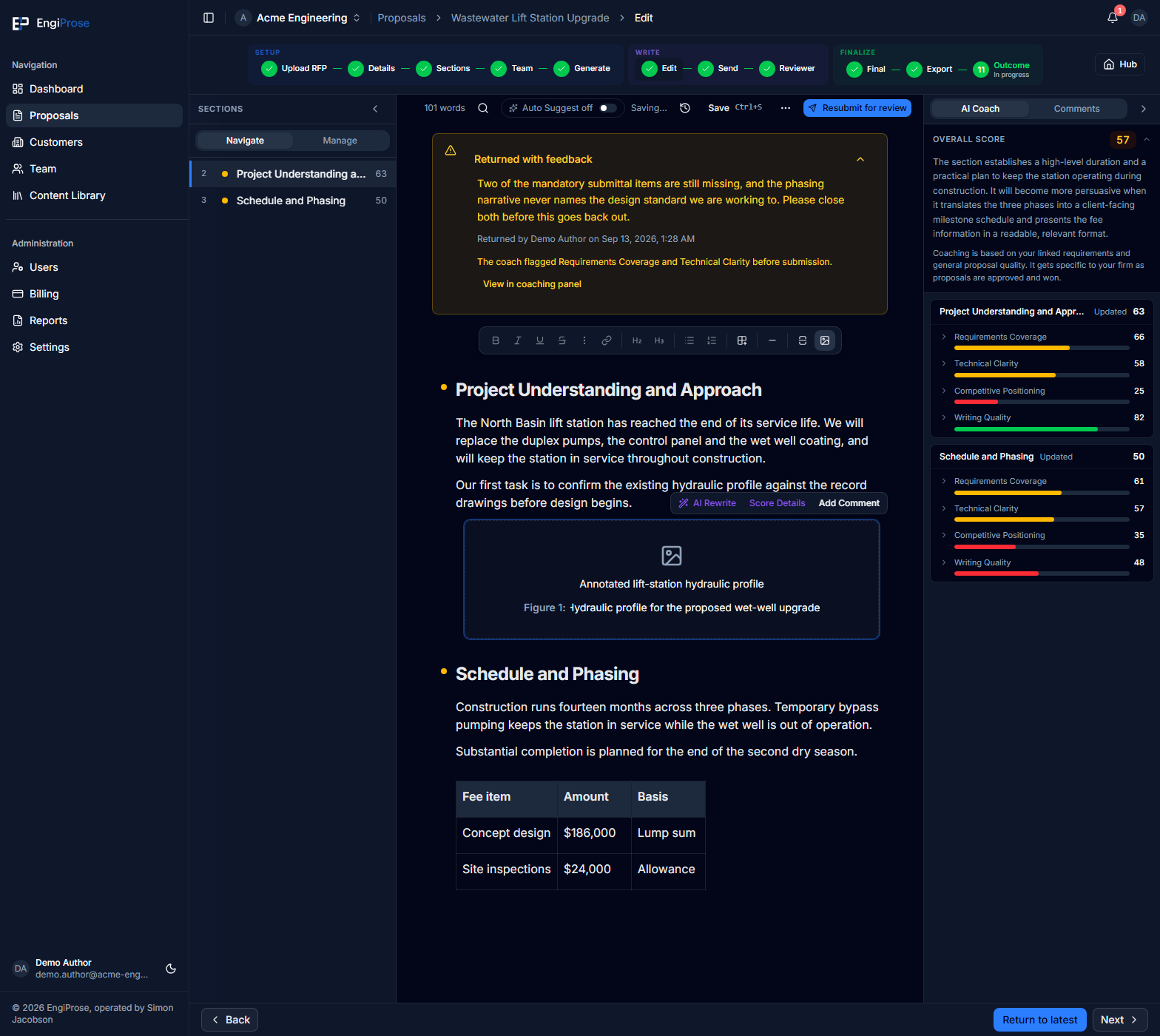
Select Insert image placeholder, or type /image placeholder, to reserve
space for a figure that will be added after export. Describe the intended
image and add an optional caption. EngiProse numbers placeholders as Figure 1,
Figure 2, and so on, and updates the visible numbers when their order changes.
In Word, each placeholder becomes a bordered instruction block followed by its numbered caption. It is a marker for later image insertion, not an image upload.
Reorder content blocks
On desktop, move the pointer beside a paragraph, heading, list, table, or other supported block to reveal its drag handle. Drag the block to a new position, including another proposal section. A whole list or table moves as one block.
Section headings themselves are not moved with this handle. To change the proposal's section order, use the section controls described in Build your proposal sections.
Common questions
Why is Page break unavailable here?
The cursor is inside a block that cannot contain a page break, such as a list, table, or quotation. Move the cursor to a normal line between blocks.
Does an image placeholder contain the final image?
No. It reserves and labels a location in the editor and Word export. Insert the actual image in Word after export.
Why can't I see the full toolbar on my phone?
Phones show a compact editing toolbar for the most common actions. Open the proposal on a tablet or desktop for tables, links, page layout, notation, and figure controls.