

Browse help topics
AI rewrite with inline diffs
Select text, ask for an AI rewrite, and review the change as a diff before it touches your draft.
AI rewrite lets you hand a passage back to the AI and get a revised version to review, without ever changing your draft until you say so.
What you'll do
- Select text and open the floating menu
- Choose AI Rewrite and review the suggestion as a diff
- Accept or reject the change
Select text and choose AI Rewrite
Select any non-empty stretch of text in a section and a floating menu appears above your selection:
Select some text, then choose AI Rewrite from the floating menu.
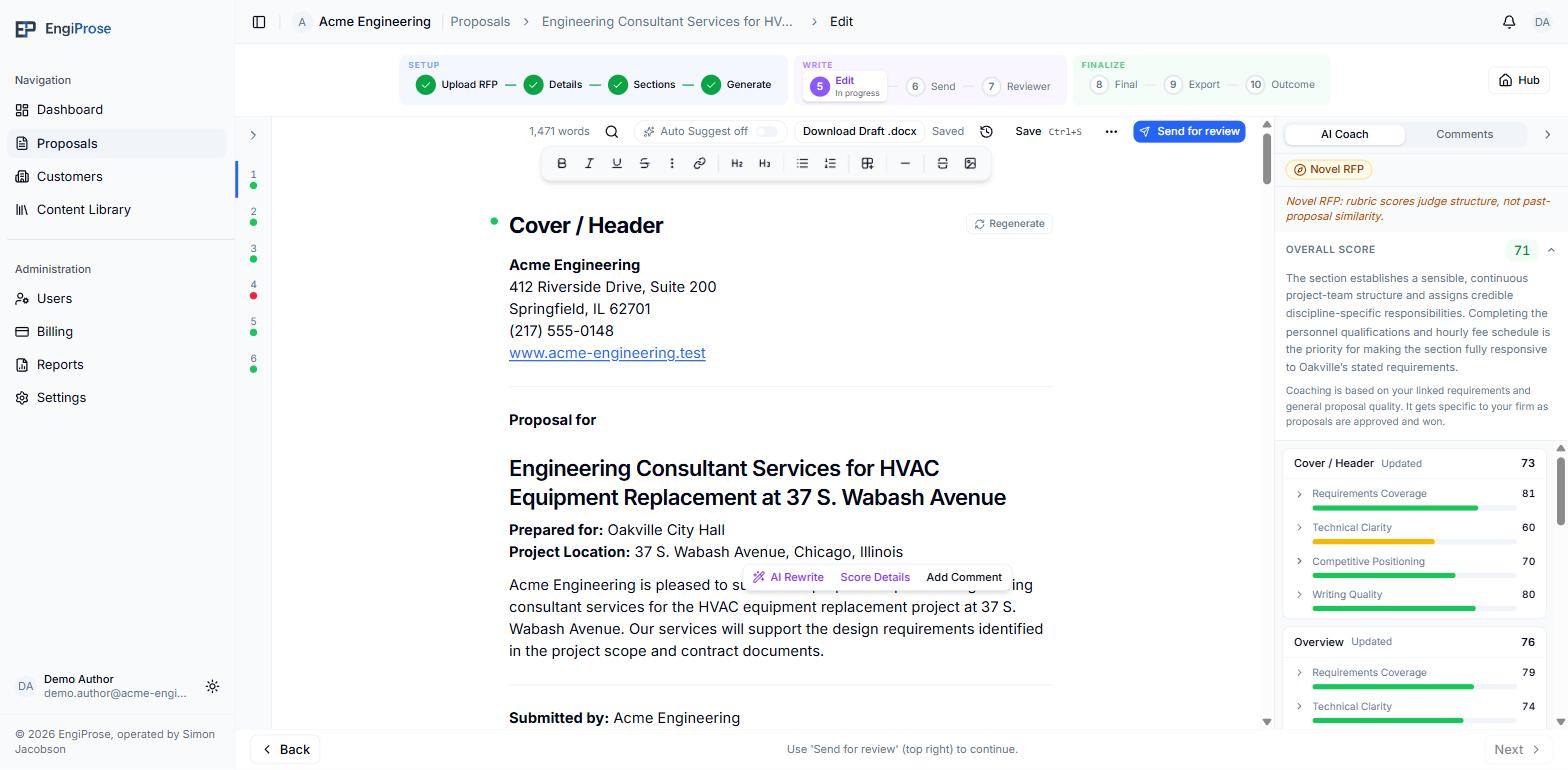
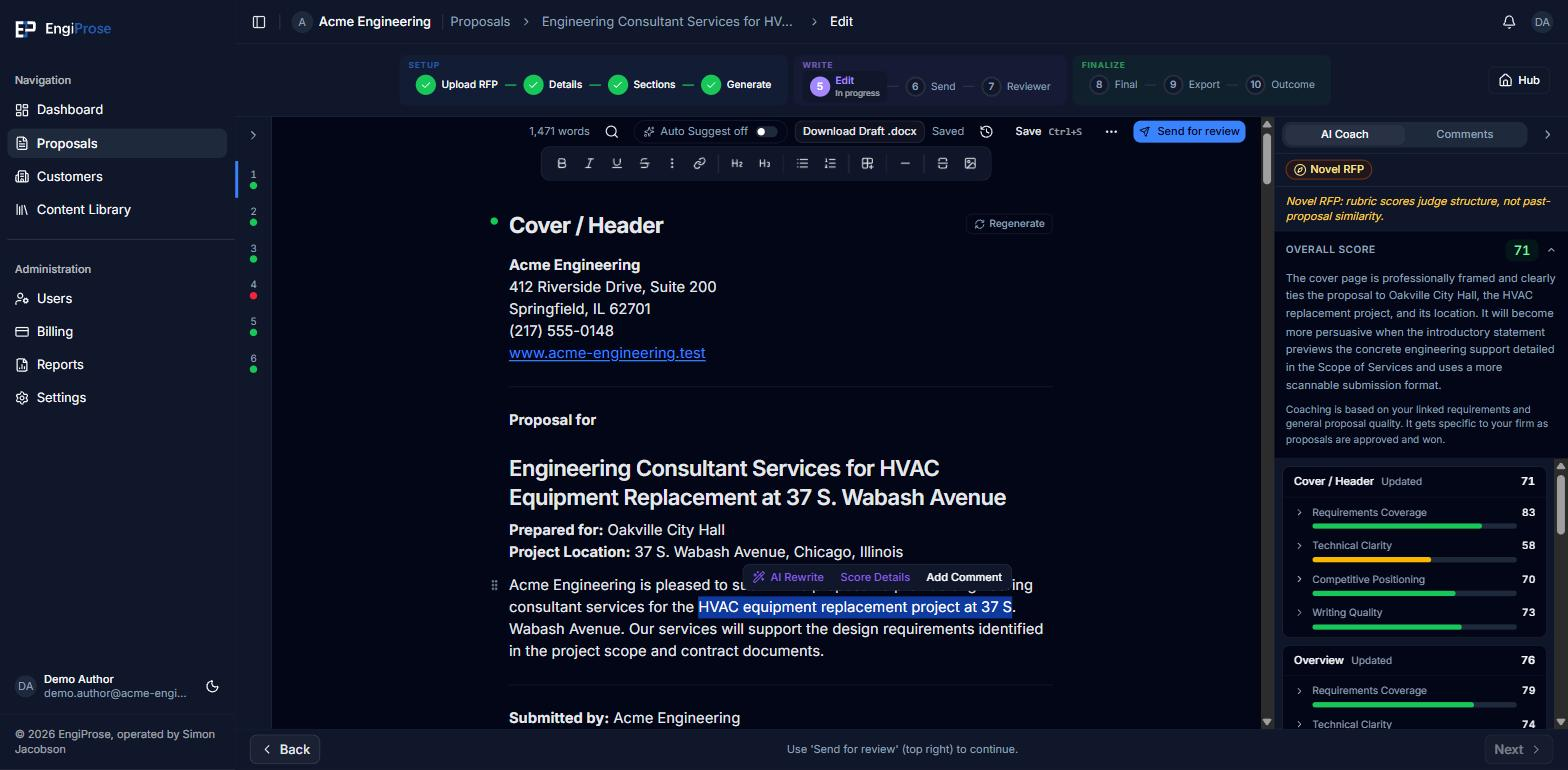
Selecting text opens the floating menu The AI rewrites exactly the text you selected, using the surrounding section for context. There is no instruction box to type into: rewrite works on what you selected, not on written directions.
If nothing is selected when you trigger a rewrite from elsewhere in the editor, it works on the whole current section instead of a single passage.
Review the suggestion as a diff
The rewrite comes back as an inline diff over your original text, not an immediate replacement:
Read the diff, then choose Accept to replace your original text with the rewrite, or Reject to keep what you had and discard the suggestion.
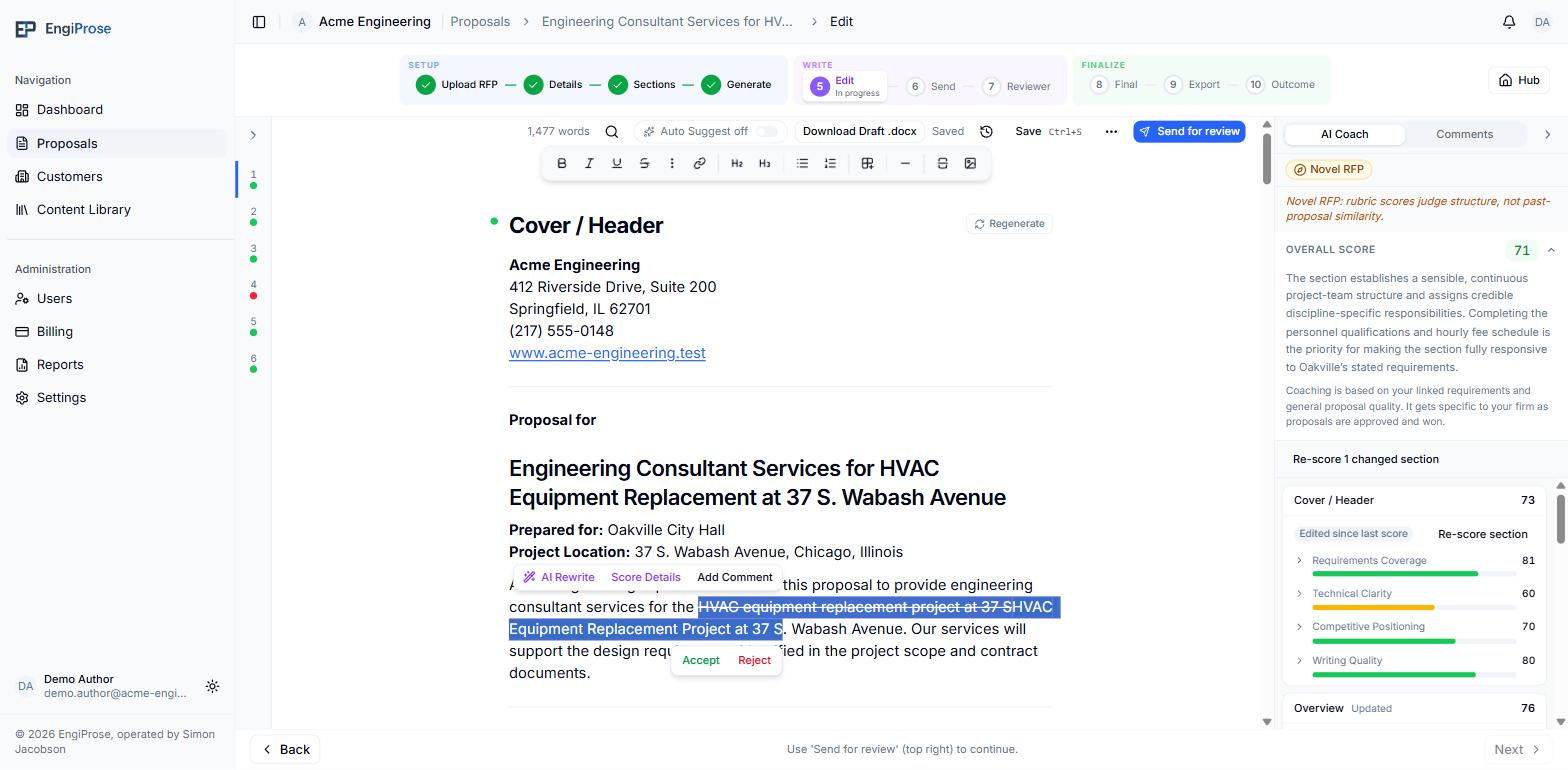
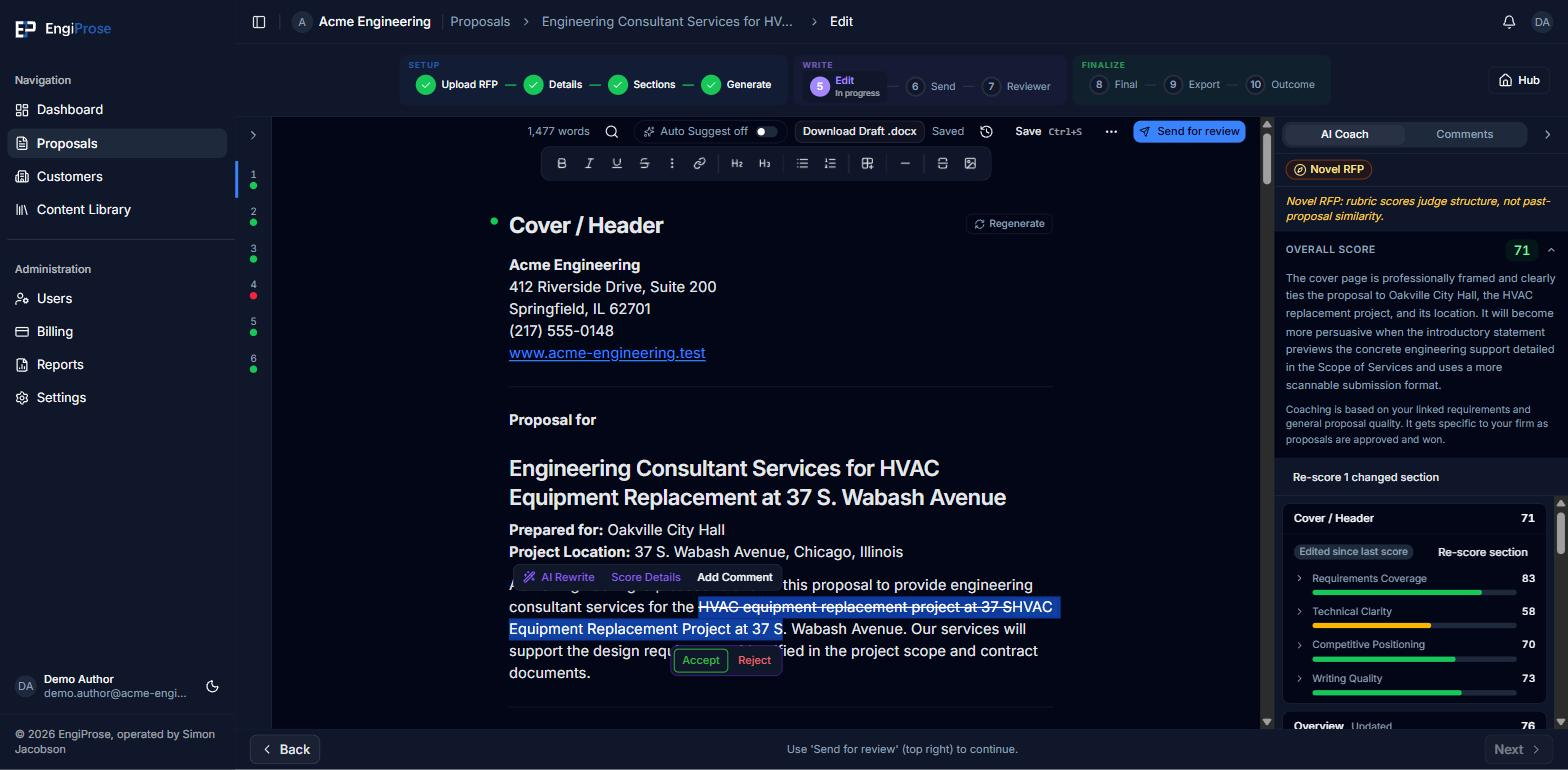
Reviewing a rewrite as a diff
Accept and Reject also have keyboard shortcuts: press Enter to accept, or Escape to reject. The Accept button is focused automatically when the diff appears, so Enter works right away.
Rejecting a suggestion, or making no change at all, never touches your draft: nothing is written until you choose Accept.
If your firm's AI allowance is used up
Requesting a rewrite when your firm's AI token allowance for the billing period is exhausted fails with a toast rather than silently doing nothing. As an Organization Admin you will see "AI token limit reached for this billing period. Continue editing manually or purchase additional tokens."; every other role sees "AI token limit reached for this billing period. Continue editing manually or contact your Organization Admin to purchase additional tokens." See Why AI actions stop for the full picture, including what happens if your organization has never had an allowance at all.
Common questions
Can I tell the AI how to rewrite a passage?
Not with an instruction box. AI Rewrite works on the text you select and the context around it; there is no free-text prompt field.
What if I accept a rewrite and change my mind?
Undo it the same way you would undo any other edit in the document, with Ctrl+Z (or Cmd+Z on a Mac), or open version history and restore the "Before AI rewrite" snapshot that was taken automatically.