

Browse help topics
The editor, autosave and version history
Write section by section with reliable saving, version history, search tools, and practical editing aids.
Once a draft exists, the editor is where you write. Every proposal section lives in one document, saved automatically as you go, with a full history you can step back through.
What you'll do
- Read the save status pill and know when it is safe to close the tab
- Use manual Save when you want to be certain, not just when autosave lags
- Open version history, preview a version, and restore it
- Find and replace text across the document
- Check the body word count and reveal hard-to-see spacing characters
- Add links, engineering notation, and nested lists
- Move a whole content block without cutting and pasting
Autosave and the save status pill
The editor saves your work automatically as you type. A small pill next to the toolbar tells you exactly where that stands:
- Saved is the resting state. It stays showing "Saved" for as long as nothing has changed, deliberately: it never fades to blank.
- Saving… appears briefly while a save is in flight.
- Offline means your changes are only saved on this device for now; they sync once your connection returns.
- Not saved covers three different causes: the save is struggling to land, you have been signed out, or this proposal was also edited elsewhere in another tab. Whichever it is, keep the tab open until it clears.
Hover or focus the pill to see a timestamp: "Last saved" a relative time while things are healthy, or "Not saved since" a relative time once something needs attention.
Manual Save
Autosave runs on its own, but a Save button sits right next to the pill, with its keyboard shortcut Ctrl+S shown alongside it. Pressing it forces a save right now rather than waiting for autosave's own timing. It is available in every state except when the proposal is in conflict with another tab's edits, which has its own resolution flow.
Open a proposal to Write and edit any section. The save pill sits beside Save, and the AI Coach panel on the right tracks your scores as you write.
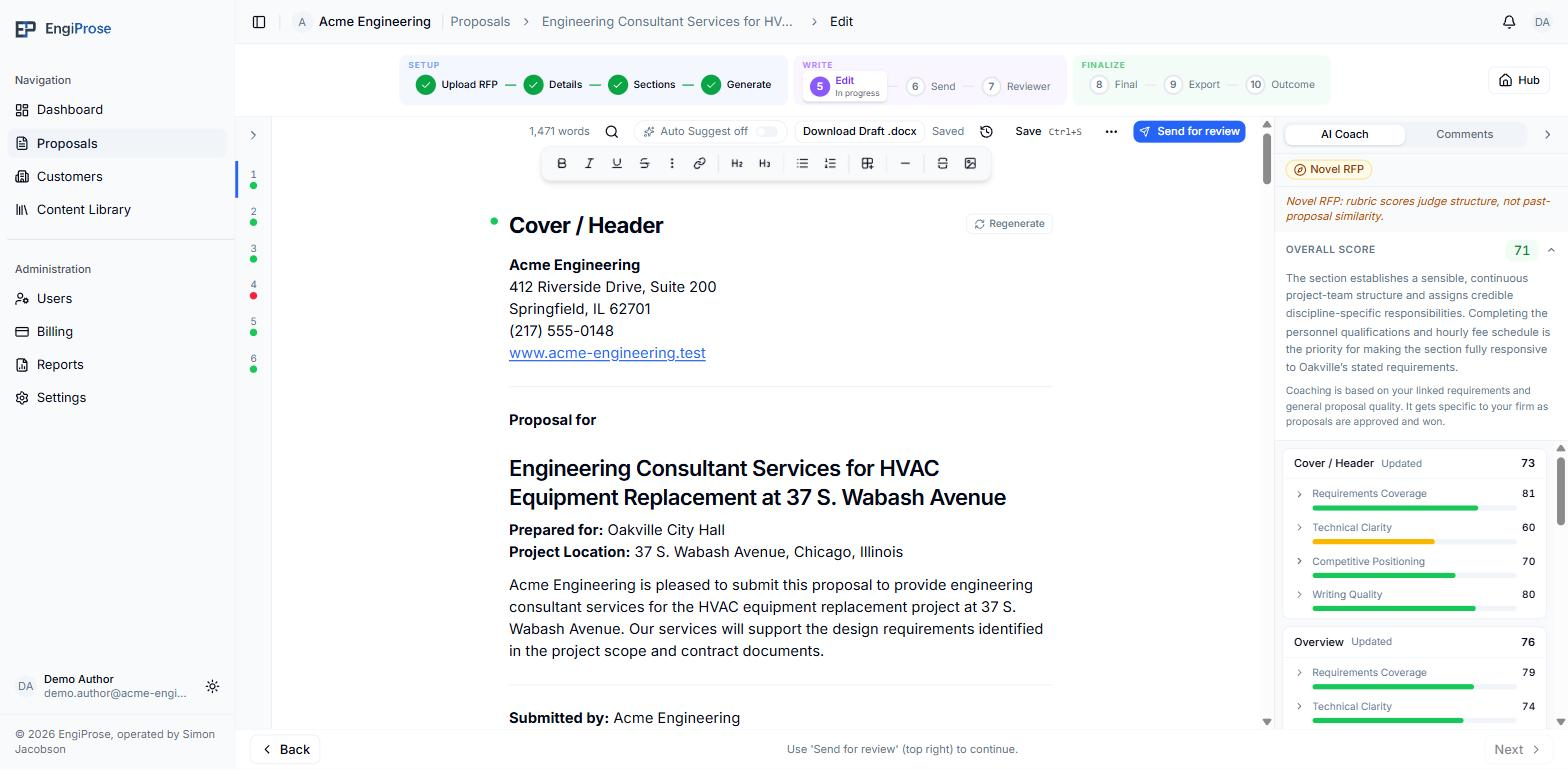
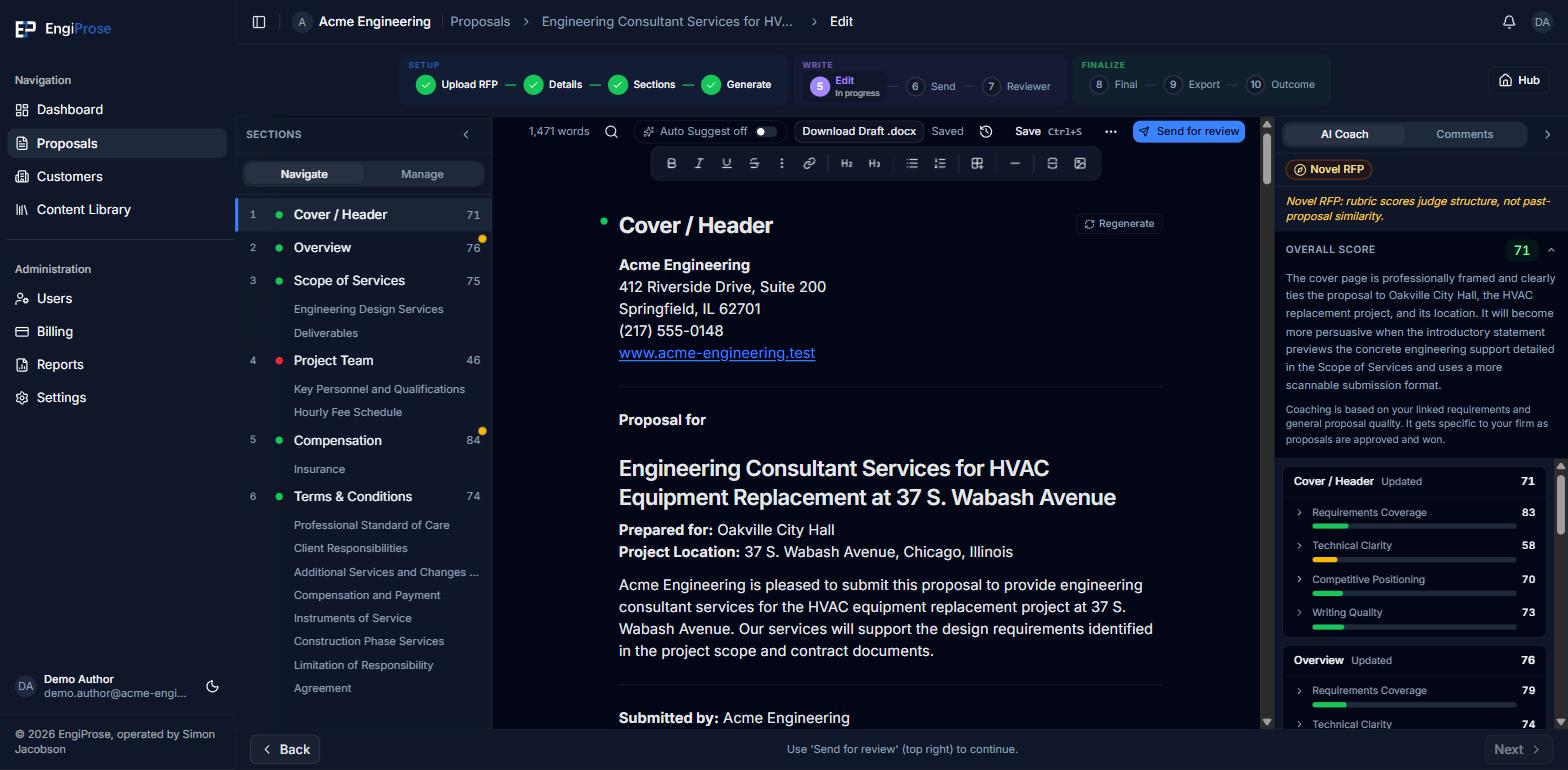
The editor, with the save pill and AI Coach rail
Version history
Every proposal keeps a running history of snapshots. Open it from the clock icon in the utility strip:
Open Version history. Each row shows who made the snapshot, when, a label for what kind of snapshot it is (autosave, manual, before restore, before an AI rewrite, before or after generation, or submitted for review), and how many sections changed.
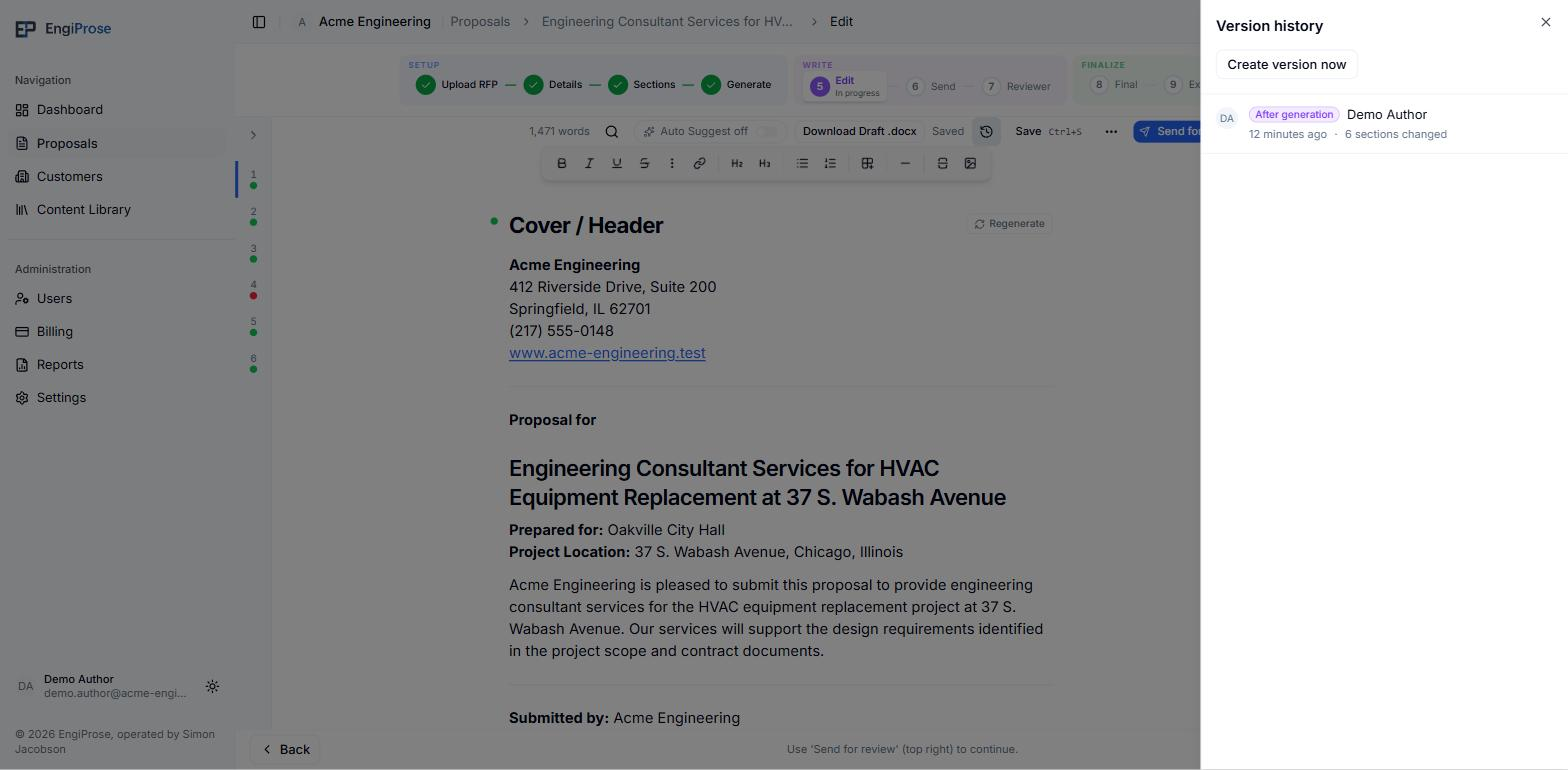
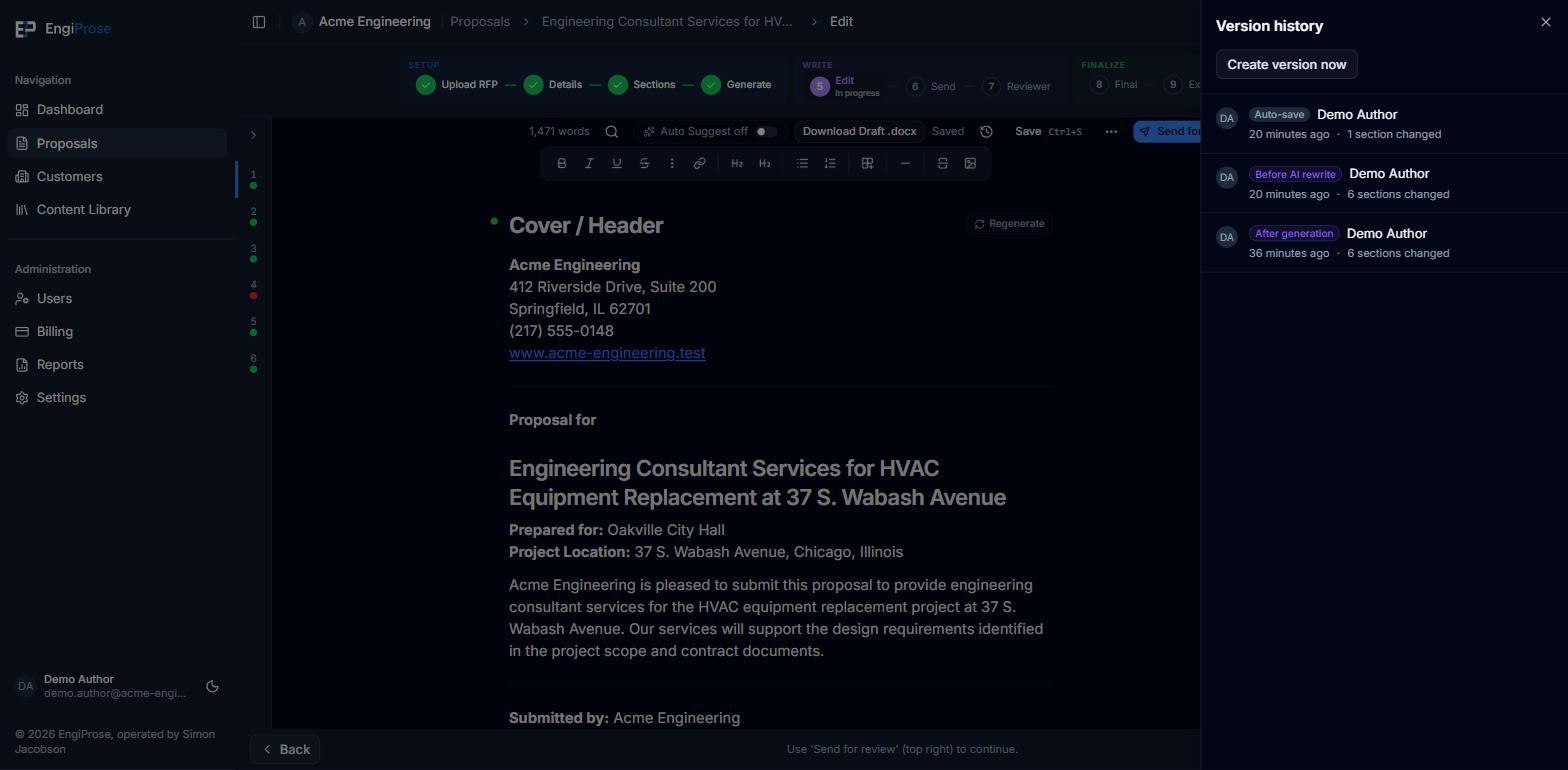
Version history Click Create version now to snapshot the current draft on demand, or click any row to preview it.
In the preview, click Restore this version to bring that snapshot's content back. A confirmation dialog explains what happens: "The current draft will be saved as a snapshot labelled 'Before restore' before being overwritten. This is reversible. You can restore the previous version from history." Choose Restore to proceed, or Keep editing to back out. Click Exit preview at any time to return to the live document without changing anything.
Restoring needs edit permission on the proposal, and it is not available on an approved and locked proposal; re-open it first. Restoring never loses work: the draft you had a moment ago is captured as its own "Before restore" snapshot first.
Find and replace
Press Ctrl+F (or Cmd+F on a Mac) to open the find bar, even on a locked or read-only proposal, where jumping to a passage matters most. Type in the Find field and use Previous match and Next match to step through results, shown as a count like "3 of 12". Toggle Match case for an exact-case search. On a proposal you can edit, a Replace with field and Replace and Replace all buttons appear alongside it. Press Escape or click Close find to dismiss the bar.
Everyday editing tools
The editor toolbar and utility strip keep common document work close at hand:
- Links: select text and choose Link, or press Ctrl+K while the
editor has focus. Enter a full
http://,https://, ormailto:address. Click an existing link to open, edit, or remove it. - Nested lists: start a bulleted or numbered list. On a list item that has
an item above it, press Tab to nest it and Shift+Tab to move it back
out. Numbered levels follow the familiar
1.,a.,i.pattern. - Engineering notation: open More formatting for superscript or
subscript. Type
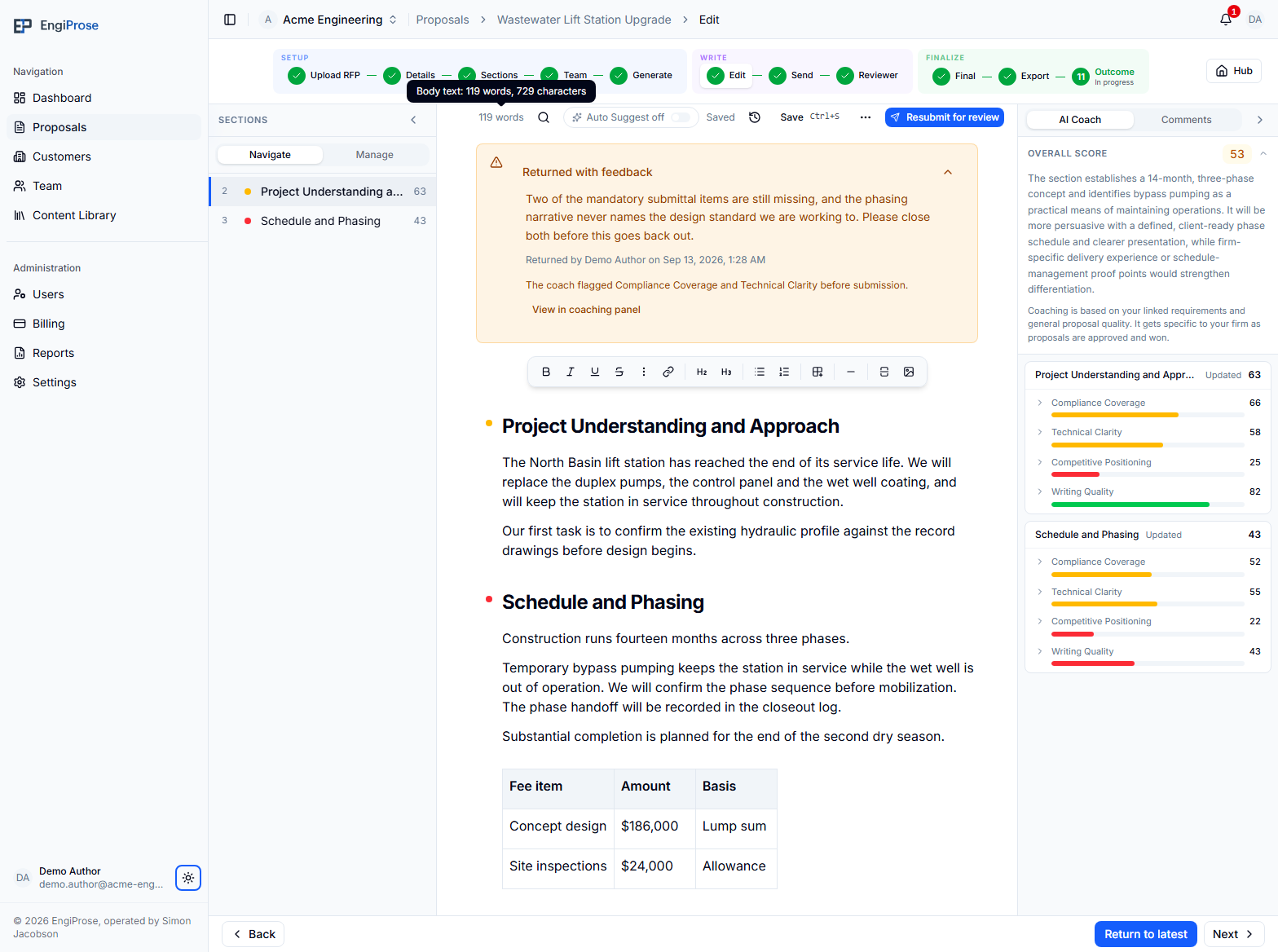
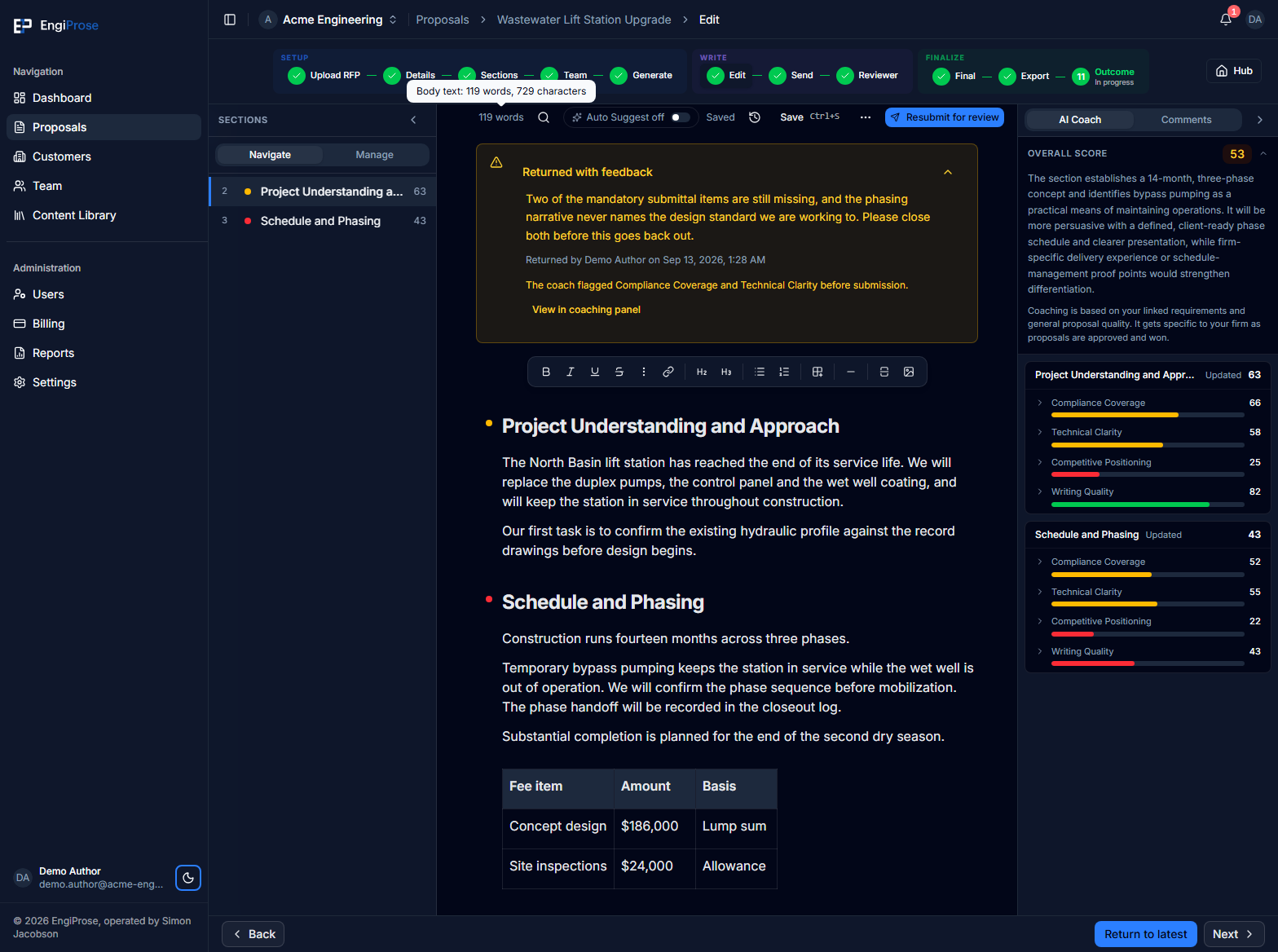
/and choose Fraction to insert a numerator over a denominator. These forms are preserved in Word exports. - Body word count: the utility strip shows the document body's word count. Hover or focus it for exact word and character counts. Section titles are not included because they sit outside the editable body text.
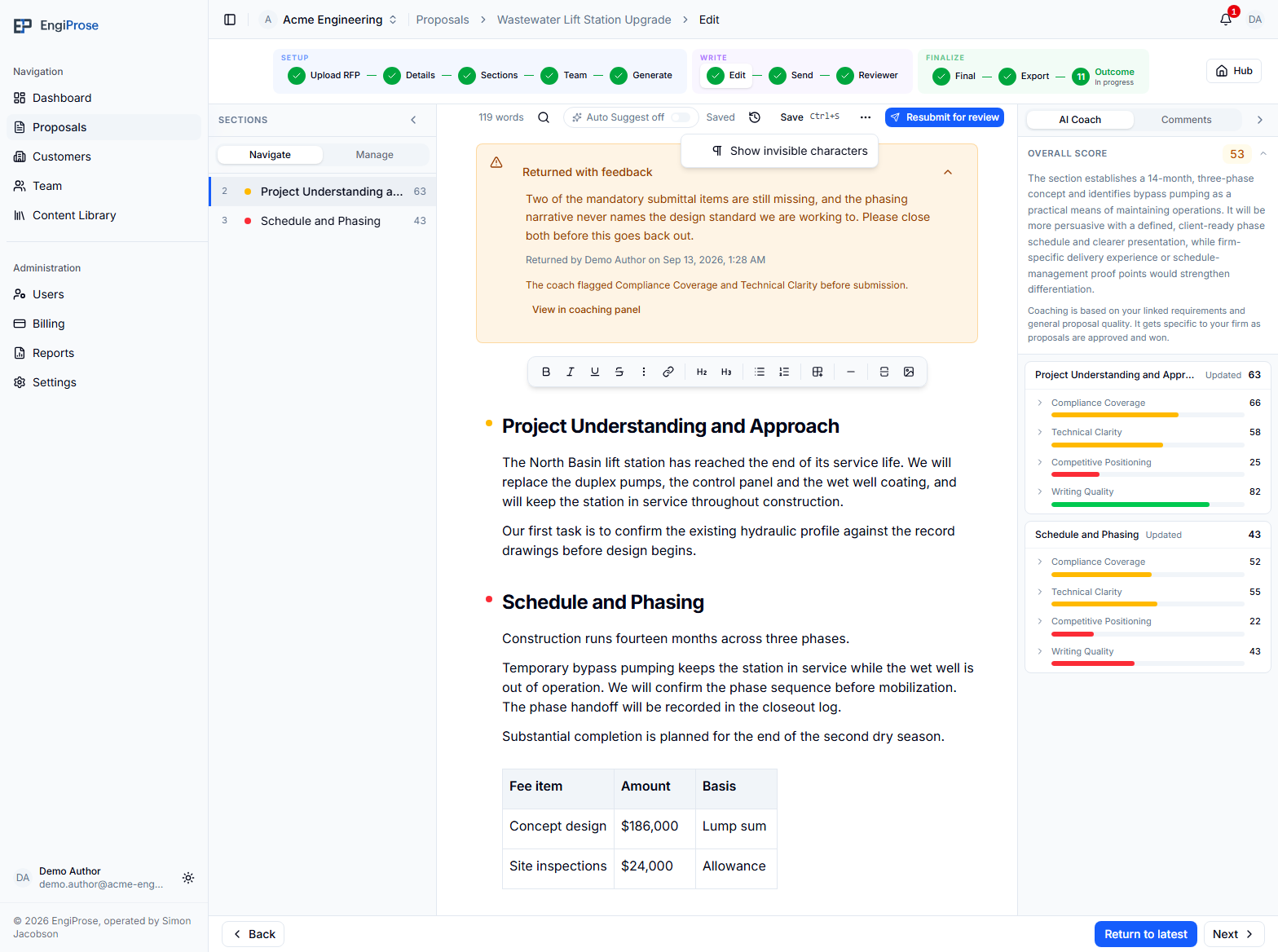
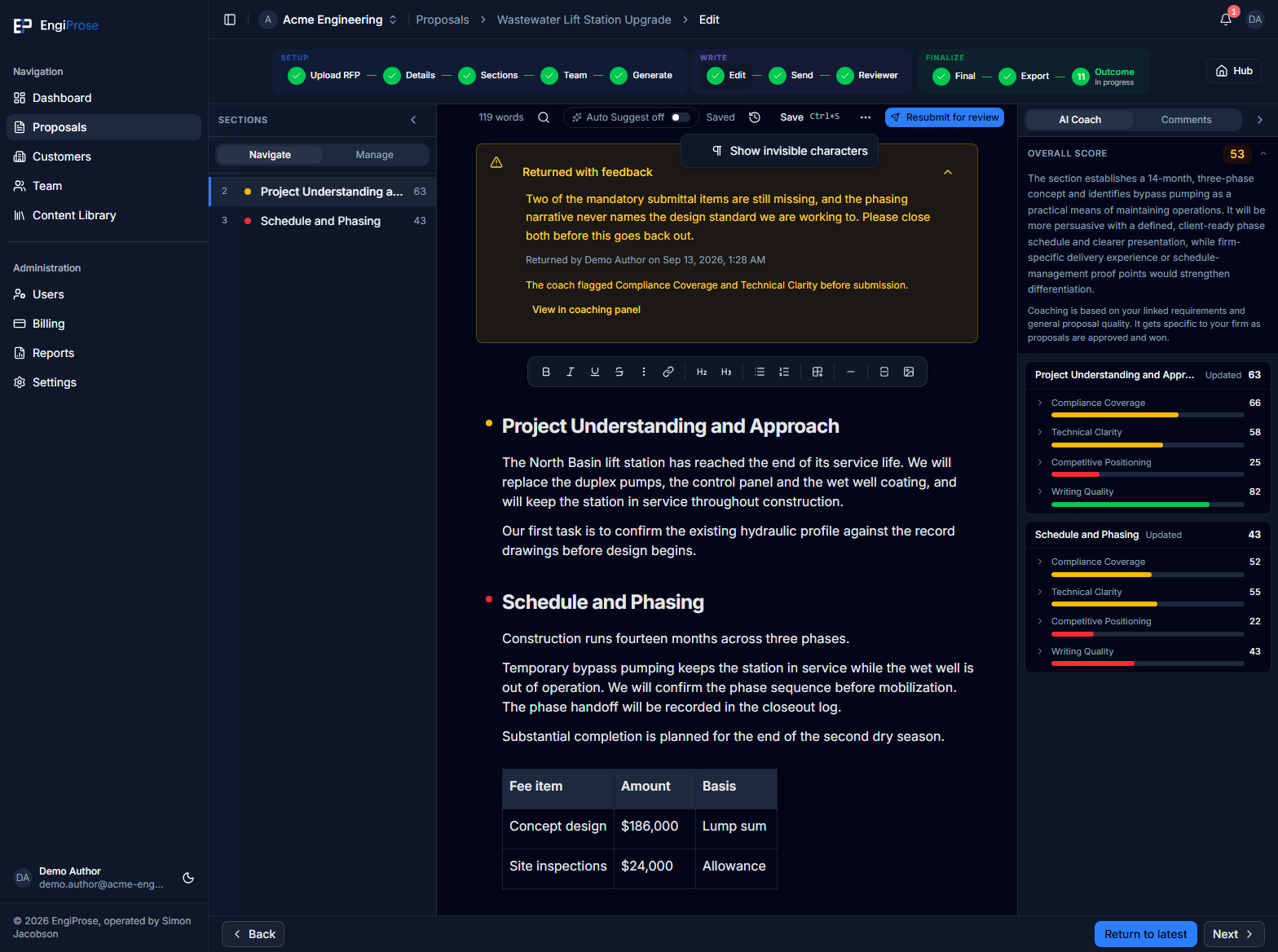
- Invisible characters: open Editor view options, then choose Show invisible characters to reveal spaces, non-breaking spaces, tabs, paragraph endings, and hard line breaks. This view starts off each time you open the editor and does not change the saved document.
For the full toolbar guide, including tables, page breaks, image placeholders, and alignment, see Formatting in the editor.
Move a block
In an editable draft on desktop, hover beside a paragraph, heading, whole list, table, page break, or image placeholder to reveal its grip, then drag it to a new position. The drop marker shows where it will land.
For a keyboard move, place the cursor in the block and press Alt+Shift+ArrowUp or Alt+Shift+ArrowDown. A block at a section edge can move into the adjacent section; a block at the start or end of the whole document stays put. One Undo reverses one move.
Common questions
Can I lose work by closing the tab too early?
If the pill reads "Saved", it is safe. If it reads "Saving…", "Offline" or "Not saved", wait for it to clear, or use manual Save to force it before you leave.
What happens to my current draft if I restore an old version?
Nothing is discarded. Restoring first snapshots your current draft as "Before restore", then overwrites the document with the version you chose. You can always restore the "Before restore" snapshot to undo it.