

Browse help topics
Review a proposal: tracked changes, comments, approve or return
Edit inside tracked changes, leave comments, then approve or return the proposal to its author.
This article applies only when your admin has turned on in-app review. Review is off by default for every new organization; if you do not see a Reviewer stage in the proposal, ask your admin about lifecycle options.
What you'll do
- Open a proposal that is waiting on your review
- Edit inside tracked changes and leave comments
- Return it to the author with notes, or approve it
The reviewer strip
When a proposal reaches you, the editor opens in review mode with its own toolbar above the document.
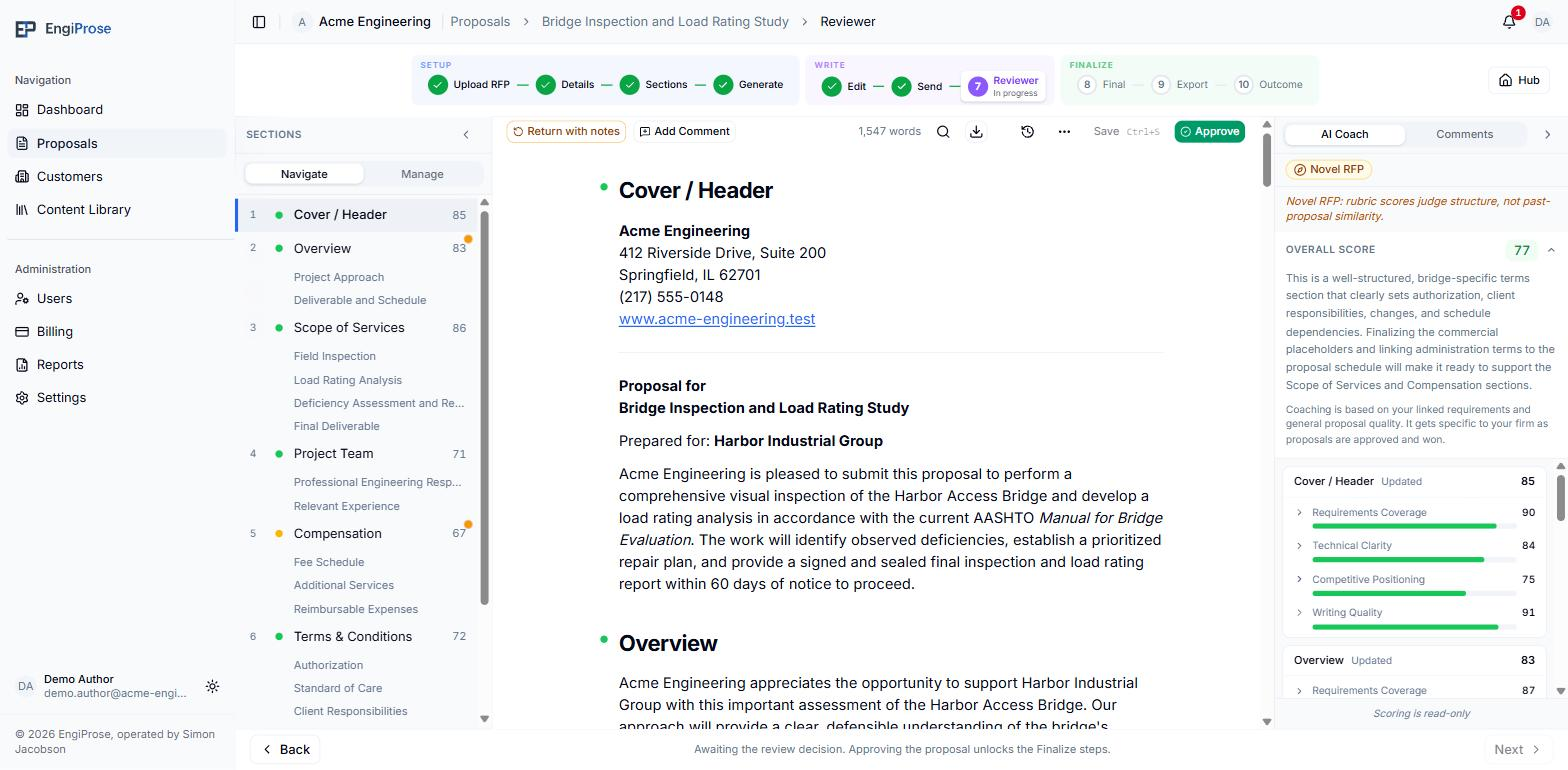
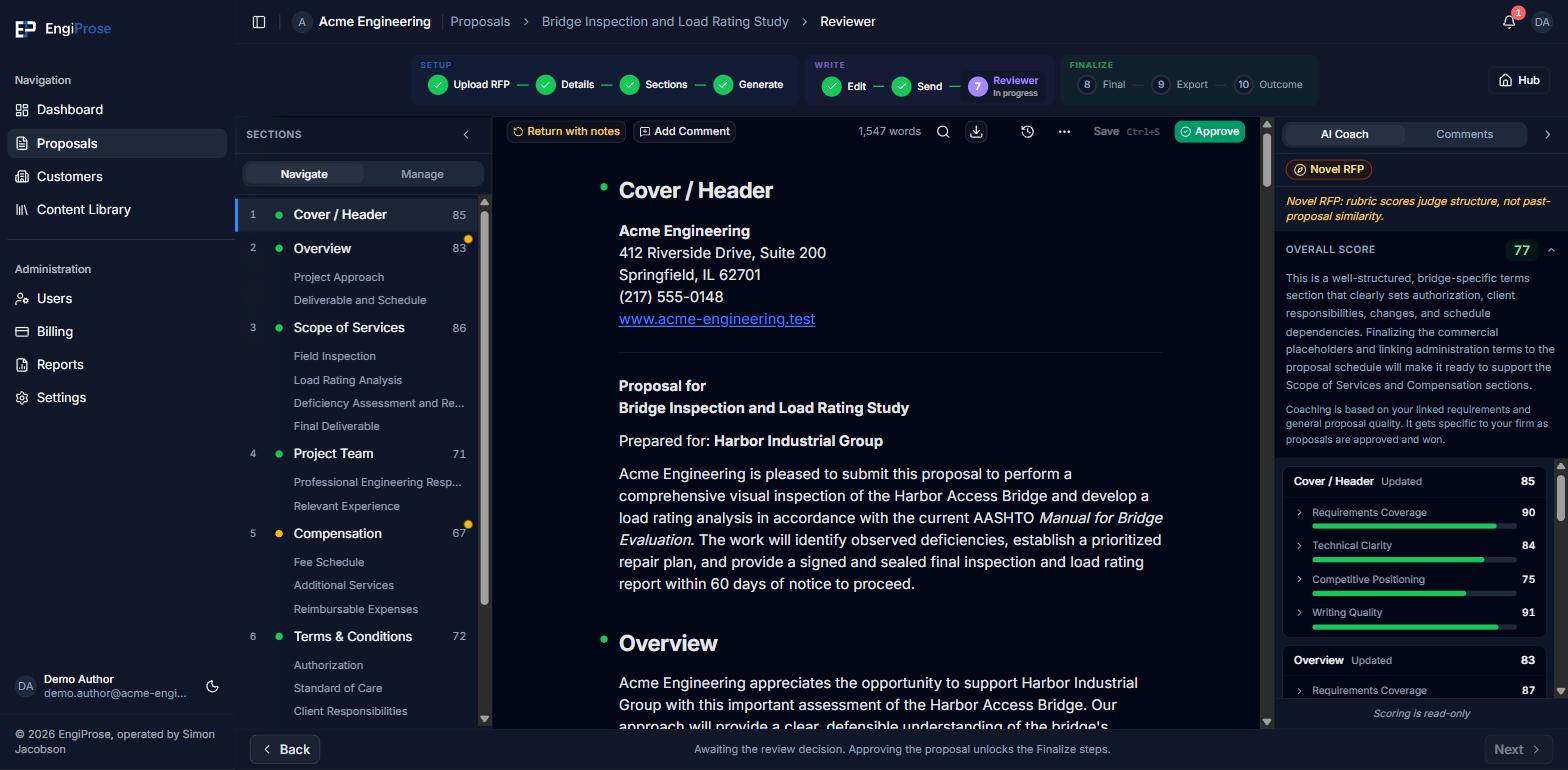
Anything you type here is captured as a tracked change, the same insertion and deletion marks Word uses, so the author can see exactly what you changed when the proposal comes back to them. Scores in the AI Coach panel stay visible but read-only while you review.
Return with notes, or approve
Return with notes and Approve are the two ways a review ends. Both of them, and Add Comment, are available to everyone on this proposal's Approvers list: being on that list is what puts the proposal in front of you and what lets you end the review.
Approvers are set on the proposal's Details step, with the "Add approver..." picker. Leave it empty and the card says "No approvers selected. Review step will fall back to organization admins." Your organization's Organization Admins then review and approve the proposal.
To send the draft back, select Return with notes. A dialog asks for a "Summary of changes needed": the placeholder reads "What does the author need to address before resubmitting?" This note is required. Select Return to Author to send it back, which moves the proposal to Returned. The author sees your summary, makes their changes, and resubmits from the same Send for review screen, where it reads "Resubmit for review".
To approve instead, select Approve. "Approve this proposal? It will be locked for export. No further edits are possible until it is re-opened." If you or another approver left any tracked changes unresolved, the dialog adds a warning: "N tracked change(s) are still pending. They will be frozen alongside the approved content." Approving does not silently drop them.
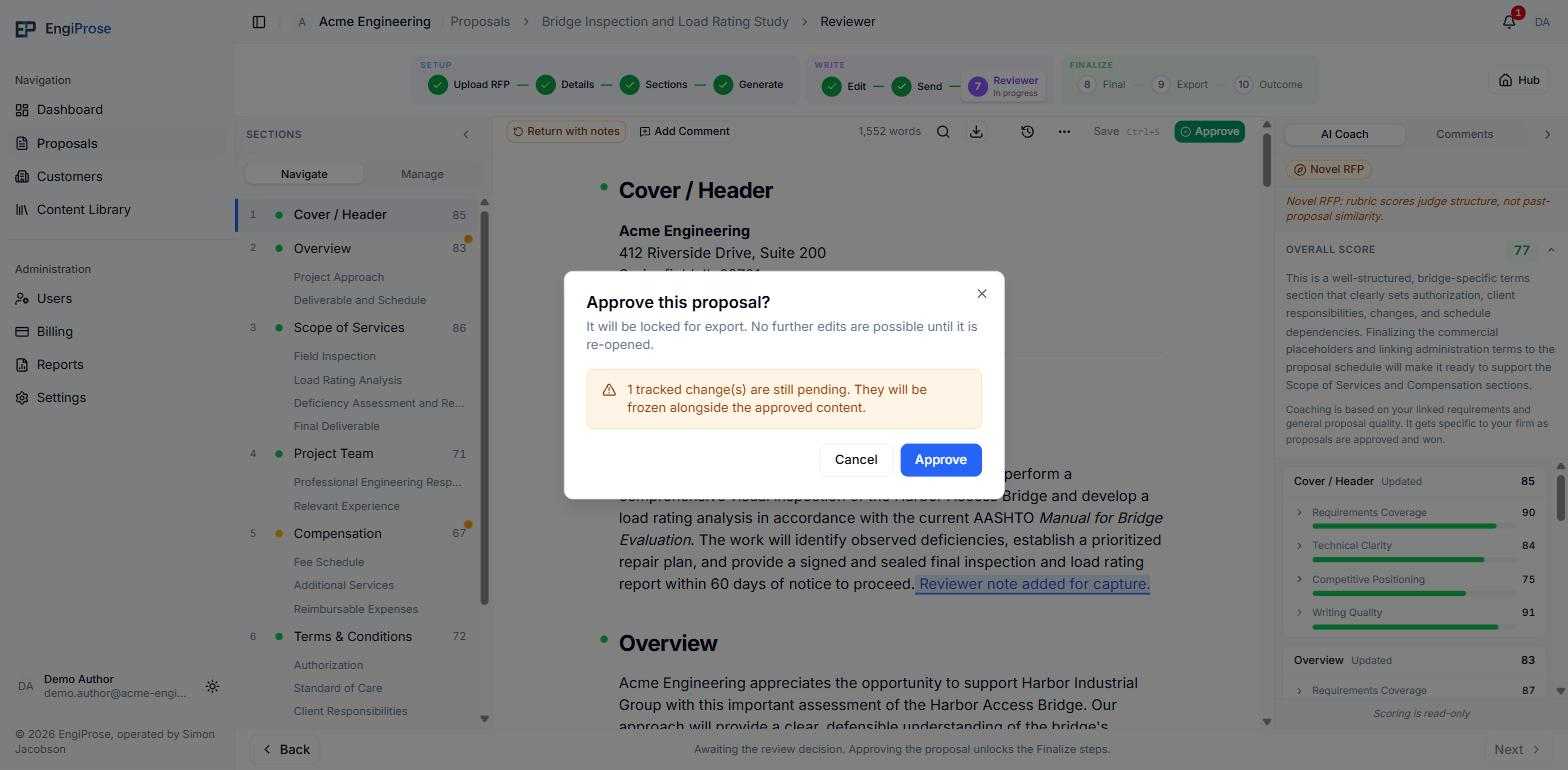
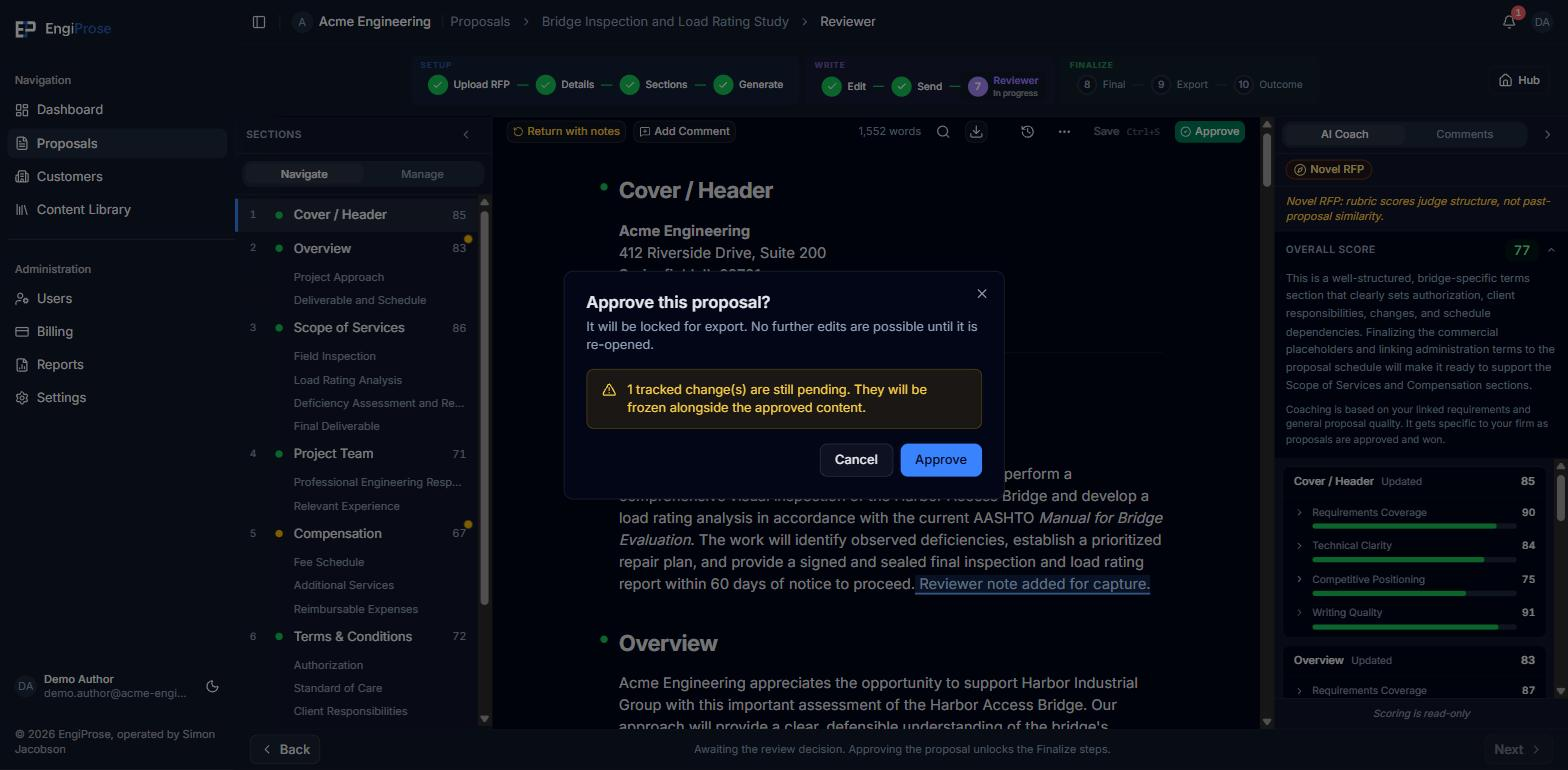
Approving with a pending change Select Approve to confirm. The proposal moves to Approved and you land on the Final screen, which walks you toward Export next.
Approved is not the end
Approving locks the document for export, but a proposal is not finished until someone marks it final and downloads it. Approved sits partway through the lifecycle, not at the end of it.
Comments
Use Add Comment to leave a note anchored to a specific piece of text, separate from a tracked change. The author sees it in the margin and can reply. Once addressed, the person who wrote the comment can mark it resolved, and so can an Organization Admin or an Admin: "Resolve comment. Mark this comment resolved?" is a confirmation step, so a comment is never cleared by accident.
Common questions
Why don't I see Approve on this proposal?
Either you are not on this proposal's Approvers list, or the proposal is not in review right now. Approve renders for an approver on a proposal whose status is In Review, and for nobody else.
Can I approve a proposal that still has open comments?
Yes. Open comments do not block approval the way pending tracked changes warn you; only the tracked-change count is called out in the dialog.