

Browse help topics
Approve, lock and re-open a proposal
Approve a reviewed proposal, understand what the approval lock protects, and re-open it when more review work is needed.
Approval freezes the reviewed proposal before export. EngiProse records who approved it and when, changes the proposal to Approved, and makes its content read-only until an eligible person re-opens it.
This workflow is available when your Organization Admin has turned on in-app review. In organizations without a Reviewer stage, the proposal is marked final instead.
What you'll do
- Confirm the proposal is ready to approve
- Review the locked proposal and its approval history
- Re-open it safely if the review must continue
Approve the proposal
The Approve action appears while a proposal is In Review for people on that proposal's Approvers list.
Open the Reviewer stage and finish your tracked changes and comments.
Select Approve. The confirmation explains that the proposal will be locked for export and cannot be edited until it is re-opened.
If tracked changes are still pending, review the warning before you continue. Approval does not discard those marks. It freezes them with the approved content.
Confirm Approve. The proposal moves to Approved, and EngiProse opens the Final screen.
If the proposal needs author changes instead, use Return with notes rather than approving it. See Handle returns and resubmits.
What the approval lock does
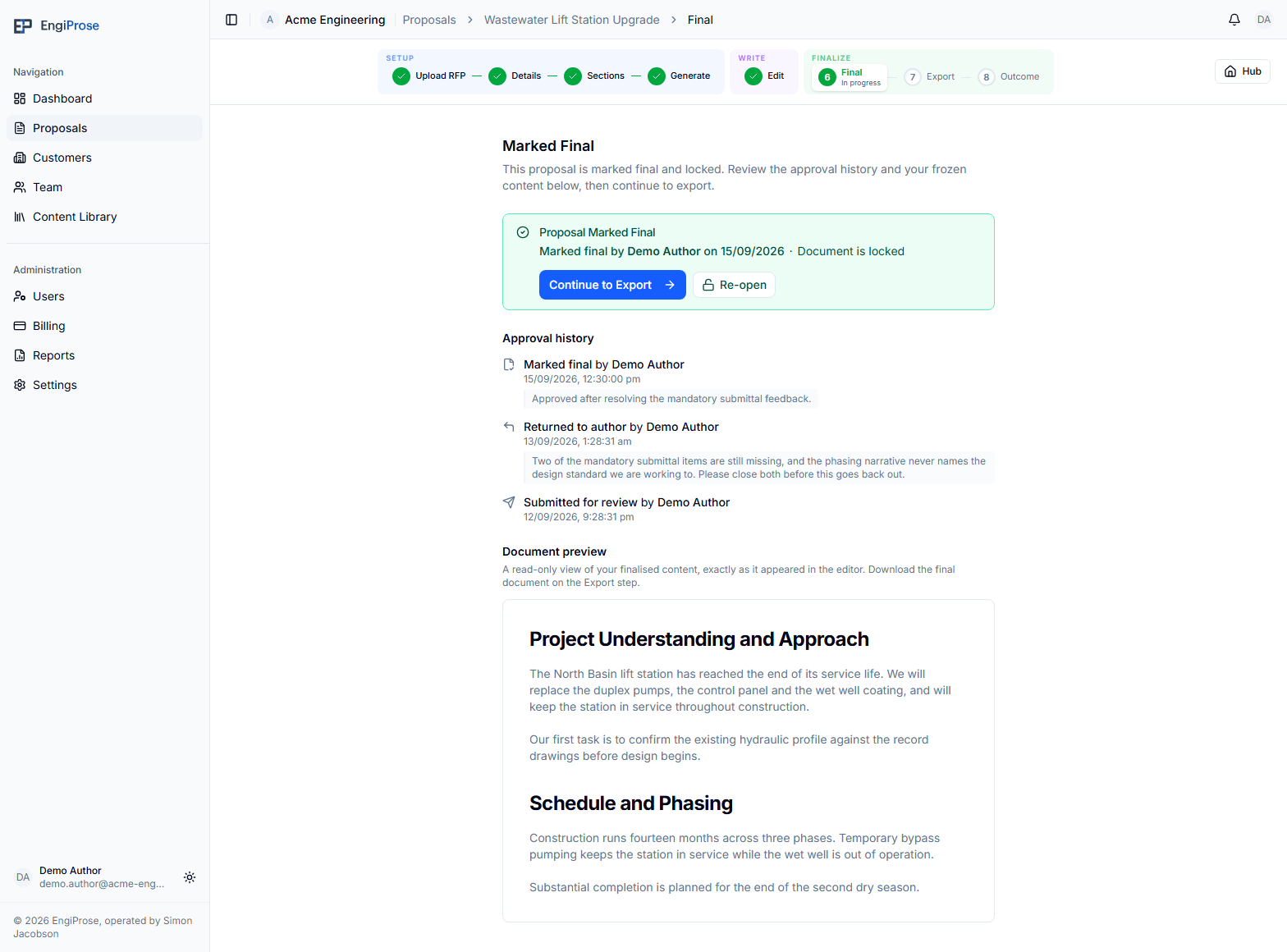
The Final screen shows the approver and approval time, the proposal's approval history, and a read-only preview of the frozen document. The lock protects the approved version from further editing while you continue toward export.
Select Continue to Export when you have checked the frozen content. For the rest of that flow, see Mark a proposal final.
Pending changes are preserved
Approving with pending tracked changes does not accept or reject them. They stay visible in the frozen document and cannot be changed until the proposal is re-opened.
Re-open an approved proposal
An Admin, Organization Admin or a person on the proposal's Approvers list can see Re-open while the proposal is approved.
Select Re-open from the proposal overview or Final screen.
Read the confirmation and add an optional reason. If the proposal already has an exported record, the dialog also warns that re-opening will delete the saved final document and clear its sent date and recorded outcome. You can export and save a new final after editing.
Confirm Re-open. The proposal returns to In Review, while the earlier approval and re-open event remain in its approval history.
Re-opening resumes the reviewer's workflow. It does not return the proposal to the author. If the author needs to revise the draft, choose Return with notes from the Reviewer stage after re-opening.
Common questions
Can I edit an approved proposal without re-opening it?
No. The approved document is read-only. Re-open it before making more review changes, or continue to Export if the approved version is correct.
Who can re-open the proposal?
An Admin, Organization Admin or anyone listed as an approver on that proposal can re-open it while it is approved.
Does re-opening erase the approval history?
No. The history keeps the earlier approval and adds the re-open event, including the person and time. A later approval is added as another event.