

Browse help topics
Mark a proposal final
Lock a finished proposal for export, whether your firm reviews in-app or not.
Marking a proposal final is a mandatory gate before export, in every organization and every review configuration. Whether you reach it by clicking Mark as Final yourself or by having a proposal approved, the result is the same locked Final screen.
What you'll do
- Understand the two paths to a locked, final proposal
- Read the locked confirmation and the approval history
- Continue to Export, or re-open if something needs to change
Two ways to get here
If your organization has in-app review turned off, the author marks a draft final directly from the editor: Mark as Final. "Mark this proposal as final? This locks the proposal and moves it to the Final stage. You can re-open it later if you need to make changes." Select Mark as Final to confirm.
If review is on, a proposal reaches the same place by being approved instead: the approver's Approve action locks the document and lands everyone on this same Final screen.
The locked confirmation
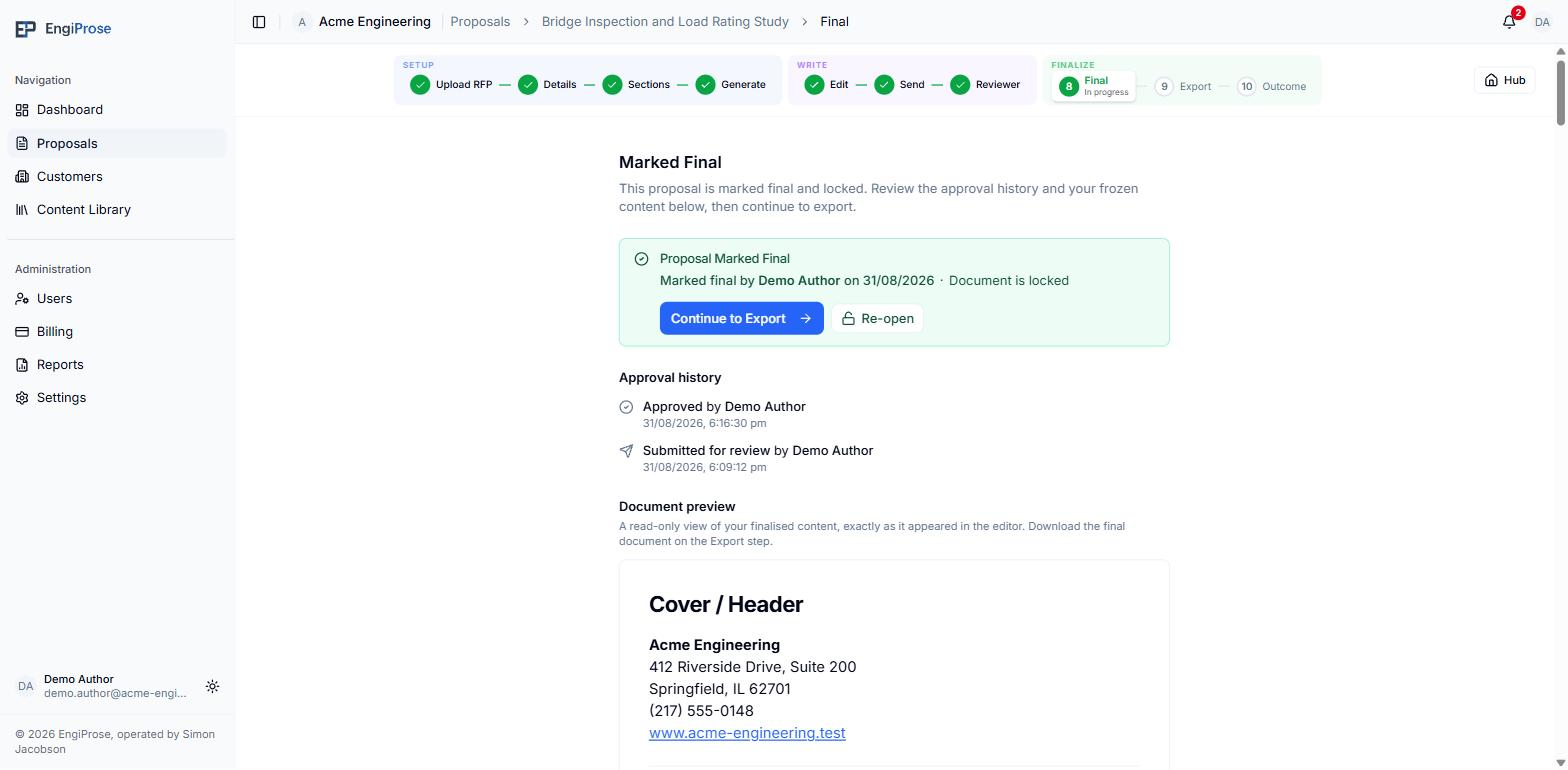
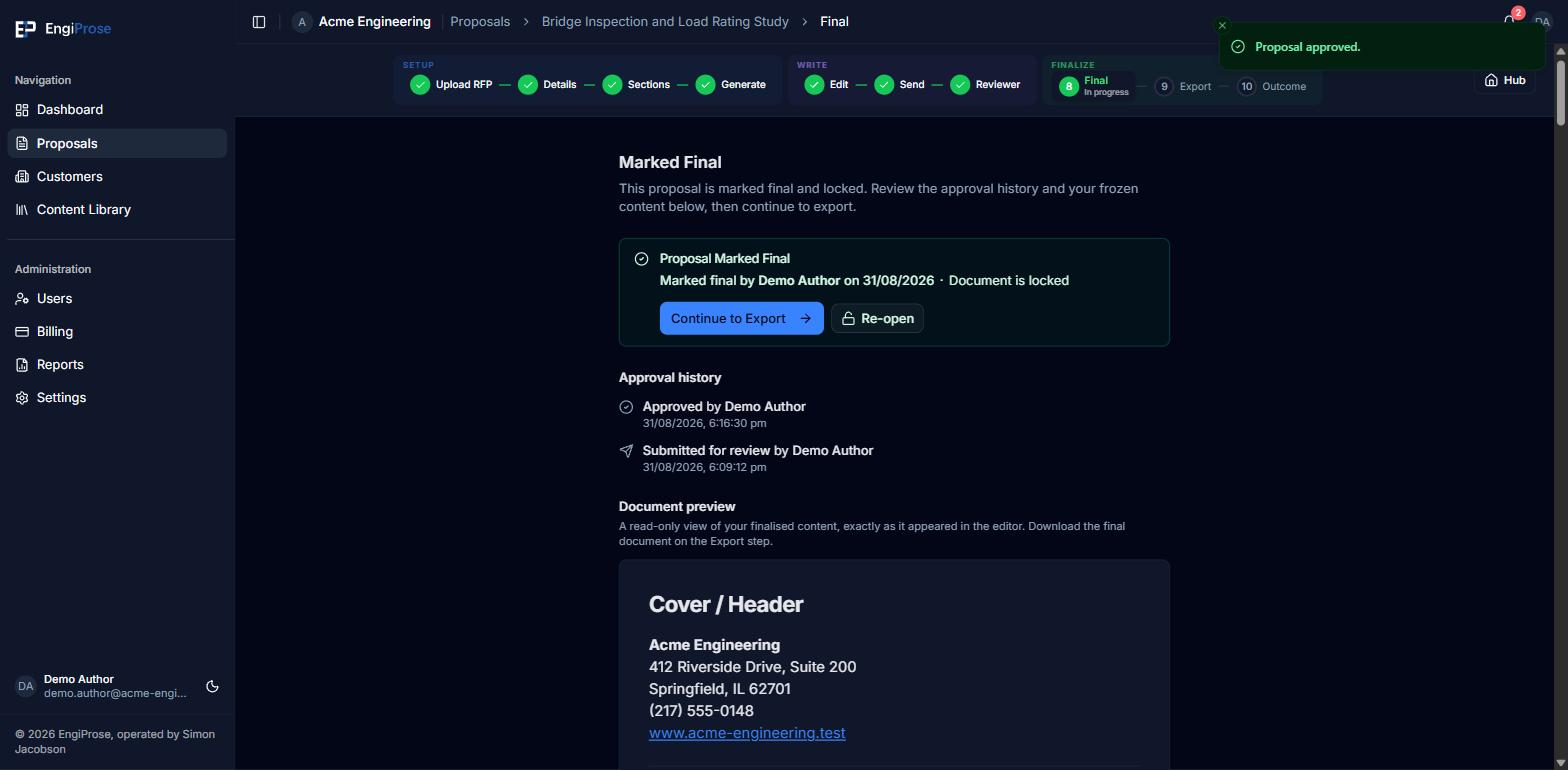
The heading and byline read one of two ways, based on who locked the document: "Marked Final" and "Marked final by {name}" when the same person is both the proposal's author and the one who locked it (the direct review-off path, and the edge case where an approver is also the author on a review-on proposal); "Approved & Final" and "Approved by {name}" whenever someone else did the approving. Either way, "Document is locked" and the approval history below it lists every submit, return and approve event on the proposal.
Continue, or re-open
Select Continue to Export to move on to Export to Word. If you need to make one more change, Re-open is available to an Organization Admin, an Admin, or an approver on this proposal. "Re-open this proposal for editing? The proposal will return to the in-review state. The current approval is recorded in the audit log and will not be erased." If a final document has already been saved on the Outcome step, the dialog also warns that re-opening will delete the uploaded final document and clear the sent date and recorded outcome, so the saved final always stays a trusted record of exactly what was sent. Re-opening also clears the proposal's "First exported on" date, so the cycle-time anchor resets and the next final download records a new one.
Common questions
Can I edit a proposal once it is marked final?
No. The document is locked, and the read-only preview on this screen shows the frozen content an export will be built from. Re-open first if you need to change anything.
Do I need to mark a proposal final if I never turned review on?
Yes. Marking final is a mandatory step in every organization, review-on or review-off; there is no direct path from Edit to Export that skips it.