

Browse help topics
Handle returns and resubmits
Work through returned feedback, resolve tracked changes and comments, then send the revised proposal back for review.
When a reviewer returns a proposal, it moves to Returned and becomes editable again. The return note, tracked changes and comments stay with the proposal so your team can revise it before another review.
This workflow is available when your Organization Admin has turned on in-app review. If your proposal has no Send or Reviewer stage, ask them about lifecycle options.
What you'll do
- Read the reviewer's return note
- Accept or reject tracked changes and reply to comments
- Revise the proposal and resubmit it for review
Start with the return note
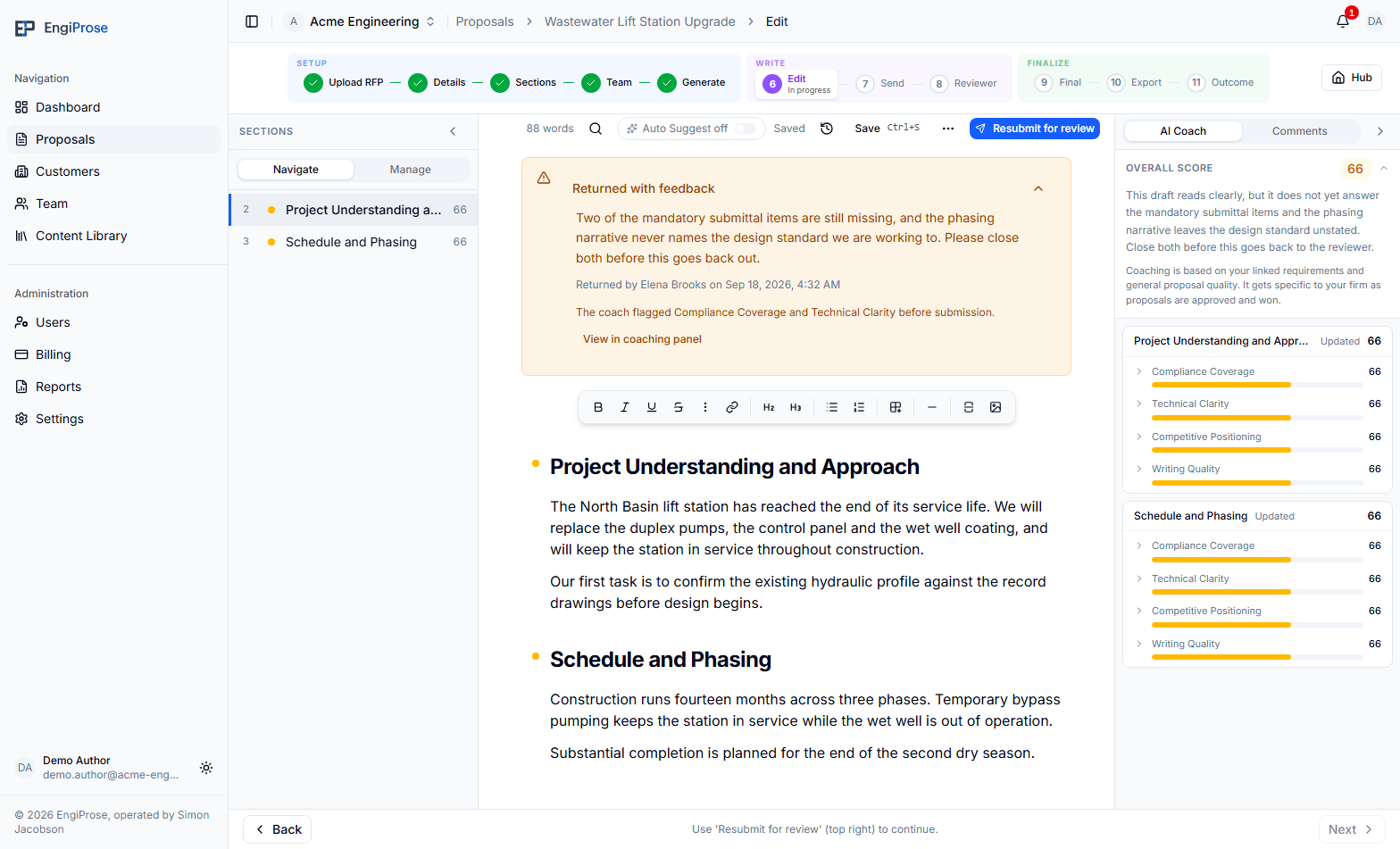
Open the returned proposal and select Open editor: address feedback. A Returned with feedback card appears above the document. Expand it to read the reviewer's note, who returned the proposal and when it was returned.
The card may also tell you that the coach flagged the same areas before submission. Select View in coaching panel to open the AI Coach and revisit that guidance. This line appears only when the submitted coaching snapshot and the return feedback match.
Work through the feedback
You can edit the proposal normally while it is returned. Reviewers' tracked changes remain marked in the document, with controls to accept or reject them.
- Accept keeps the reviewer's edit.
- Reject restores the wording from before that edit.
- Section actions let you accept or reject all changes in one section.
- If changes overlap, resolve the other change first or reject the conflicting change.
Comments remain separate from tracked changes. Open a comment to reply, and resolve the conversation when it no longer needs attention. Your proposal can still be resubmitted while tracked changes or comments remain unresolved, so check them carefully before sending.
Your own revisions
Typing while the proposal is returned edits the proposal directly. Your changes are saved normally and are not added as reviewer tracked changes.
Resubmit for review
When the revision is ready, select Resubmit for review above the editor. The proposal opens the same Send screen used for its first review.
Review the readiness heads-up and the reviewer list. Unresolved comments and sections with limited prior content are reminders, not blockers.
Add an optional Please review by date and a Note for reviewers explaining what changed, then select Send.
Confirm the reviewer list. The proposal moves back to In Review, and its reviewers can continue from the Reviewer stage.
For more about the Send screen, see Send a proposal for review. Reviewers can continue with Review a proposal.
Common questions
Do I have to resolve every change before resubmitting?
No. EngiProse warns you about unresolved feedback but does not block the send. Resolve what you can, and use your note to tell reviewers what still needs discussion.
Who can revise and resubmit a returned proposal?
Any active Member, Admin or Organization Admin in the organization can edit and resubmit it. Viewers can read the proposal but cannot make or send revisions.
What happens to the original return note?
It stays attached to the returned proposal while you address the feedback. The resubmission sends the proposal back into review without replacing that record.