

Browse help topics
How scoring works, the four categories and requirement coverage
What each of the four rubric categories judges, how the score colors work, and how to see the evidence behind a score.
Every section of a proposal is scored against four categories at useful milestones as you write, so you can see where a section is strong and where it still needs work before you send it anywhere.
What you'll do
- Read the four categories and what each one judges
- Understand the score colors
- Open the requirement coverage detail behind a Requirements Coverage score
- See the evidence behind any score, and re-score a section you've edited
The four categories
Every section gets an overall score built from four categories:
- Requirements Coverage: "How well each section addresses the client's stated requirements."
- Technical Clarity: "Whether the technical approach is specific, sound, and easy to follow."
- Competitive Positioning: "How clearly the proposal shows why your firm should win this work."
- Writing Quality: "Professional, clear writing your reviewers can approve quickly."
These names are the defaults. An Admin or Organization Admin can rename any category's label and description for your organization, so what you see on screen may read differently. Renaming changes display language only and never changes a score.
The same settings also assign a percentage weight to each category. Those weights do affect how the four category scores combine into a section score. For details, see Manage your coaching profile.
Open Write and look at the AI Coach panel. Each section shows an overall score and a row per category. Click a row to expand its coaching text, or collapse it again.
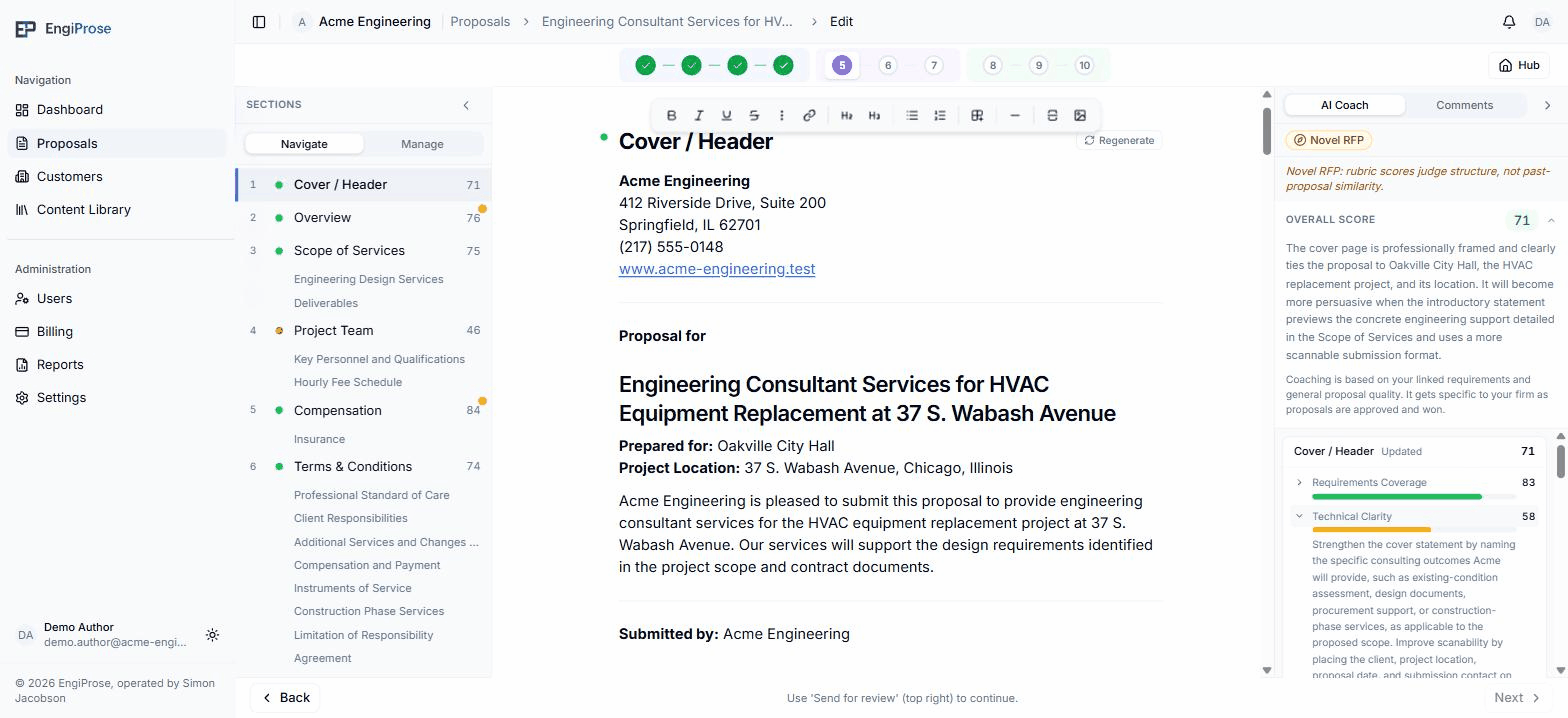
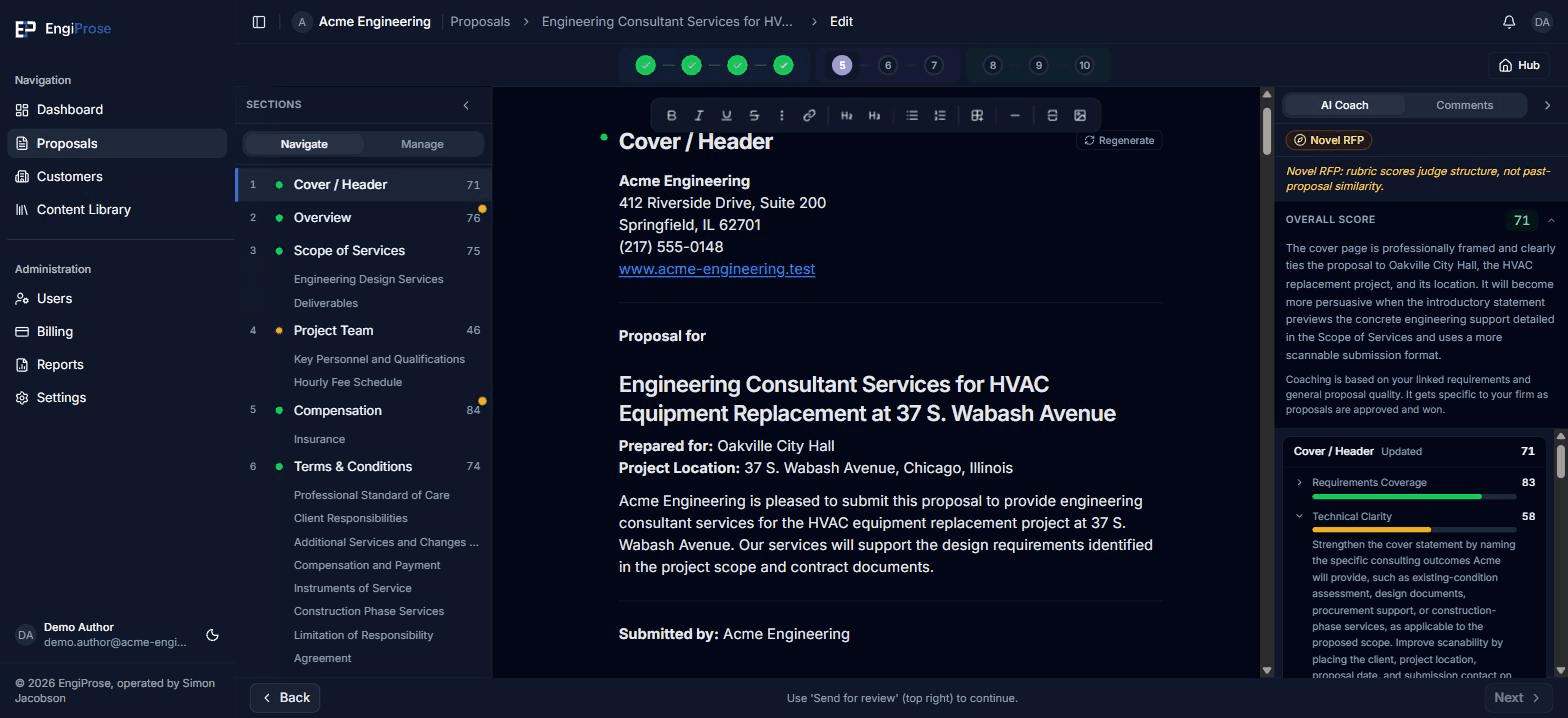
A section's score, expanded to one category's coaching text
Score colors
Scores use the same three colors everywhere in the product: a score of 70 or higher is green, 50 to 69 is amber, and under 50 is red. A section with no score yet shows no color.
The requirements behind a Requirements Coverage score
When a section has requirements linked to it, expanding its Requirements Coverage row shows exactly which requirements drove the score:
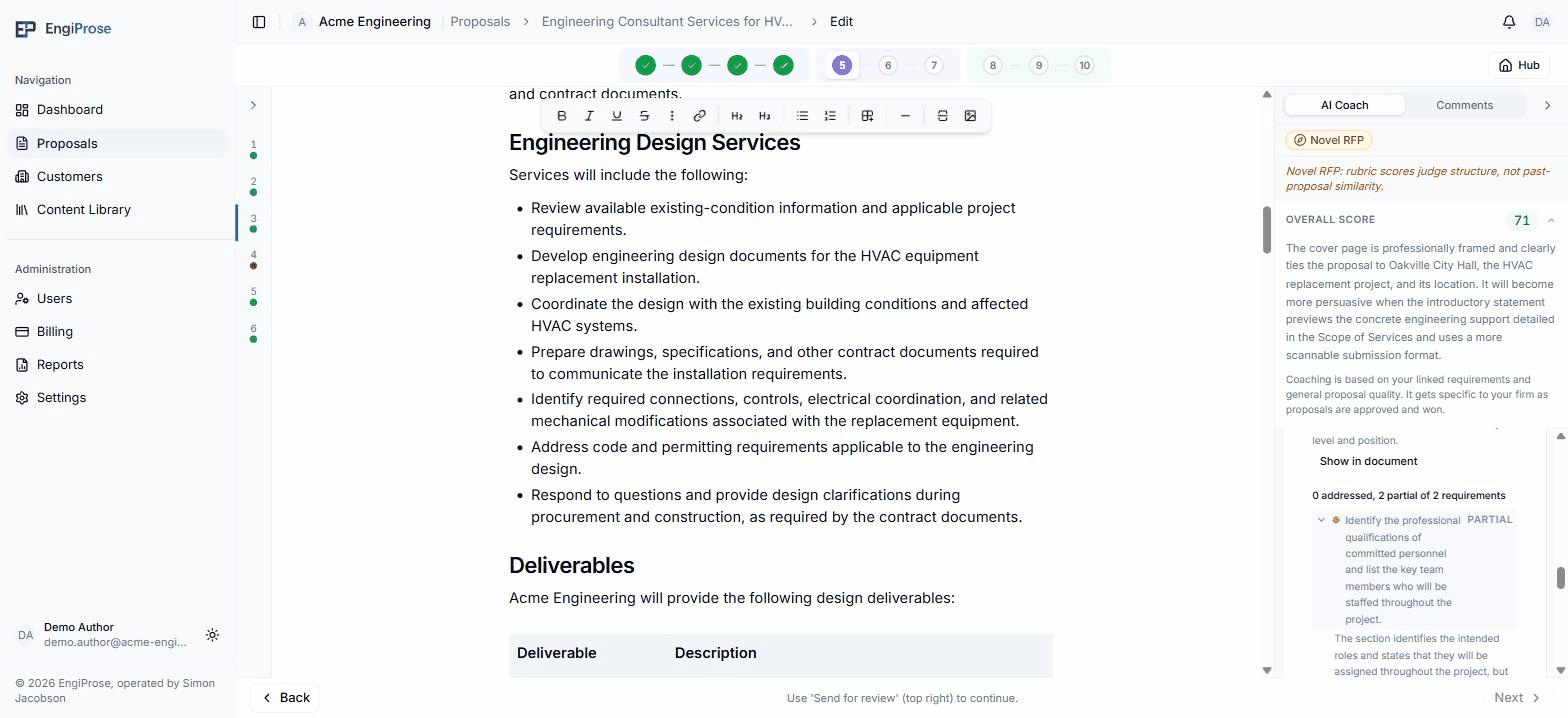
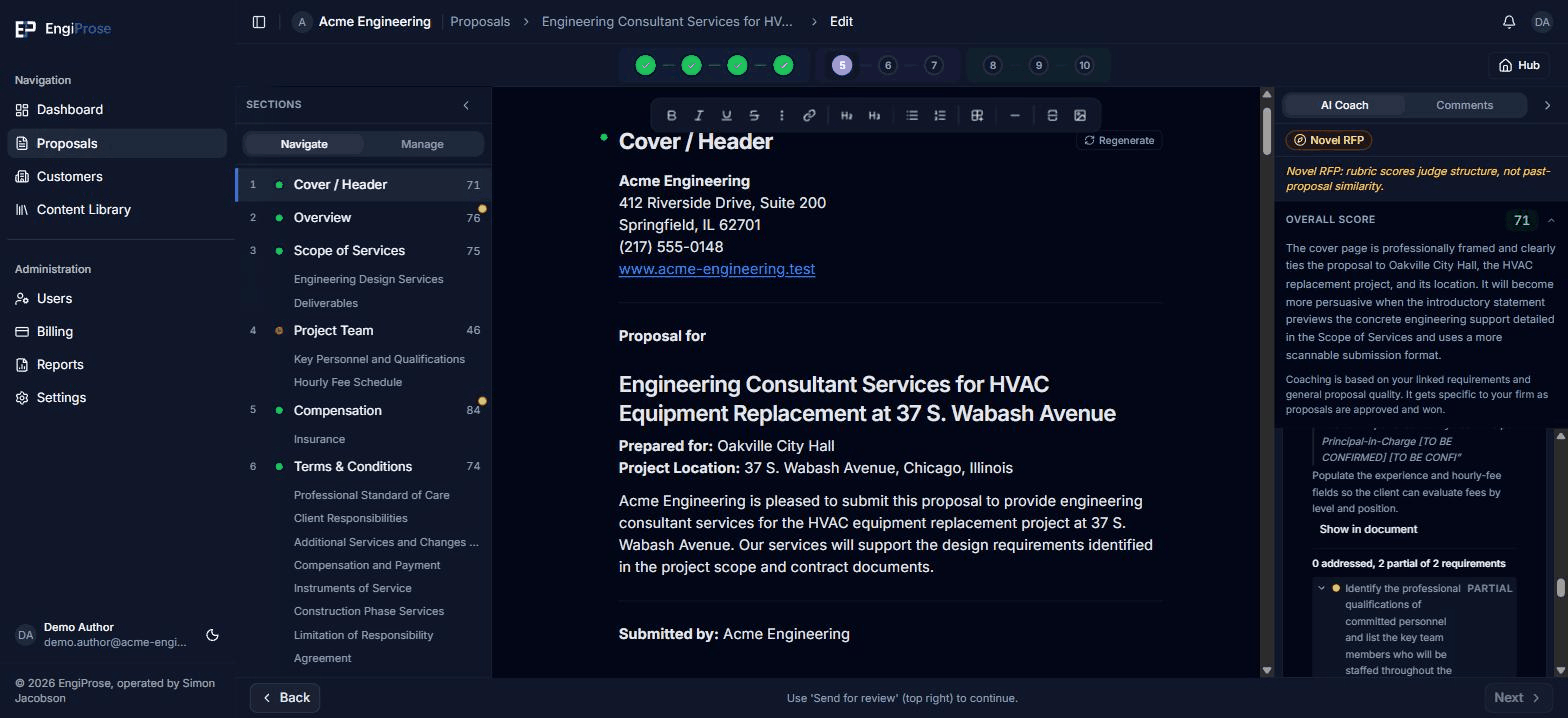
- The summary line, addressed and partial counts against the total
- A requirement's verdict: Addressed, Partial, Not addressed, or Not yet scored
- The AI's rationale for that verdict, expanded below the requirement
The summary line reads "N addressed, N partial of N requirements" when any requirement is partial, or "N of N requirements addressed" when none are. Requirements are listed with what needs work first: partial, then not addressed, then addressed last. Expanding a requirement shows the AI's reasoning, a confidence percentage, the exact passage it read as evidence quoted from your draft, and a Go to section link that jumps the editor to this section's text. This list shows every linked requirement, including the ones already addressed, not only the gaps. This detail only appears when the section has requirements linked to it; a section with none shows nothing here.
The evidence behind any score
Any category can show the specific passages that drove it, each quoted from your draft with the AI's one-line reason it was flagged. Select Show in document on a passage to jump to it and highlight it in the editor; selecting it again, or collapsing the category, clears the highlight. Only one passage is highlighted at a time. A category with no score yet reads "Score this section to see coaching feedback." instead.
When scoring runs
EngiProse creates a baseline score when content is generated and checks scores when the editor opens. After you edit, it scores changed sections when you move to another section or after about three quiet minutes, whichever happens first. A short pause and a routine save do not each trigger a new score.
You can always ask for a current score sooner with the re-score actions below.
When a section's score goes stale
If you edit a section's text after it was last scored, its card shows an "Edited since last score" chip with a Re-score section button beside it, so you always know when a score reflects your latest edit. The score itself stays exactly as it was last computed; only the chip tells you it is out of date. Selecting Re-score section scores it again against your current text. While a section is being scored, its card reads "Scoring..." instead of the chip; if scoring fails, an editor sees Retry. A reviewer or anyone without edit permission never sees the stale chip, since there is nothing they can do about it.
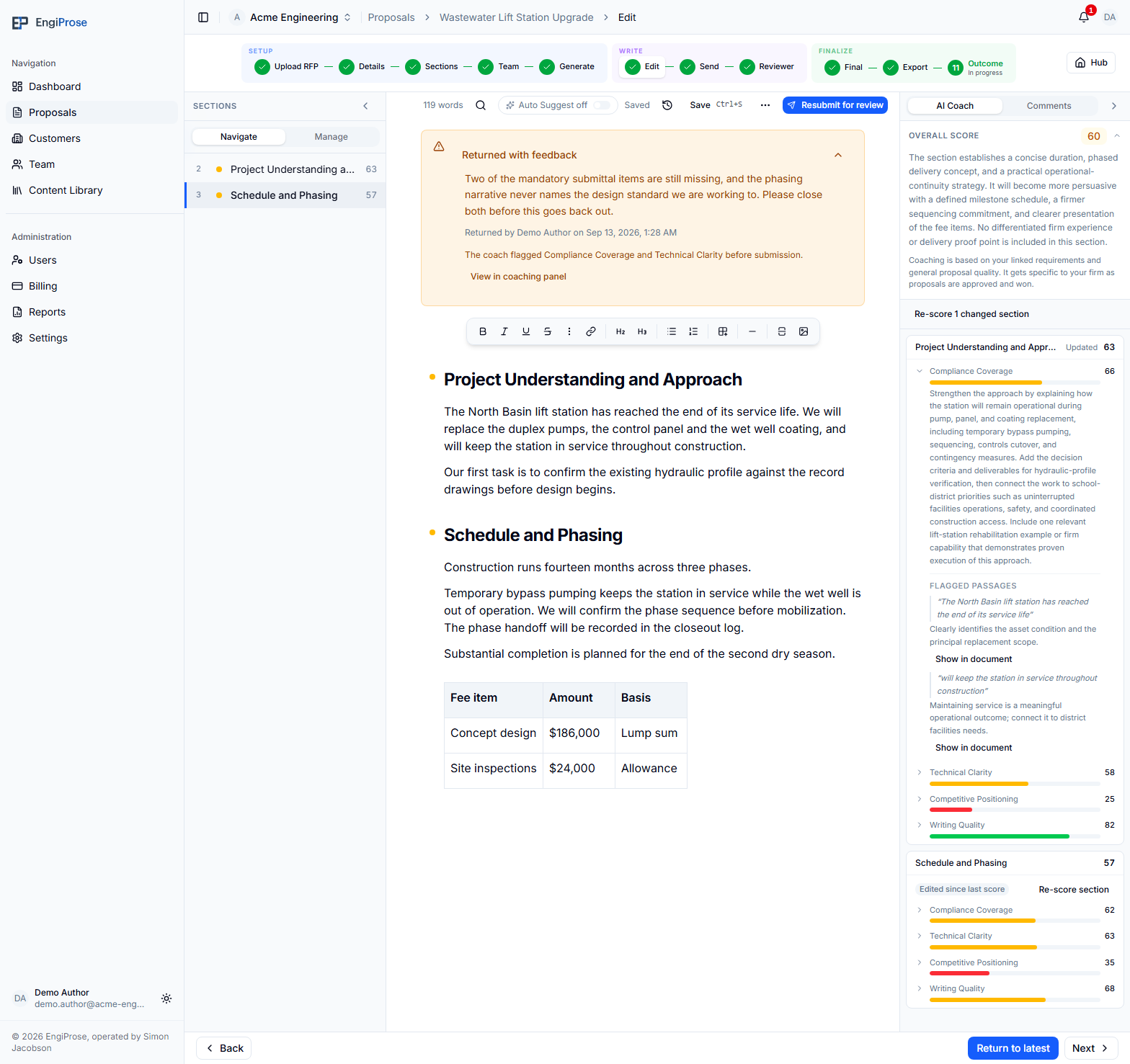
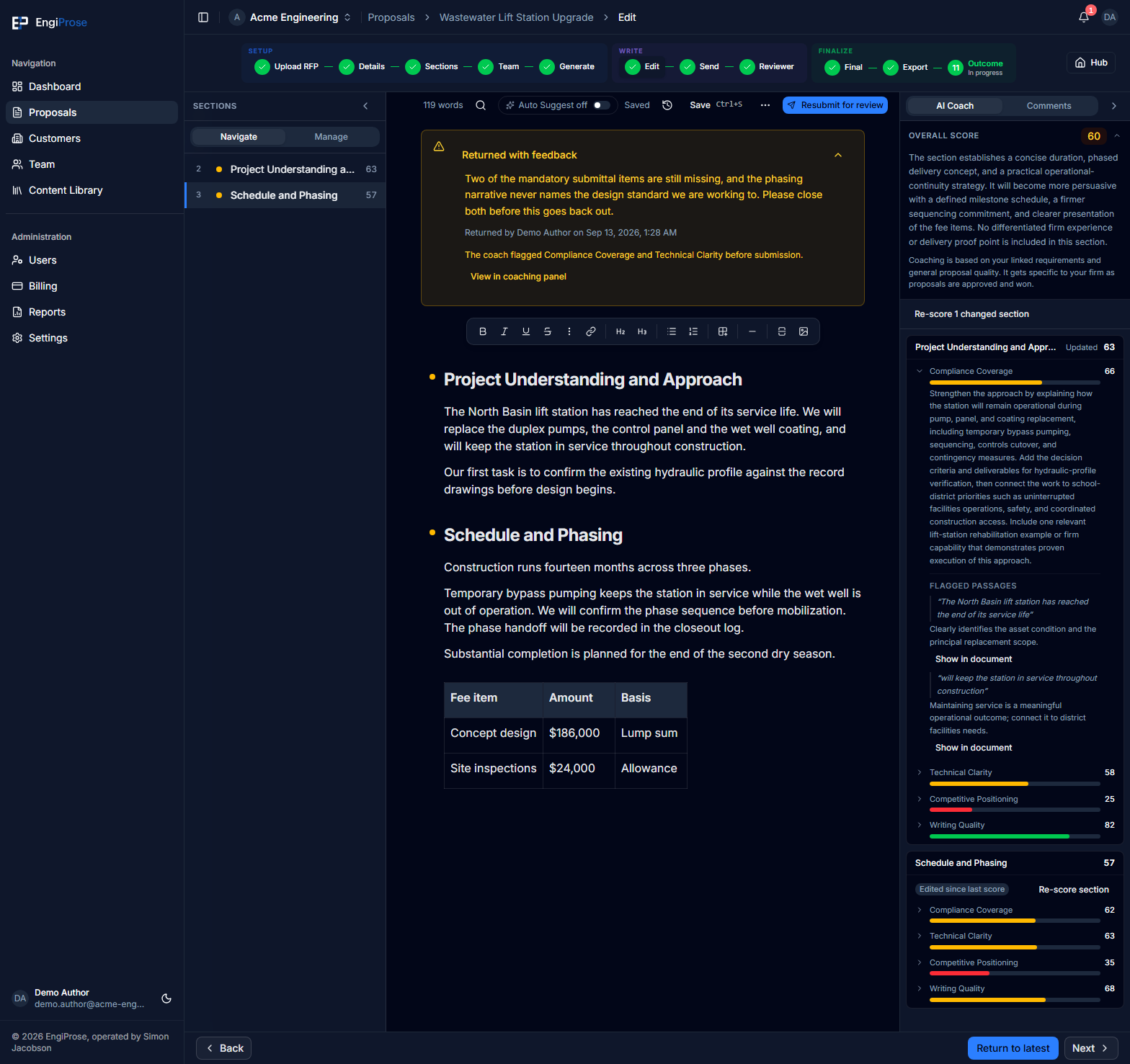
- Compliance Coverage: the renamed rubric category
- Show in document: a quoted passage flagged by the coach
- Edited since last score and Re-score section: the stale card
- Re-score 1 changed section: the bulk action for changed sections
When several sections have changed, the top of the AI Coach panel shows Re-score N changed sections so you can update them together.
On the Send screen, EngiProse automatically starts updating any changed section scores. You can still select Send while that work is running. Send waits briefly for the attempts to finish, but a scoring failure never traps the proposal. The screen names any section that did not finish, offers Try again, and confirms that you can still send.
A section with no score yet is not the same as a stale one. Scoring happens once a section has a draft to score; a brand new, empty section shows no score and no stale chip until it has both content and a first score.
Common questions
Why did my score go down after I edited a section?
Editing a section makes its last score stale rather than lowering it. The number you see is still the last real score; re-score the section to get a current one for your latest text.
Can I change what the four categories are called?
Yes. An Admin or Organization Admin can rename each category's label and description in Coaching Profile. Renaming is display-only. Changing the category weights is a separate action and does affect future scoring.
Why is a section's score lower than I expected on an unfamiliar RFP?
See When the AI has little to work from: a Novel RFP proposal is often scored against less familiar structure, and a lower score there does not mean your writing is weak.